Cricut DesignStudio™ • www.cricut.com 23
Keep Preview as Mat Background
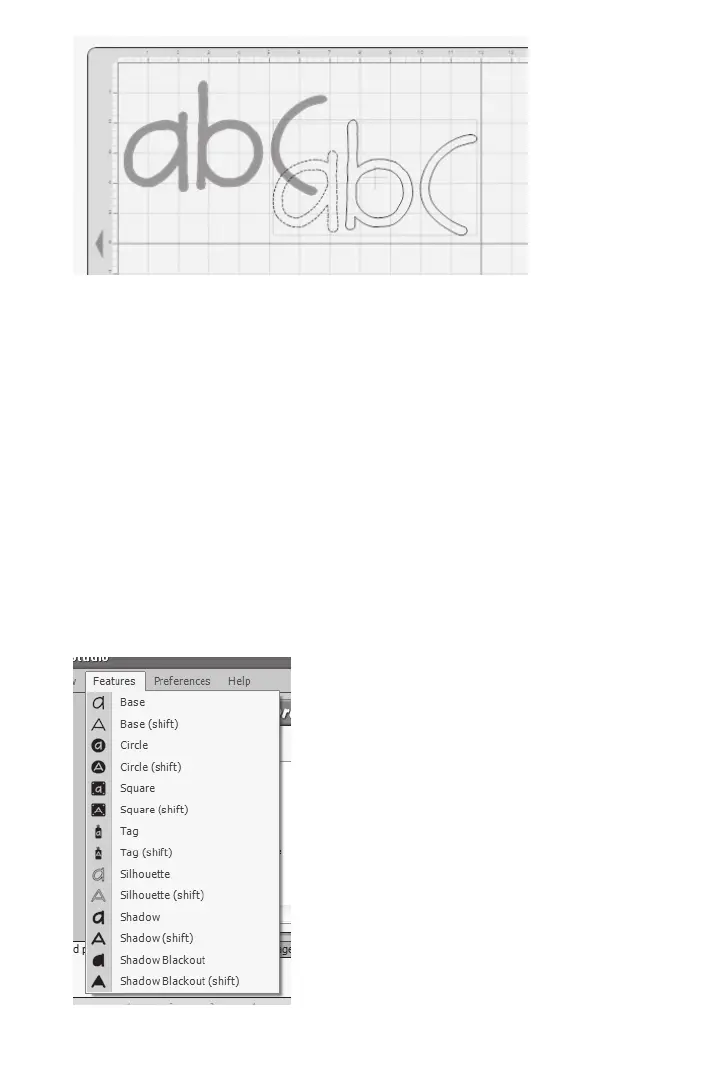
Use Keep Preview as Mat Background to create a watermark, or template, from your
current images to use as a background for the next page of images you arrange. Basi-
cally, the images youarranged on the rst page can become the guide for arranging
images on the next page. This can be helpful when you’re working with image layers and
shadows, and especially helpful when you’re cutting for negative space rather than positive
space (wanting the page that the letters were cut out of rather than the letters themselves).
Show Ruler
Use Show Ruler to bring up the ruler guide on the virtual cutting mat. The ruler guide displays
one-inch increments and quarter-inch marks.
Tip: You can see the quarter-inch markings best in 200% view mode.
Mat Size
Use Mat Size to change the size of the virtual mat into the same size as the real mat you’re cut-
ting on. The three cutting mat sizes are 6" x 12", 12" x 12", and 12" x 24".
Mat View
Use Mat View to change the mat zoom level. This option is identical to the Fit to Page, 100%,
and 200% buttons (see page 16).
Features Menu












 To Next Page