22 Cricut DesignStudio™ • www.cricut.com
Delete Shapes
Use Delete Shapes to delete any selected images. This option is identical to the Delete
Shapes button (see page 15). The shortcut key for Delete Shapes is Delete.
Delete All
Use Delete All to delete every image on the selected page. There is no shortcut key for
Delete All.
Revert All
Use Revert All to return all your images back to their original state. There is no shortcut key
for Revert All.
View Menu
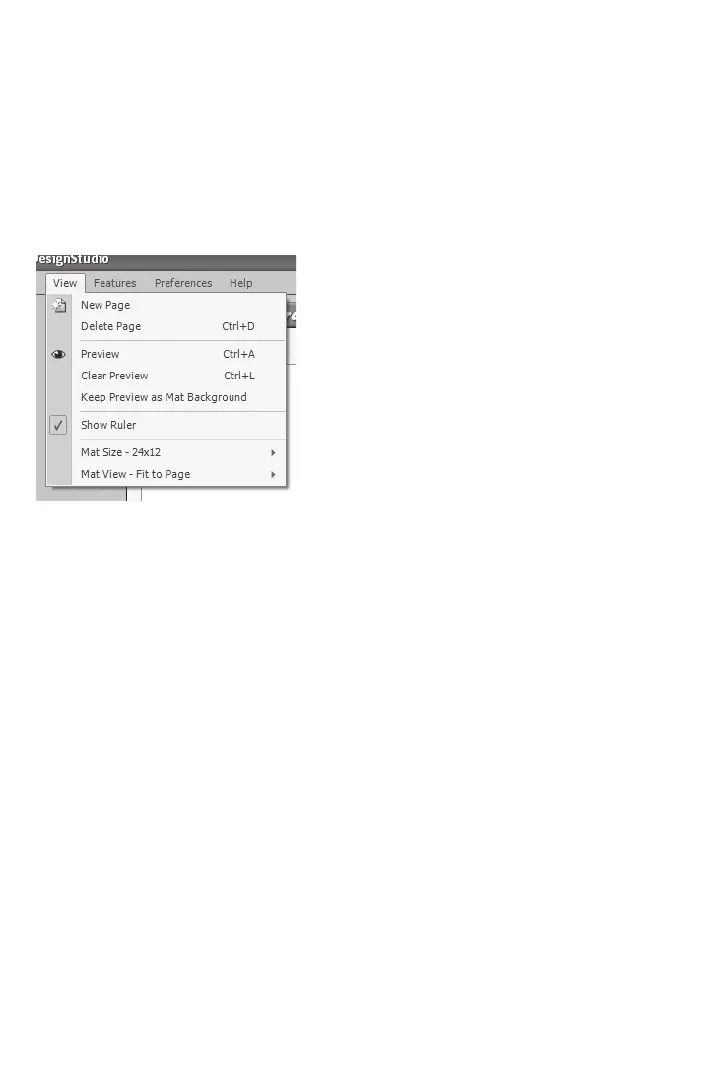
The View menu options are as follows:
New Page
Use New Page to add a new page to your current project. There is no shortcut key for
New Page.
Delete Page
Use Delete Page to remove the currently selected page from your project. The shortcut
key for Delete Page is Ctrl+D.
Preview
Use Preview to see what all the images on the mat will look like when cut. This option is
handy when seeing how well your welding is coming along. It’s also identical to the
Preview button (see page 15). The shortcut key for Preview is Ctrl+A.
Clear Preview
Use Clear Preview to return to working mode. The shortcut key for Clear Preview is Ctrl+L












 To Next Page