SETUP
CONNECT TO NINTENDO SWITCH™
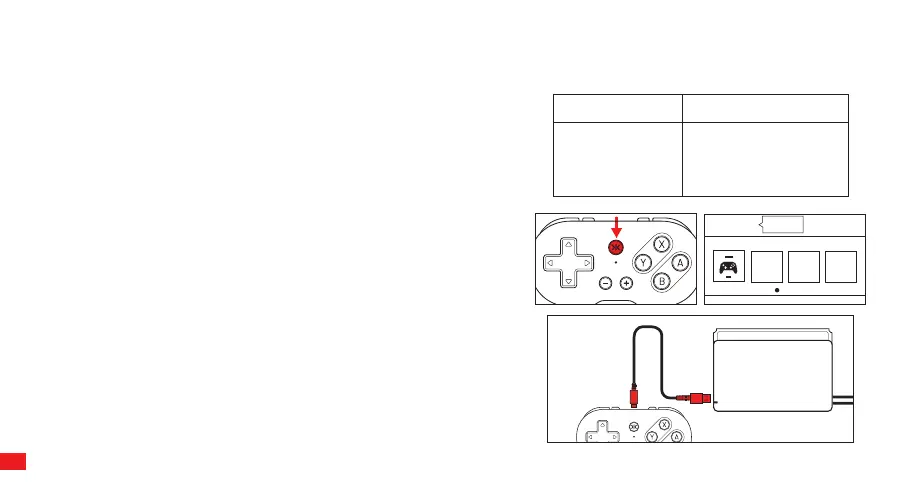
Option 1: Bluetooth® (Pro Controller)
1) In settings, select the “Controllers and Sensors” and then select Change
Grip/Order. 2) Press and Hold the Home (CRKD) Button for 3 seconds to
enter pairing mode. The status LED will blink fast in white. The ATOM will
then automatically connect to the Switch. 3) After successful connection,
you will see the controller highlighted in user 1/2/3/4 on the Switch and
Status LED on the ATOM will either be RED (1st player), BLUE (2nd player),
Yellow (3rd player), Green (4th player).
Option 2: Wired USB
1) Dock the Switch console into its base / stand and then the connect the
controller via the USB cable. The controller will automatically connect to
the Switch and the status LED will keep lit in white. 2) After removing the
controller from the Switch, the controller will revert to utilizing a
Bluetooth® connection automatically.
2
3
4
Press when you are ready
A
CONNECTION STATUS
The ATOM status LED has the following connection statuses:
Search/Reconnection mode, Pairing Mode and Connected.
NOTE: When the status LED is SLOW blinking, ATOM is in search mode. The
ATOM can NOT go into pairing mode while in search mode. ATOM must be
powered OFF before going into pairing mode. Press and hold the HOME
(CRKD) button for 10 seconds to power OFF the ATOM.
03
Status LED
Slow Blinking
Fast Blinking
Solid
Search / Reconnection
Mode
Pairing Mode
Connected
Description


 To Next Page