SETUP
CONNECT TO PC
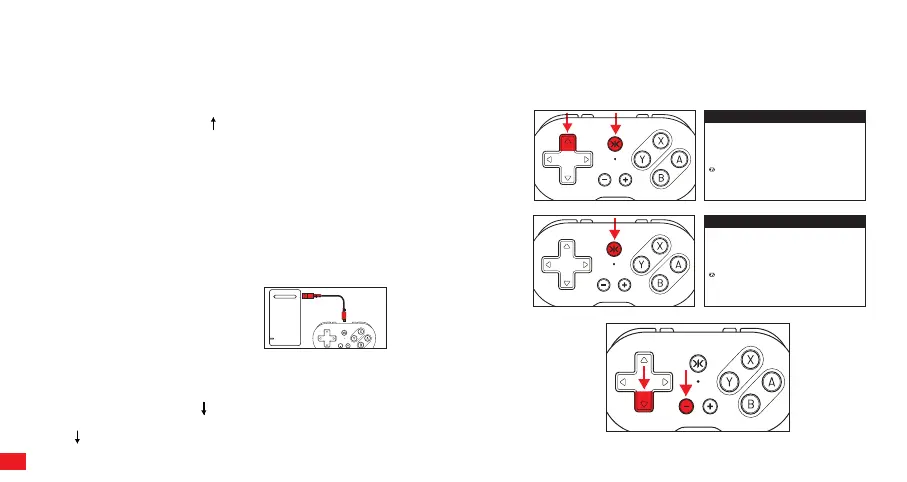
Option 1: Bluetooth® (Xinput Device). RECOMMENDED
1) Turn on the Bluetooth® function on the computer (or with a Bluetooth®
adapter). 2) Press and Hold Dpad + Home (CRKD) Button for 3 seconds
to enter Xinput Device pairing mode. The status LED will blink fast in
orange. 3) Select “Add Bluetooth® device.” Select “Bluetooth®” from the
available drop down. You will see “Xbox Wireless Controller” available in
the options. Select this and wait for Windows to setup the device.
Option 2: Bluetooth® (Pro Controller).
1) Turn on the Bluetooth® function on the computer (or with a Bluetooth®
adapter). 2) Press and Hold the Home (CRKD) Button for 3 seconds to
enter pairing mode.The status LED will blink fast in white. 3) Select “Add
Device.” Select “Bluetooth®” from the available drop down. Select “Pro
Controller” on the available device list and wait for Windows to setup the
device.
Option 3: Wired USB
1) Connect the controller
via USB connection.
Add a d evice
X
Add a device
Make sure your device is turned on and discoverable. Select a device
below to connect.
Xbox Wireless Controller
Input
Add a d evice
X
Add a device
Make sure your device is turned on and discoverable. Select a device
below to connect.
Pro Controller
Input
04
NOTE: When connecting ATOM as an Xinput Device, the button mappings
for X/Y and A/B will be switched. Specifically, Y will function as X, and B
will function as A, and vice versa. To switch the X/Y and A/B layout
mappings, press and hold Dpad + “-” button for 5 seconds. The status
LED will blink and and then turn back to solid. To revert back, press and
hold Dpad + “-” button for 5 seconds.


 To Next Page
 Loading...