05
CONNECT TO iOS / macOS
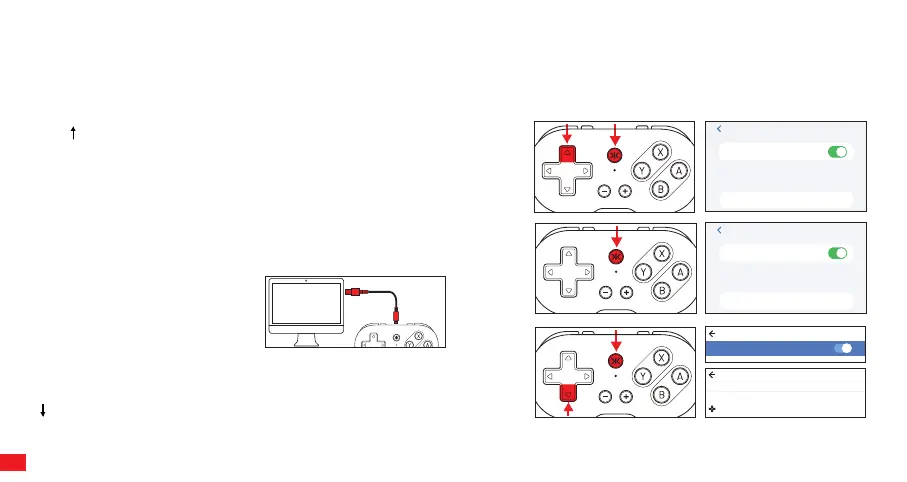
Option 1: Bluetooth® (Xinput Device). RECOMMENDED
1) Turn on the Bluetooth® function on iOS / macOS device. 2) Press and
Hold Dpad + Home (CRKD) Button for 3 seconds to enter Xinput Device
pairing mode. The status LED will blink fast in orange. 3) Select “Xbox
Wireless Controller” on the available device list and ATOM will connect
with the iOS device.
Option 2: Bluetooth® (Pro Controller).
1) Turn on the Bluetooth® function on iOS / macOS device. 2) Press and
Hold the Home (CRKD) Button for 3 seconds to enter pairing mode. The
status LED will blink fast in white. 3) Select “Pro Controller” on the
available device list and ATOM will connect with the iOS device.
Option 3: Wired USB (macOS)
1) Connect the controller
via USB connection.
Bluetooth
Settings
Other Devices
Bluetooth
Xbox Wireless Controller
Bluetooth
Settings
Other Devices
Bluetooth
Pro Controller
Bluetooth
On
Pair new device
Gamepad
Ava ila bl e dev ice s
CONNECT TO ANDROID
Option 1: Bluetooth®
1) Turn on the Bluetooth® function on Android device. 2) Press and Hold
Dpad + Home (CRKD) Button for 3 seconds to enter pairing mode. The
status LED will blink CYAN. 3) Select “Gamepad” on the available
device list and press PAIR. ATOM will pair with the Android device.
SETUP


 To Next Page