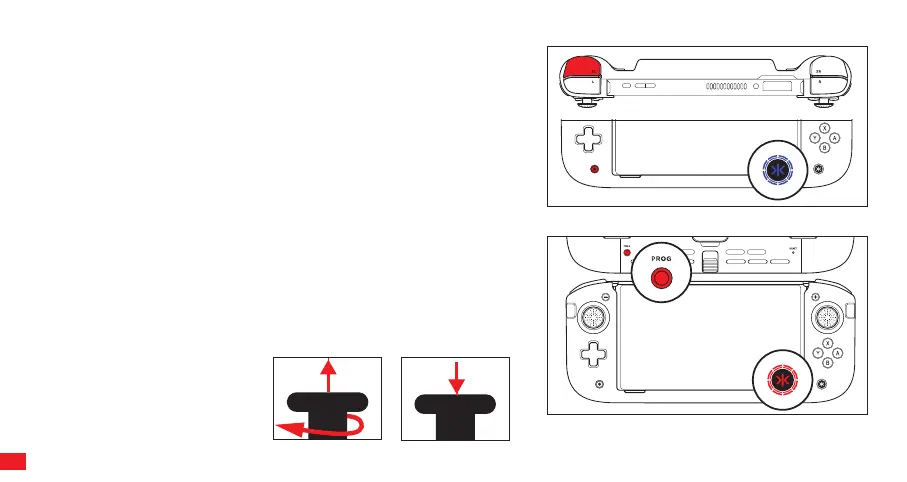
Press and hold ZL and Capture Button for 3 seconds. The Home (CRKD)
button LED will change to BLUE and then revert to WHITE after 6 seconds,
indicating that the stick dead zone has been decreased.
To change back to default, Press and hold ZL and Capture Button for 3
seconds. The Home (CRKD) button LED will blink BLUE and then revert to
WHITE after 6 seconds, indicating that the stick dead zone is back to
default.
NO DEAD ZONE MODE
The Nitro Deck+ can be adjusted to have no stick dead zone.
The Nitro Deck+ Home (CRKD) button features an LED to show the play mode
and other settings. The LED brightness can be adjusted or set to OFF using
the Program button on the back of the Nitro Deck+. Each press of the Program
button decreases the brightness, and the last setting sets the LED to OFF.
NOTE: Adjusting some Nitro Deck+ settings will turn the LED ON.
ADJUSTING LED BRIGHTNESS
STEP 1
Remove each Topper by gently
rotating and pulling upwards.
STEP 2
Replace a Topper by placing onto
the stick and pressing down firmly.
STICK TOPPER REPLACEMENT
13



 To Next Page