RESETTING A SINGLE BUTTON
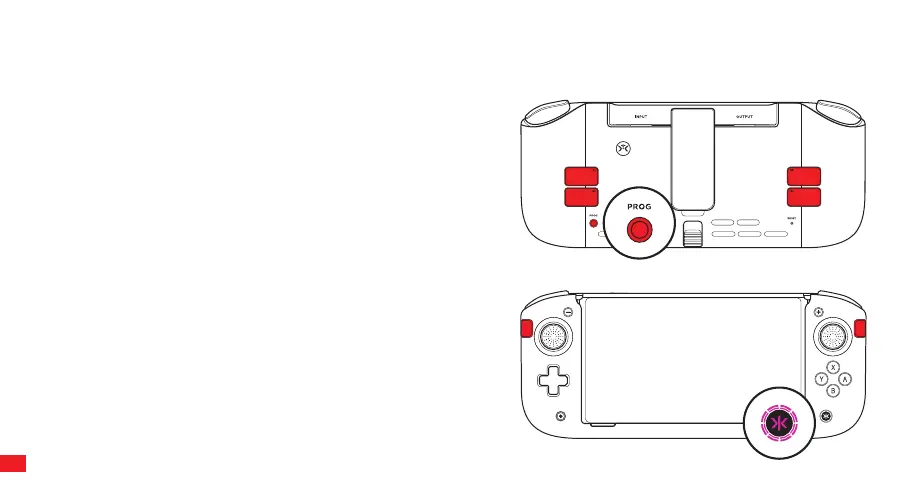
Hold the Program (PROG) button for 3 seconds until the CRKD LED
flashes purple. Press the Back or Sidekick button you want reset. This
will reset the button to its default programming.
RESETTING ALL BUTTONS TO FACTORY SETTINGS
Hold the Program (PROG) button for 5 seconds. CRKD LED will flash
purple and then turn solid purple. Release Program (PROG) button
while LED is solid purple, and it will return to white. This resets all Back
and Sidekick buttons to factory settings.
DISABLING BACK BUTTONS
Hold the Program (PROG) button for 7 seconds. CRKD LED will flash
purple and then turn solid purple then white and the Nitro Deck+ will
vibrate. This clears and disables all programming so the Back and
Sidekick buttons become inactive.
PROGRAMMING / RESETTING / CLEARING BACK & SIDEKICK BUTTONS
Back & Sidekick buttons can be programmed to a single input or a series of inputs. They can also be reset to default or disabled.
PROGRAMMING BACK & SIDEKICK BUTTONS
STEP 1: Press and hold the Program (PROG) button on back of the Nitro
Deck+ for 3 seconds until the Home (CRKD) button starts to flash
purple. Release the Program (PROG) button.
STEP 2: While the Home (CRKD) button is flashing purple, press the
desired inputs you would like to assign to the Back or Sidekick buttons.
STEP 3: When you have finished entering commands, press either S1-S6
to map the chosen commands to the S button. This completes the
mapping process, and the Home (CRKD) button LED will turn solid
purple then back to white to signify the remapping has been successful.
By the default, the Back and Sidekick buttons are mapped as
follows: S1-X, S2-A, S3-Y, S4-B, S5-B (Sidekick) , S6-A (Sidekick)
06


 To Next Page
 Loading...