EasyManua.ls Logo

CyberPower CP685AVR - User Manual

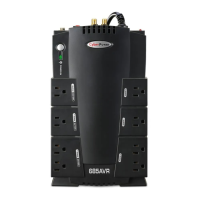
CyberPower CP685AVR
2 pages
Print Icon
To Next Page IconTo Next Page
Loading...
IN OUT
Automatic Voltage Regulators
increase low or decrease high voltage to computer
safe 110/120 volts. The AVR automatically provides
battery back-up power if line voltage drops below 88
volts or exceeds 140 volts.
AVR
INCONSISTENT
UTILITY POWER
CONSISTENT
SAFE POWER
PLUG IN
CP685AVR / BF685
CP800AVR / BF800
User’s Manual
K01-BF80001
(SAVE THESE INSTRUCTIONS)
This manual contains important safety instructions. Please read and follow all instructions carefully during installation
and operation of the unit. Read this manual thoroughly before attempting to unpack, install, or operate your UPS.
CAUTION! To prevent the risk of fire or electric shock, install in a temperature and humidity controlled indoor area free
of conductive contaminants. (Please see specifications for acceptable temperature and humidity range).
CAUTION! To reduce the risk of electric shock, do not remove the cover except to service the battery. No user
serviceable parts inside except for battery.
CAUTION! Hazardous live parts inside can be energized by the battery even when the AC input power is
disconnected.
CAUTION! UPS must be connected to an AC power outlet with fuse or circuit breaker protection. Do not plug into an
outlet that is not grounded. If you need to de-energize this equipment, turn off and unplug the unit.
CAUTION! To avoid electrical shock, turn off the unit and unplug it from the AC power source before servicing the
battery or installing a computer component.
DO NOT USE FOR MEDICAL OR LIFE SUPPORT EQUIPMENT! CyberPower Systems does not sell
products for life support or medical applications.
DO NOT use in any circumstance that would affect operation or safety
of any life support equipment or with any medical applications or patient care.
DO NOT USE WITH OR NEAR AQUARIUMS! To reduce the risk of fire or electric shock, do not use with or near
an aquarium. Condensation from the aquarium can cause the unit to short out.
CAUTION! To reduce the risk of fire, only connect the UPS to a circuit provided with 20 amperes maximum branch
circuit overcurrent protection in accordance with the National Code, ANSI / NFPA 70.
UNPACKING
Inspect the UPS upon receipt. The box should contain the following:
(1) UPS unit; (1) User’s manual; (1) PowerPanel™ Personal Edition software CD; (1) USB device cable; (1) Telephone
cable; (1) Warranty registration card; (1) Coaxial Cable
WHAT IS AVR?
The CP685AVR / BF685 CP800AVR / BF800 provide complete power protection from
utility power that is not always consistent. The CP685AVR / BF685 CP800AVR /
BF800 features 890 Joules of surge protection, and provide long lasting battery
backup with sealed maintenance free lead acid battery for loss of utility power and
voltage sags. The CP685AVR / BF685 CP800AVR / BF800 ensure consistent power
to your computer system and include software that will automatically save your open
files and shutdown your computer system during a utility power loss.
AUTOMATIC VOLTAGE REGULATOR?
The CP685AVR / BF685 CP800AVR / BF800 stabilize utility power voltage levels that can be inconsistent. The incoming
utility power may be damaging to important data files, but with Automatic Voltage Regulation, the computer will only not
experience damaging voltage levels. An Automatic Voltage Regulator automatically increases low or decreases high
voltage to a consistent, computer safe 110v/120v. The unit’s powerful battery will provide
power only if the incoming voltage drops below 90v or increases above 140v.
HARDWARE INSTALLATION GUIDE
1. Your new UPS may be used immediately upon receipt. However, recharging the
batteries for at least 16 hours is recommended to insure that the battery’s maximum charge capacity is achieved. A
loss of charge may occur during shipping and storage. To recharge the batteries, simply leave the unit plugged into an
AC outlet and turn on the power switch.
2. With the UPS unit off and unplugged, connect your computer, monitor, and any externally powered data storage
device (Zip drive, Jazz drive, Tape drive, etc…) into the battery power supplied outlets. Plug your
peripheral equipment (printer, scanner, speakers) into the full-time surge protection outlets. DO NOT
plug a laser printer, paper shredder, copier, space heater, vacuum or other large electrical
device into the UPS. The power demands of these devices will overload and possibly damage the unit.
3. To surge protect a network connection, connect a network cable from the wall jack outlet to the IN jack of the UPS.
Then connect a network cable from the OUT jack on the UPS to the network device.
4. Plug the UPS into a 2 pole, 3 wire grounding receptacle (wall outlet). Make sure the wall branch outlet is protected by
a fuse or circuit breaker and does not service equipment with large electrical demands (e.g. refrigerator, copier, etc…).
The warranty prohibits the use of extension cords, outlet strips, and surge strips.
5. Press the power switch to turn the unit on. The power on indicator light will illuminate and the unit will “beep” once.
6. If an overload is detected, an audible alarm will sound and the unit will emit one long beep. To correct this, turn the
UPS off and unplug at least one piece of equipment from the battery power supplied outlets. Wait 10 seconds. Make
sure the circuit breaker is depressed and then turn the UPS on.
7. To maintain optimal battery charge, leave the UPS plugged into an AC outlet at all times.
8. To store your UPS for an extended period, cover it and store with the battery fully charged. While in storage recharge
the battery every three months to insure battery life.
DESCRIPTION
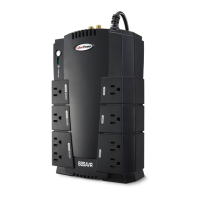
1 Battery and Surge Protected Outlets
The unit has four battery powered/surge protected outlets for connected equipments and
ensures temporary uninterrupted operation of your equipment during a power failure.
2 Full-Time Surge Protection Outlets
The unit has four always on surge suppression outlets.
3 Power Switch
Can be used as a master on/off switch for equipment connected to the battery power
supplied outlets.
4 Power On Indicator
This LED is illuminated when the utility condition is normal and the UPS outlets are providing power, free of surges.
5 Electrical Wiring Fault Indicator
This LED indicator will illuminate to warn the user that a wiring problem exists, such as bad ground, missing ground or reversed
wiring. If this is illuminated, user is advised to disconnect all electrical equipment from the outlet and have an electrician check to
ensure the outlet is properly wired. The unit will not provide surge protection without being plugged into a grounded and properly wired
wall outlet.
6 Communication Protection Ports
Communication protection ports will protect any standard modem, fax, telephone line, broadband network or Ethernet connection.
7 Circuit Breaker
Located on the side of the UPS, the circuit breaker serves to provide overload-- and fault protection.
8 Serial/USB Ports to PC
The ports allow connection and communication from the USB or DB-9 serial port on the computer to the UPS unit. The UPS
communicates its status to the PowerPanel™ Personal Edition software. This interface is also compatible with Power Management
provided by Windows
R
2000 and Windows
R
XP.
IMPORTANT SAFETY WARNINGS
INSTALLING YOUR UPS SYSTEM
BASIC OPERATION
Note: Only one of these two ports can be used to communicate with your computer at one time.
Note: To install PowerPanel™ Personal Edition Software the computer will need Microsoft
R
Internet
Explore 5.0 or higher installed.
Note: If using the Serial Port, users need to download Power Panel
R
software from our website
http://www.cyberpowersystems.com and order the standard serial cable. If you have any questions email
CyberPower technical support for help. tech@cyberpowersystems.com
9 Outlets Designed for AC Adapters
The unit has four outlets spaced to allow AC power adapter blocks to be plugged into the UPS without blocking adjacent outlets.
10 Vertical Use Stand
The unit can be placed on it’s end in a vertical orientation.
Note: We recommend you place the unit next to the wall when standing the unit vertically.
11 Coax/Cable/DSS Surge Protection
The Coax/Cable/DSS surge protection ports will protect any cable modem, CATV converter, or DSS receiver.
REPLACING THE BATTERY
CAUTION! Read and follow the IMPORTANT SAFETY INSTRUCTIONS before servicing the battery. Service the
battery under the supervision of personnel knowledgeable of batteries and their precautions.
CAUTION! Use only the specified type of battery. See your dealer for replacement batteries.
CAUTION! The battery may present a risk of electrical shock. Do not dispose of battery in a fire as it may explode.
Follow all local ordinances regarding proper disposal of batteries. Almost any retailer that sells lead-acid batteries
collects used batteries for recycling, as required by most state laws.
CAUTION! Do not open or mutilate the batteries. Released electrolyte is harmful to skin and eyes and may be toxic.
CAUTION! A battery can present a high risk of short circuit current and electrical shock. Take the following precautions
before replacing the battery:
1. Remove all watches, rings or other metal objects.
2. Only use tools with insulated handles.
3. Do not lay tools or metal parts on top of battery or any terminals.
4. Wear rubber gloves and boots.
5. Determine if the battery is inadvertently grounded. If grounded, remove the source of ground. CONTACT WITH
GROUNDED BATTERY CAN RESULT IN ELECTRICAL SHOCK!
TO REPLACE THE BATTERY
1. Turn off and unplug all connected equipment.
2. Turn the UPS off and unplug it from the AC power source.
3. Turn the UPS upside down.
4. Remove the 1 retaining screw.
5. Slide the battery compartment cover completely off of the unit.
6. Remove the battery from the compartment.
7. Disconnect the battery wires from the battery.
8. Install the replacement battery by connecting the red wire and black wire to the positive (+) and negative (-) terminal
of the battery.
9. Put the battery back into the compartment.
10. Slide back the battery compartment cover and tighten the retaining screw.
11. Recharge the unit for 4 – 8 hours to fully charge the battery.
REMINDER: Batteries are consider HAZARDOUS WASTE and must be disposed of properly. Almost any retailer that
sells lead-acid batteries collects used batteries for recycling, as required by most state laws.
If you are using a serial cable you must use a CyberPower
serial cable. If you need this cable please contact technical
support. tech@cyberpowersystems.com
TROUBLE SHOOTING
TECHNICAL SPECIFICATIONS
Additional troubleshooting information can be found at
www.cyberpowersystems.com/support.htm
Problem Possible Cause Solution
Full-time surge protection outlets
stop providing power to equipment.
Circuit breaker button is projecting
from the side of the unit.
Circuit breaker has tripped
due to an overload.
Turn the UPS off and unplug at least one piece of equipment.
Wait 10 seconds, reset the circuit breaker by depressing the
button, and then turn the UPS on.
The UPS does not perform
expected runtime.
Recharge the battery by leaving the UPS plugged in.
Contact CyberPower Systems about replacement batteries at
tech@cyberpowersystems.com
Battery is slightly worn out.
Battery not fully charged.
The UPS will not turn on.
The on/off switch is designed
to prevent damage by rapidly
turning it off and on.
Turn the UPS off. Wait 10 seconds and then turn the UPS on.
The unit is not connected to
an AC outlet.
The unit must be connected to a 110/120v 60Hz outlet.
The battery is worn out.
Contact CyberPower Systems about replacement batteries at
tech@cyberpowersystems.com
Mechanical problem.
Contact CyberPower Systems at
tech@cyberpowersystems.com
PowerPanel™ Personal Edition
is inactive (all icons are gray).
The USB / serial cable is not
connected.
Connect the USB / serial cable to the UPS unit and an open
USB / serial port on the back of the computer. You must use
the cable that came with the unit.
The USB / serial cable is
connected to the wrong port.
Check the back of the computer for an additional USB / serial
port. Move the cable to this port.
The unit is not providing
battery power.
Shutdown your computer and turn the UPS off. Wait 10
seconds and turn the UPS back on. This should reset the unit.
The serial cable is not the
cable that was included with
the UPS unit.
Model CP685AVR / BF685 CP800AVR / BF800
Capacity 685VA / 390W 800VA / 450W
Input Voltage on Utility 90V to 140V
Input Frequency 57 Hz to 63 Hz
On-Battery Output Voltage 120Vac ± 5%
Transfer Time
4ms Typical
Max. Load for UPS Outlets (4 Outlets)
685VA / 390W
800VA / 450W
Max. Load for Full-Time
Surge Protection outlets (8 Outlets)
12 Amps
On-Battery Output Wave Form Simulated Sine Wave Form
Operating Temperature + 32°F to 95°F / 0°C to 35°C
Operating Relative Humidity 0 to 95% NON-CONDENSING
Size (L x W x H) mc7.8 x mc9.61 x mc82 / 2/1 3 x 8/5 6 x 11
Net Weight 13.7 lbs 14.3 lbs
Typical Battery Recharge Time
8 hours typical from total discharge
Typical Battery Life 3 to 6 years, depending on number of discharge/recharge cycles
Battery Type Sealed Maintenance Free Lead Acid Battery
Safety Approvals UL1778(UPS), cUL107., FCC/DoC Class B
6
10
1
2
4
6
7
11
9
8
6
7
11
9
8
1
2
3
5
99
88
TROUBLE SHOOTING
.
6
Question and Answer IconNeed help?

Do you have a question about the CyberPower CP685AVR and is the answer not in the manual?

Summary

Important Safety Warnings

General Safety Precautions

Essential safety instructions for UPS installation and operation, emphasizing fire and shock risk reduction.

Medical and Life Support Equipment

Warning against using CyberPower UPS with life support or medical applications.

Aquarium Use

Caution against using the UPS with or near aquariums due to condensation risks.

UPS System Installation and Operation

What is AVR?

Explanation of Automatic Voltage Regulator (AVR) feature for stabilizing utility power.

Hardware Installation Guide

Step-by-step guide for connecting equipment, surge protection, and powering on the UPS.

Basic Operation and Indicators

Battery Replacement Procedure

Battery Safety Precautions

Critical safety measures to follow before and during battery servicing.

To Replace the Battery

Detailed steps for safely removing and installing a replacement UPS battery.

Troubleshooting Common Issues

Technical Specifications

Connected Equipment Guarantee

Limited Connected Equipment Guarantee

Terms and conditions of the guarantee for connected equipment.

Limitation of Liability

Exclusions and limitations of CyberPower's liability under the guarantee.

Not For Medical Or Life Support Equipment Use

Overview

The CyberPower CP685AVR / BF685 and CP800AVR / BF800 are uninterruptible power supply (UPS) systems designed to provide comprehensive power protection for electronic devices. These units safeguard against inconsistent utility power, offering surge protection and battery backup to ensure continuous operation during power outages and voltage fluctuations.

Function Description

The primary function of these UPS units is to deliver stable and clean power to connected equipment. They incorporate Automatic Voltage Regulation (AVR) to automatically adjust incoming utility voltage to a consistent, computer-safe 110V/120V level. This protects sensitive electronics from damaging voltage sags (brownouts) and surges. In the event of a complete utility power loss, the UPS seamlessly switches to battery backup, providing temporary power to allow users to save open files and safely shut down their computer systems. The units also feature robust surge protection, rated at 890 Joules, to shield connected devices from power spikes and electrical noise.

Usage Features

The UPS units are designed for straightforward installation and operation. Upon receipt, it is recommended to recharge the internal batteries for at least 16 hours to ensure maximum charge capacity, although the unit can be used immediately.

For setup, users connect their computer, monitor, and any externally powered data storage devices (such as Zip drives, Jazz drives, or tape drives) to the battery power-supplied outlets. Peripheral equipment like printers, scanners, and speakers should be plugged into the full-time surge protection outlets. It is crucial to avoid plugging high-demand electrical devices such as laser printers, paper shredders, copiers, space heaters, or vacuums into the UPS, as this can overload and potentially damage the unit.

Network connections can also be protected by connecting a network cable from the wall jack to the UPS's "IN" jack, and then another network cable from the UPS's "OUT" jack to the network device. The UPS itself plugs into a standard 2-pole, 3-wire grounded wall outlet. Users must ensure the wall outlet is protected by a fuse or circuit breaker and does not serve other high-demand equipment. The use of extension cords, outlet strips, or surge strips with the UPS is prohibited by the warranty.

Once connected, the unit is turned on by pressing the power switch, which illuminates the power-on indicator light and triggers a single beep. If an overload is detected, an audible alarm will sound with a long beep. To rectify this, the UPS should be turned off, and at least one piece of equipment should be unplugged from the battery power-supplied outlets. After waiting 10 seconds and ensuring the circuit breaker is depressed, the UPS can be turned back on.

The units include four battery-powered/surge-protected outlets, ensuring uninterrupted operation during power failures, and four full-time surge suppression outlets for continuous protection. A "Power On Indicator" LED illuminates when the utility condition is normal and the UPS is providing surge-free power. An "Electrical Wiring Fault Indicator" LED warns users of wiring problems, such as bad ground, missing ground, or reversed wiring, advising them to disconnect all equipment and have an electrician inspect the outlet.

Communication protection ports are integrated to safeguard standard modem, fax, telephone lines, broadband networks, or Ethernet connections. A circuit breaker, located on the side of the UPS, provides overload and fault protection.

For computer communication, the UPS features USB and DB-9 serial ports, allowing connection to a PC. These ports enable the UPS to communicate its status to the included PowerPanel™ Personal Edition software, which automatically saves open files and shuts down the computer during a power loss. The software is compatible with Windows® 2000 and Windows® XP.

The units also offer a vertical use stand, allowing them to be placed on their end, preferably next to a wall. Four outlets are spaced to accommodate AC power adapter blocks without blocking adjacent outlets. Coax/Cable/DSS surge protection ports are included to protect cable modems, CATV converters, or DSS receivers.

Maintenance Features

To maintain optimal battery charge, the UPS should remain plugged into an AC outlet at all times. For extended storage, the unit should be covered and stored with a fully charged battery, with recharging recommended every three months to ensure battery life.

Battery replacement is a key maintenance feature. Users are advised to follow strict safety precautions, including removing metal objects, using insulated tools, avoiding contact with battery terminals, and wearing rubber gloves. The replacement process involves turning off and unplugging all connected equipment and the UPS itself, then turning the UPS upside down to access and remove the battery compartment cover. After disconnecting the old battery wires, the new battery is installed by connecting the red wire to the positive terminal and the black wire to the negative terminal. The battery compartment cover is then reattached, and the unit is recharged for 4-8 hours. Old batteries are considered hazardous waste and must be disposed of properly, with most retailers collecting used lead-acid batteries for recycling.

Troubleshooting guidance is provided for common issues. If full-time surge protection outlets stop providing power due to a tripped circuit breaker, users should turn off the UPS, unplug equipment, wait 10 seconds, reset the breaker, and turn the UPS back on. If the UPS does not perform as expected runtime, the battery may not be fully charged (requiring recharging) or may be worn out (requiring replacement). If the UPS does not turn on, it may be due to the on/off switch design (requiring a 10-second wait before turning back on), the unit not being connected to an AC outlet, a worn-out battery, or a mechanical problem. If the PowerPanel™ Personal Edition software is inactive, users should check the USB/serial cable connection, ensuring it is connected to the correct port on both the UPS and the computer, and that the correct CyberPower cable is used. Additional troubleshooting information is available online.

CyberPower CP685AVR Specifications

General IconGeneral
Output power390 W
UPS topologyLine-Interactive
Audible alarm(s)Yes
Surge energy rating890 J
Output power capacity0.685 kVA
Dimensions (WxDxH)279.4 x 89 x 165 mm
Operating temperature (T-T)32 - 95 °F
Dimensions (W x D x H) (imperial)11 x 3.5 x 6.5 \
Battery technologySealed Lead Acid (VRLA)
Battery recharge time8 h
Typical backup time at full load2 min
Typical backup time at half load10 min
Form factorCompact
CertificationUL1778, cUL, FCC DOC Class B
Serial ports quantity1
USB 2.0 ports quantityUSB 2.0 ports have a data transmission speed of 480 Mbps, and are backwards compatible with USB 1.1 ports. You can connect all kinds of peripheral devices to them.
Operating relative humidity (H-H)0 - 95 %

Related product manuals