
 Need help?
Do you have a question about the CyberPower CP850PFCLCD and is the answer not in the manual?
Details the function of each UPS component, including buttons, indicators, and ports.
Step-by-step instructions for unpacking, connecting, and performing the initial setup of the UPS.
Explains the various icons and messages displayed on the UPS LCD screen for status monitoring.
Outlines FCC and Canadian compliance information relevant to the operation of the UPS device.
Addresses common UPS issues and provides detailed explanations for LCD indicators and error codes.
Covers the limited warranty, connected equipment guarantee, and detailed technical specifications of the UPS.
Presents the UPS functional block diagram and highlights the GreenPower energy-saving technology.
Provides resources and contact details for obtaining further product information and customer support.
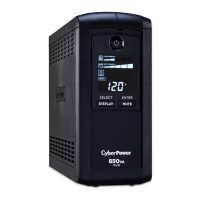
This document describes a CyberPower Uninterruptible Power Supply (UPS) system, specifically models CP850PFCLCD and CP1000PFCLCD, designed to provide backup power and surge protection for electronic devices.
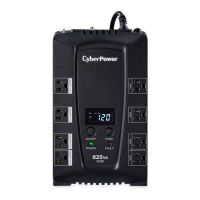
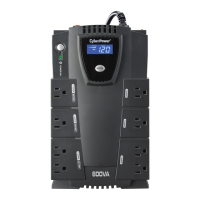
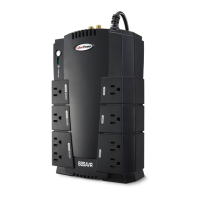
The CyberPower UPS acts as a safeguard for your electronic equipment, providing battery backup power during outages and protecting against power surges and spikes. It features an Automatic Voltage Regulation (AVR) function that stabilizes incoming AC power, ensuring a consistent and clean power supply to connected devices without relying on battery power unless necessary. This helps to extend battery life and maintain optimal performance of the UPS. The system is equipped with multiple outlets, including both battery backup/surge protected outlets and full-time surge protected outlets, allowing users to connect various devices such as computers, monitors, and peripherals.
The UPS incorporates a GreenPower UPS™ Technology, which emphasizes energy efficiency. This technology utilizes a high-efficiency charger that significantly improves charging efficiency and conserves energy, making it one of the most energy-efficient UPS systems in its class. This design also contributes to a reduction in heat generation, further enhancing the longevity and reliability of the unit. The device is manufactured in accordance with the Restriction on Hazardous Substances (RoHS) directive, highlighting its environmentally friendly design.
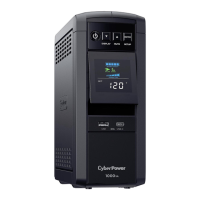
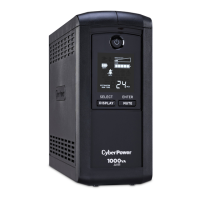
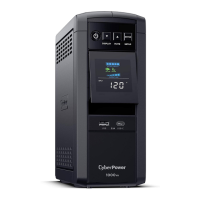
A key feature of this UPS is its multi-function LCD display, which provides real-time information about the UPS status and power conditions. This display allows users to monitor various parameters such as input voltage, output voltage, battery capacity, estimated runtime, and current load. The LCD panel also indicates the operational mode of the UPS, whether it's in AC line mode, AVR mode, or battery backup mode. This comprehensive feedback enables users to quickly assess the power situation and take appropriate action if needed.
The UPS also includes a Data Line Protection feature, which safeguards communication lines such as telephone, network, and coaxial cables from surges and spikes. This is crucial for protecting modems, routers, and other network devices that are susceptible to damage through these connections. The unit is designed with a circuit breaker that automatically trips in case of an overload, preventing damage to the UPS and connected equipment.
To use the CyberPower UPS, first ensure it is properly installed and connected to a grounded AC outlet. The UPS should be placed in a location with adequate ventilation and away from excessive heat or moisture. Before connecting any devices, it is recommended to fully charge the UPS battery for at least 8 hours to ensure maximum runtime capability.
Connecting devices to the UPS is straightforward. Devices that require battery backup during power outages, such as computers and monitors, should be plugged into the "Battery Backup & Surge Protected Outlets." Other peripherals that only need surge protection, like printers or scanners, can be connected to the "Full-Time Surge Protected Outlets." It is important not to overload the UPS by exceeding its maximum VA capacity, as this can trigger the circuit breaker or reduce the effectiveness of the battery backup.
The multi-function LCD display is central to managing the UPS. Users can navigate through different display modes using the "Display" button to view various power parameters. The "Mute" button allows users to silence audible alarms, which can be useful in environments where continuous beeping is undesirable, though critical alarms will still sound during significant power events. The "Power" button is used to turn the UPS on and off. A brief press turns the unit on, while a longer press (approximately 3 seconds) turns it off.
The UPS is compatible with CyberPower's PowerPanel® Business software, which can be installed on a connected computer. This software provides advanced management capabilities, including remote monitoring, scheduled shutdown/startup, and customizable alarm settings. To utilize the software, the UPS must be connected to the computer via the provided USB or serial cable. The software allows users to configure sensitivity settings, which determine how often the UPS switches to battery mode based on input power fluctuations. A "Low Sensitivity" setting is suitable for environments with unstable power, while "High Sensitivity" is for sensitive equipment requiring very clean power.
The UPS also features USB charging ports, allowing users to charge mobile devices directly from the unit. These ports are protected by an over-current protection design, which automatically stops providing power if the total current of connected devices exceeds a safe limit.
Regular maintenance is essential to ensure the longevity and optimal performance of the CyberPower UPS. One of the most critical maintenance tasks is battery management. The UPS battery has a typical lifespan of 3 to 6 years, depending on the number of discharge/recharge cycles. It is recommended to periodically test the battery to ensure it can provide adequate runtime. This can often be done through the PowerPanel® Business software or by initiating a self-test function on the UPS itself.
When the battery reaches the end of its useful life, it will need to be replaced. The UPS is designed with a user-replaceable battery, making the replacement process relatively simple. Users should refer to the manual for specific instructions on how to safely replace the battery. It is crucial to use only recommended replacement batteries to ensure compatibility and maintain the UPS's performance and safety certifications.
The circuit breaker, located on the back of the unit, is a maintenance feature that protects against overloads. If the circuit breaker trips (projects from the back of the unit), it indicates that the UPS has been overloaded. To reset it, users must first turn off the UPS, unplug at least one piece of equipment, wait 10 seconds, and then depress the button to reset the breaker before turning the UPS back on. This helps prevent damage to the UPS and connected equipment.
Keeping the UPS clean and free from dust is also important for proper ventilation and to prevent overheating. Periodically wipe down the exterior of the unit with a soft, dry cloth. Ensure that the ventilation openings are not obstructed.
In case of troubleshooting, the LCD display and audible alarms provide valuable diagnostic information. For instance, if the UPS does not perform expected runtime, it could indicate that the battery is not fully charged or is worn out. If the UPS fails to turn on, checking the AC outlet connection, battery condition, and the on/off switch mechanism are initial steps. For issues with the PowerPanel® Business software or USB power ports, verifying cable connections and checking for over-current conditions are recommended. Additional troubleshooting information and support are available on the CyberPower Systems website.
 General
| Output power | 510 W |
|---|---|
| UPS topology | Line-Interactive |
| Input frequency | 50/60 Hz |
| Audible alarm(s) | Yes |
| Surge energy rating | 1030 J |
| Output power capacity | 0.85 kVA |
| Input operation voltage (max) | 142 V |
| Input operation voltage (min) | 78 V |
| Output operation voltage (min) | 120 V |
| AC outlet types | NEMA 5–15R |
| AC outlets quantity | 10 AC outlet(s) |
| Serial ports quantity | 1 |
| Form factor | Tower |
| Cable length | 1.52 m |
| Display type | LCD |
| Certification | UL1778, cUL 107.3, FCC DOC Class B |
| Product color | Black |
| Hot-swap battery | No |
| Battery technology | Sealed Lead Acid (VRLA) |
| Battery recharge time | 8 h |
| Typical backup time at full load | 2 min |
| Typical backup time at half load | 10 min |
| Battery type | 12V/8.5AH |
| Weight (imperial) | 14.9 lbs |
| Dimensions (W x D x H) (imperial) | 3.9 x 10.4 x 9.1 \ |
| Operating temperature (T-T) | 0 - 40 °C |
| Operating relative humidity (H-H) | 0 - 90 % |
| Sustainability certificates | RoHS |





 To Next Page
