EasyManua.ls Logo

CyberPower SE450G1 - User Manual

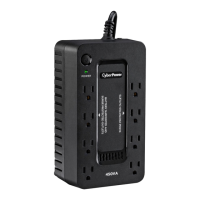
CyberPower SE450G1
2 pages
Print Icon
To Next Page IconTo Next Page
Loading...
PLUG IN
1
1
1
2
2
2
4
4
5
5
5
6
6
8 8
88
7
7
3
3
43
SE450G1 / SX650U / SX950U
User’s Manual
K01-0000691-01
Thank you for purchasing a CyberPower product. Please take a few minutes to register your product at:
www.cyberpower.com/registration. Registration certifies your product's warranty, confirms your ownership in the event
of a product loss or theft and entitles you to free technical support. Register your product now to receive the benefits of
CyberPower ownership.
(SAVE THESE INSTRUCTIONS)
This manual contains important safety instructions. Please read and follow all instructions carefully during installation and
operation of the unit. Read this manual thoroughly before attempting to unpack, install, or operate your UPS.
CAUTION! To prevent the risk of fire or electric shock, install in a temperature and humidity controlled indoor area free
of conductive contaminants. (Please see specifications for acceptable temperature and humidity range).
CAUTION! To reduce the risk of electric shock, do not remove the cover. There are no user serviceable parts inside.
CAUTION! Hazardous live parts inside can be energized by the battery even when the AC input power is disconnected.
CAUTION! The UPS must be connected to an AC power outlet with fuse or circuit breaker protection. Do not plug into
an outlet that is not grounded. If you need to de-energize this equipment, turn off and unplug the unit.
CAUTION! To avoid electric shock, turn off the unit and unplug it from the AC power source before installing a computer
component.
CAUTION! Not for use in a computer room as defined in the Standard for the Protection of Electronic Computer/Data
Processing Equipment, ANSI/NFPA 75.
CAUTION! To reduce the risk of fire, connect only to a circuit provided with 20 amperes maximum branch circuit over
current protection in accordance with the National Electric Code, ANSI/NFPA 70.
DO NOT USE FOR MEDICAL OR LIFE SUPPORT EQUIPMENT! CyberPower Systems does not sell products for life
support or medical applications. DO NOT use in any circumstance that would affect operation and safety of life support
equipment, any medical applications or patient care.
DO NOT USE WITH OR NEAR AQUARIUMS! To reduce the risk of fire or electric shock, do not use with or near an
aquarium. Condensation from the aquarium can cause the unit to short out.
DO NOT USE THE UPS ON ANY TRANSPORTATION! To reduce the risk of fire or electric shock, do not use the unit
on any transportation such as airplanes or ships. The effect of shock or vibration caused during transit and the damp
environment can cause the unit to short out.
INTRODUCTION
Thank you for selecting a CyberPower Systems Uninterruptable Power Supply (UPS). This UPS meets the Energy
Efficiency Certification of the California Energy Commission (CEC). CyberPower Systems is dedicated to producing
energy efficient products to maximize our contribution to the environment.
UNPACKING
Inspect the UPS upon receipt. The box should contain the following:
(a) UPS unit (b) User’s manual (c) USB device cable (except for SE450G1)
*PowerPanel® Personal Edition software is available on our website. Please visit www.cyberpower.com and go
to the Software Section for free download.
HOW TO DETERMINE THE POWER REQUIREMENTS OF YOUR EQUIPMENT
1. Ensure that the equipment plugged into the UPS does not exceed the UPS unit’s rated capacity. If the rated
capacities of the unit are exceeded, an overload condition may occur and cause the UPS unit to shut down or the
circuit breaker to trip.
2. There are many factors that can affect the amount of power that your electronic equipment will require. For
optimal system performance keep the load below 80% of the unit’s rated capacity.
HARDWARE INSTALLATION GUIDE
1. Your new UPS may be used immediately upon receipt. However, after receiving
a new UPS, to ensure the battery’s maximum charge capacity, it is
recommended that you charge the battery for at least 8 hours. Your UPS is
equipped with an auto-charge feature. When the UPS is plugged into an AC outlet,
the battery will automatically charge whether the UPS is turned on or turned off.
2. With the UPS unit turned off and unplugged, connect your computer, monitor, and any other peripherals requiring
battery backup into the battery power supplied outlets. Plug the other peripheral equipment (e.g. printer, scanner,
speakers, etc.) into the full-time surge protection outlets. DO NOT plug a laser printer, paper shredder, copier,
space heater, vacuum cleaner, sump pump, or other large electrical device into the “Battery and Surge
Protected Outlets”. The power demands of these devices will overload and possibly damage the unit.
3. Plug the UPS into a 2 pole, 3 wire grounded receptacle (wall outlet). Make sure the wall branch outlet is
protected by a fuse or circuit breaker and does not service equipment with large electrical demands (e.g. air
conditioner, refrigerator, copier, etc.). The warranty prohibits the use of extension cords, outlet strips, and surge
strips in conjunction with the UPS unit.
4. Press the power switch to turn the unit on. The Power On indicator light will illuminate green and the unit will
“beep” twice.
5. If an overload is detected, an audible alarm will sound and the unit will emit one long beep. To correct this, turn
the UPS off and unplug at least one piece of equipment from the battery power supplied outlets. Make sure the
circuit breaker is depressed and then turn the UPS on.
6. To maintain optimal battery charge, leave the UPS plugged into an AC outlet at all times.
7. To store the UPS for an extended period of time, cover it and store with the battery fully charged.
While in storage, recharge the battery every three months to ensure optimal battery life.
8. Ensure the wall outlet and UPS are located near the equipment being attached for proper
accessibility.
9. Lay the UPS horizontally or use the key-hole mounting slots to affix the UPS to the
wall in the proper orientation. DO NOT stand the UPS up vertically.
DESCRIPTION
1. Power Switch
To turn the UPS on, press the power button for approximately 2 seconds - you will hear a constant tone (1 second) -
and release after a short beep.
To turn the UPS off, press the power button for approximately 2 seconds - you will hear a constant tone (1 second)
- and release after two short beeps.
Alarm setting: The audible alarm can be turned OFF or ON by quickly pressing the POWER button twice. The
default setting is for the Alarm On. To turn the Alarm Off, quickly press the power button twice. You will hear two
short beeps when the Alarm is turned Off. To turn the Alarm back ON, quickly press the power button twice. You
will hear a single short beep when the Alarm is turned On.
*When the Alarm is turned Off, there will be no audible notification when the UPS reaches a low battery state.
2. Power On Indicator
This LED is illuminated when the utility power is normal and the UPS outlets are providing power, free of surges
and spikes.
3. Battery and Surge Protected Outlets
The unit has several battery powered and surge protected outlets to ensure temporary uninterrupted operation of
your equipment during a power failure. (DO NOT plug a laser printer, paper shredder, copier, space heater,
vacuum cleaner, sump pump, or other large electrical device into the “Battery and Surge Protected
Outlets.” The power demands of these devices will overload and possibly damage the unit.)
4. Full-Time Surge Protection Outlets
The unit has several surge suppression outlets.
5. Circuit Breaker
Located on the side of the UPS, the circuit breaker provides overload and fault protection.
6. USB Port to PC (except for SE450G1)
The port allows connection and communication between the USB port on the computer and the UPS unit. The UPS
communicates its status to the PowerPanel
®
Personal Edition software.
7. USB Charging ports (except for SE450G1)
The USB charging ports provide 5V 2.4A power output.
8. Outlets Designed for AC Adapters
The UPS unit has four widely-spaced outlets, so AC power adapters can be plugged into the UPS without
overlapping or blocking adjacent outlets.
Problem Possible Cause Solution
Full-time surge protection outlets
stop providing power to
equipment. Circuit breaker
button is projecting from the side
of the unit.
Circuit breaker has been
tripped due to an overload.
Turn the UPS off and unplug at least one
piece of equipment. Wait 10 seconds, reset
the circuit breaker by pressing the button,
and then turn the UPS on.
The UPS does not perform
expected runtime.
Battery not fully charged.
Recharge the battery by leaving the UPS
plugged in.
Battery is worn out.
Contact CyberPower Systems about
replacement batteries.
The UPS will not turn on.
The on/off switch is designed
to prevent damage from
rapidly turning it off and on.
Turn the UPS off. Wait 10 seconds and then
turn the UPS on.
The unit is not connected to an
AC outlet.
The unit must be connected to a 110/120V
50/60Hz outlet.
The battery is worn out.
Contact CyberPower Systems about
replacement batteries.
Mechanical problem. Contact CyberPower Systems.
The frequency is outside of the
operating range of 47-63Hz..
Turn the UPS off. Make sure the frequency
range is within 47-63Hz. Or you can turn the
UPS on in battery mode.
PowerPanel
®
Personal Edition is
inactive (all icons are gray).
*except for SE450G1
The USB cable is not
connected.
Connect the USB cable to the UPS unit and
an open USB port on the back of the
computer.
The USB cable is connected to
a bad USB port.
Check for a different USB port and plug the
cable in.
The unit is not providing
battery power.
Shutdown your computer and turn the UPS
off. Wait 10 seconds and turn the UPS back
on. This should reset the unit.
Additional troubleshooting information can be found at “Support” at www.cyberpower.com
BASIC OPERATION
INSTALLING YOUR UPS SYSTEM
TROUBLESHOOTING
IMPORTANT SAFETY WARNINGS
PRODUCT REGISTRATION
SX950U
SE450G1
1
SX650U SX950U
Question and Answer IconNeed help?

Do you have a question about the CyberPower SE450G1 and is the answer not in the manual?

Summary

Important Safety Warnings

General Safety Precautions

Essential safety warnings for installation and operation, covering shock, fire, and environmental risks.

Equipment Use Restrictions

Lists critical restrictions, including avoiding medical use, aquariums, and transportation due to safety risks.

UPS Installation and Operation

Installation Guide

Step-by-step guide for physically installing the UPS unit, including connections and placement recommendations.

Basic Operation

Instructions for turning the UPS on/off, setting alarms, and understanding indicator lights.

Power Requirements Determination

Guidance on calculating equipment power needs to avoid overloading the UPS unit and ensure optimal performance.

Troubleshooting Common Issues

Surge Protection Outlets No Power

Addresses issues where surge protection outlets stop providing power, often due to a tripped circuit breaker.

Unexpected UPS Runtime

Explains common causes for the UPS not performing its expected runtime, such as battery issues.

UPS Will Not Turn On

Details reasons why the UPS unit might fail to power on, including connection and battery status.

PowerPanel Software Inactive

Covers troubleshooting for the PowerPanel software when icons appear gray or inactive, usually related to USB connection.

LED Indicators and Audible Alarms

Indicator Definitions

Defines the meaning of LED indicators and audible alarms for various UPS operating conditions.

Technical Specifications Overview

Product Specifications

Details electrical and physical specifications for different UPS models (SE450G1, SX650U, SX950U).

System Function Block Diagram

Illustrates the internal functional blocks of the UPS system, including input, filtering, battery, and output.

Warranty and Guarantees

Limited Warranty Coverage

Outlines the terms and conditions of the product's limited warranty and connected equipment guarantee.

Connected Equipment Guarantee Claims

Provides instructions and conditions for making claims related to connected equipment damaged by the UPS failure.

Warranty Exclusions and Limitations

Details what is not covered by the warranty, including misuse, transit damage, and specific types of failures.

Summary

Important Safety Warnings

General Safety Precautions

Essential safety warnings for installation and operation, covering shock, fire, and environmental risks.

Equipment Use Restrictions

Lists critical restrictions, including avoiding medical use, aquariums, and transportation due to safety risks.

UPS Installation and Operation

Installation Guide

Step-by-step guide for physically installing the UPS unit, including connections and placement recommendations.

Basic Operation

Instructions for turning the UPS on/off, setting alarms, and understanding indicator lights.

Power Requirements Determination

Guidance on calculating equipment power needs to avoid overloading the UPS unit and ensure optimal performance.

Troubleshooting Common Issues

Surge Protection Outlets No Power

Addresses issues where surge protection outlets stop providing power, often due to a tripped circuit breaker.

Unexpected UPS Runtime

Explains common causes for the UPS not performing its expected runtime, such as battery issues.

UPS Will Not Turn On

Details reasons why the UPS unit might fail to power on, including connection and battery status.

PowerPanel Software Inactive

Covers troubleshooting for the PowerPanel software when icons appear gray or inactive, usually related to USB connection.

LED Indicators and Audible Alarms

Indicator Definitions

Defines the meaning of LED indicators and audible alarms for various UPS operating conditions.

Technical Specifications Overview

Product Specifications

Details electrical and physical specifications for different UPS models (SE450G1, SX650U, SX950U).

System Function Block Diagram

Illustrates the internal functional blocks of the UPS system, including input, filtering, battery, and output.

Warranty and Guarantees

Limited Warranty Coverage

Outlines the terms and conditions of the product's limited warranty and connected equipment guarantee.

Connected Equipment Guarantee Claims

Provides instructions and conditions for making claims related to connected equipment damaged by the UPS failure.

Warranty Exclusions and Limitations

Details what is not covered by the warranty, including misuse, transit damage, and specific types of failures.

Overview

The CyberPower SE450G1 / SX650U / SX950U is an Uninterruptible Power Supply (UPS) system designed to provide temporary battery backup and surge protection for electronic equipment. This series of UPS units meets the Energy Efficiency Certification of the California Energy Commission (CEC), emphasizing CyberPower Systems' commitment to producing energy-efficient products.

Function Description:

The primary function of these UPS units is to safeguard connected equipment from power failures, surges, and spikes. They offer both battery-powered and surge-protected outlets, ensuring that critical devices continue to operate during outages and are protected from harmful electrical fluctuations. The units also feature full-time surge protection outlets for less critical equipment that still requires protection from surges.

Important Technical Specifications:

The series includes three models: SE450G1, SX650U, and SX950U, with varying capacities:

  • SE450G1: 450VA / 260W
  • SX650U: 650VA / 360W
  • SX950U: 950VA / 510W

All models share common input and output specifications:

  • Nominal Input Voltage: 120Vac
  • Input Frequency: 50/60Hz ± 3Hz
  • On-Battery Output Voltage: 120Vac ± 5%
  • On-Battery Output Frequency: 50Hz/60Hz ± 1% (auto-sensing)
  • On-Battery Output Wave Form: Simulated Sine Wave
  • Operating Temperature: +32°F to 104°F / 0°C to 40°C
  • Operating Relative Humidity: 0 to 95% non-condensing
  • Typical Battery Recharge Time: 8 hours typical from total discharge
  • Typical Battery Life: 3 to 6 years, depending on number of discharge/recharge cycles
  • Battery Type: Sealed Maintenance Free Lead Acid Battery
  • Safety Approvals: UL1778(UPS), cUL CSA C22.2 No.107.3-05, FCC/DoC Class B

Physical dimensions and net weights vary by model:

  • SE450G1: 8.3" x 4.5" x 3.2" (210 x 115 x 81 mm), 3.79 lbs / 1.72 kg
  • SX650U: 9.8" x 5.8" x 3.2" (250 x 147 x 82 mm), 6.48 lbs / 2.94 kg
  • SX950U: 12.2" x 7" x 3.1" (310 x 178 x 80 mm), 8.70 lbs / 3.95 kg

Usage Features:

  1. Power Switch: A single power button controls the UPS. Pressing for approximately 2 seconds (accompanied by a constant tone) turns the unit on or off. The audible alarm can be toggled ON or OFF by quickly pressing the power button twice. When the alarm is off, there will be no audible notification for a low battery state.
  2. Power On Indicator: A green LED illuminates when utility power is normal and the UPS outlets are providing surge-protected power.
  3. Battery and Surge Protected Outlets: These outlets provide temporary uninterrupted operation during power failures. It is crucial NOT to plug high-power devices like laser printers, paper shredders, copiers, space heaters, vacuum cleaners, or sump pumps into these outlets, as their power demands can overload and damage the unit.
  4. Full-Time Surge Protection Outlets: Dedicated outlets for surge suppression, suitable for less critical peripherals.
  5. Circuit Breaker: Located on the side of the UPS, this provides overload and fault protection. If tripped, it can be reset by pressing the button after reducing the load.
  6. USB Port to PC (SX650U/SX950U only): Allows connection and communication between the UPS and a computer for status monitoring via CyberPower's PowerPanel® Personal Edition software.
  7. USB Charging Ports (SX650U/SX950U only): Provide 5V 2.4A power output for charging mobile devices.
  8. Outlets Designed for AC Adapters: Four widely-spaced outlets accommodate bulky AC power adapters without blocking adjacent outlets.
  9. Installation: The UPS should be installed in a temperature and humidity-controlled indoor area free of conductive contaminants. It must be connected to a grounded AC power outlet with fuse or circuit breaker protection. The use of extension cords, outlet strips, or surge strips in conjunction with the UPS is prohibited by the warranty.
  10. Overload Detection: If an overload is detected, an audible alarm will sound. To correct this, the UPS should be turned off, at least one piece of equipment unplugged from the battery power supplied outlets, and the circuit breaker reset before turning the UPS back on.
  11. Mounting Options: The UPS can be laid horizontally or affixed to a wall using key-hole mounting slots. It should NOT be stood up vertically.

Maintenance Features:

  1. Battery Charging: Upon receipt, it is recommended to charge the battery for at least 8 hours to ensure maximum capacity. The UPS features an auto-charge function, meaning the battery charges automatically when plugged into an AC outlet, whether the UPS is on or off.
  2. Optimal Battery Charge: To maintain optimal battery charge, the UPS should remain plugged into an AC outlet at all times.
  3. Storage: For extended storage, the UPS should be covered and stored with a fully charged battery. The battery should be recharged every three months to ensure optimal battery life.
  4. Battery Replacement: If the UPS does not perform the expected runtime, the battery may be worn out and require replacement. CyberPower Systems should be contacted for replacement batteries.
  5. GreenPower UPS™ Technology: These units incorporate a high-efficiency charger, making them energy-efficient. The advanced high-frequency charging system improves charging efficiency and conserves energy, resulting in lower energy consumption compared to competitive models. The GreenPower UPS™ is manufactured in accordance with the Restriction on Hazardous Substances (RoHS) directive, making it environmentally friendly.

Troubleshooting:

  • Full-time surge protection outlets stop providing power / Circuit breaker tripped: Turn off the UPS, unplug equipment, wait 10 seconds, reset the circuit breaker, then turn the UPS on.
  • UPS does not perform expected runtime: Recharge the battery by leaving the UPS plugged in. If the issue persists, the battery may be worn out and require replacement.
  • UPS will not turn on: Ensure the unit is connected to a 110/120V 50/60Hz outlet. If the on/off switch prevents rapid cycling, wait 10 seconds before trying again. If the frequency is outside 47-63Hz, turn off the UPS, ensure the frequency is within range, or turn on in battery mode. Mechanical problems require contacting CyberPower Systems.
  • PowerPanel® Personal Edition inactive: Ensure the USB cable is connected to the UPS and a working USB port on the computer. If the unit is not providing battery power, shut down the computer, turn off the UPS, wait 10 seconds, and turn it back on to reset.

The CyberPower SE450G1 / SX650U / SX950U series is designed for reliable power protection and backup, with user-friendly features and an emphasis on energy efficiency and environmental responsibility.

CyberPower SE450G1 Specifications

General IconGeneral
BrandCyberPower
ModelSE450G1
CategoryUPS
LanguageEnglish

Related product manuals