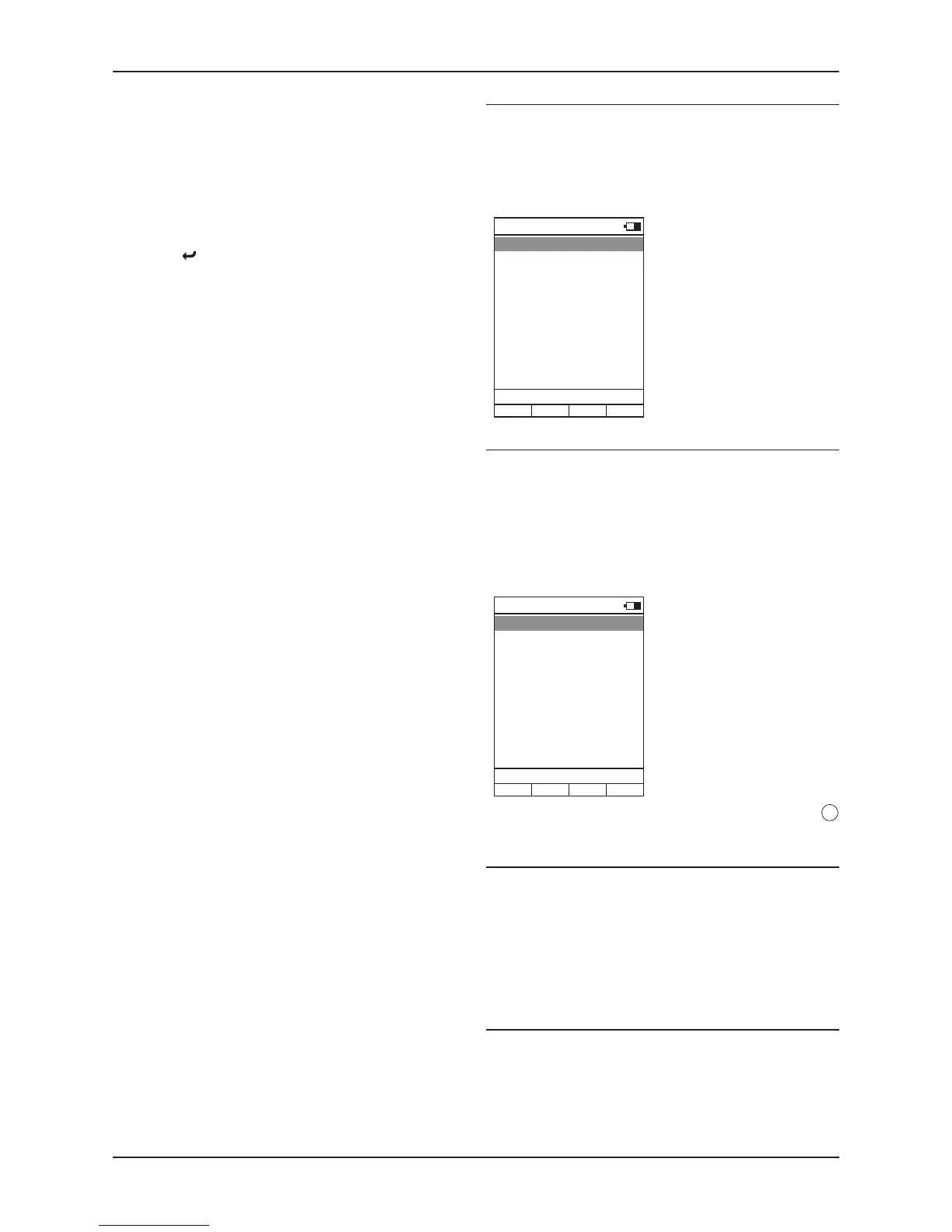
User-Settings - Rename zone
Select this option to rename a zone in the zone list.
Highlight and select the Rename zone option.•
A list of zones will be displayed.
Highlight the zone you want to rename.•
Press ENTER.•
The last character of the device name is highlighted.
Edit the name with the Alphanumeric Naming Buttons.•
Press ENTER when you have finished renaming.•
Press the •
button at any time to exit without changing the setting.
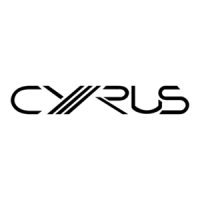
User-Settings - Delete zone
Select this option to delete a zone from the zone list.
Highlight and select the Delete zone option.•
Choose from the zones available.•
Press ENTER.•
The zone will be deleted.
User-Settings - Disable motion sensor
Select this option to disable the motion sensor. This may be useful if you
plan to transport or ship the remote control.
Highlight and select the Disable motion sensor option.•
Press the ENTER button.•
The Motion sensor will be disabled.
Press any button to switch the remote control on and re-enable the
motion sensor.
User-Settings - (volume and mute) Key mapping
You can use the key mapping feature to re-assign the volume and mute
buttons to a different device.
For example, if your system includes a Streamline
2
connected to the
digital input of a Cyrus amplifier, you may want to re-assign the n-remote
volume and mute buttons to control the Cyrus amplifier as follows -
Choose the Key mapping option from the System-Settings menu.•
The list of devices will be displayed.
Highlight and select the Streamline•
2
in this list.
Select the option ‘V+/V-/Mute to’.•
The list of devices will be displayed.
Highlight and select the Cyrus IR device.•
The volume and mute commands will now be re-assigned to a Cyrus
amplifier.
NOTE: To reset key mapping for a device, follow the above procedure,
but choose the ‘Reset mapping’ option in place of the ‘V+/V-/Mute to’
option.
Change Zone
The n-remote has the capability to control up to three separate zones.
Zones will normally be different rooms in a house, each containing a group
of remote controllable products (for example, audio and TV components
and may or may not include a Streamline
2
).
For each zone that you set up, you can program different device selection
Hot-keys. When changing between zones, the hot-key legends will change
to indicate the products that can be controlled in that selected zone.
To change to a different zone
Device Selection
The two standard devices that may be controlled by an n-remote are the
Streamline
2
(by wireless) and a Cyrus stereo system (by infrared).
In addition to these two devices, you may have extended the device
library to include other (infra-red) remote controllable equipment that you
own. For example, a Streamline
2
, a Cyrus Audio system, a TV and a PVR.
To select a device
button on the n-remote.
System Information
Choose this option from the System-Settings menu to display technical
information about your handset.
NOTE: It is also possible to install upgraded firmware (when available) via
this menu. This process is only possible when the n-remote is connected
via a computer to download firmware from the Internet. Attempting to
upgrade the firmware without connection to a computer may lock up the
n-remote. In this case it will be necessary to reset the n-remote (see the
‘Troubleshooting’ section).
Start Pairing
This option is used when pairing the n-remote to send commands to a
Streamline
2
.
For more instructions on pairing, refer to the pairing instructions in the
‘Getting Started with the n-remote’ section on page 14.


 To Next Page