Remote control operation
Once an n-remote has been paired to a Streamline
2
, all the functions of
the Streamline
2
may be operated from the n-remote. There is no need
to direct the n-remote to the Streamline
2
during operation, the wireless
operating system is not directional.
The n-remote display will constantly update to show the status of the
Streamline
2
. If a setting is changed at the Streamline
2
front panel, this will
be shown on the n-remote display and vice-versa.
The following section describes n-remote operation. All references in this
section are to the n-remote buttons or display unless otherwise stated.
n-remote display navigation
Press the • , , or buttons to navigate menu options displayed
on the remote control display.
When navigating long selection lists on the display, press and hold •
the or button to navigate the list more quickly, or press the }
or { button to skip a page.
Press the ENTER button to select an option.•
Press the •
button to return to the previous display screen.
Hot keys
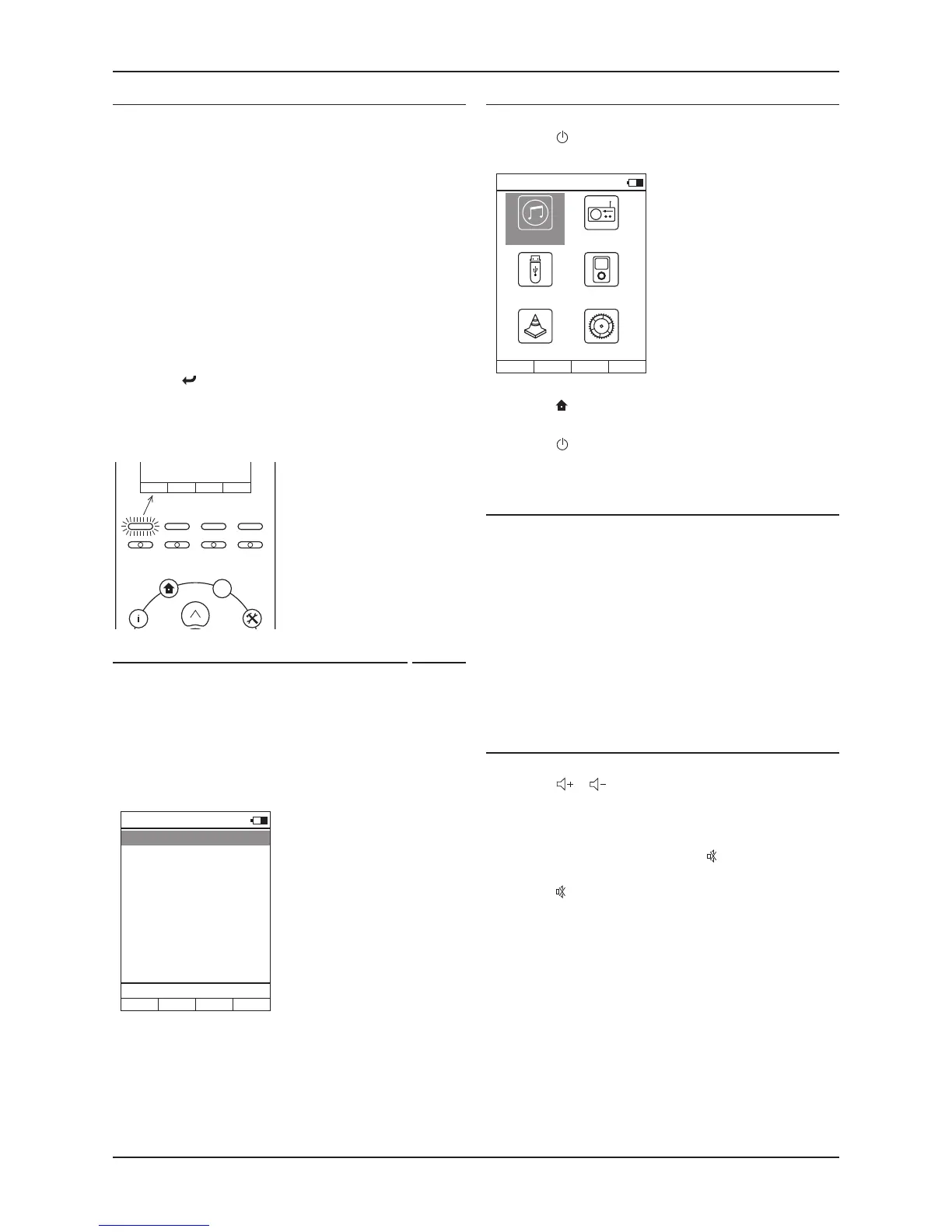
There are four hot-keys located below the display. These keys select the
devices displayed immediately above the buttons.
The factory default naming for these buttons is shown in the diagram -
Power control
Switching on a Streamline
2
set to Standby
Press the •
button.
The Streamline
2
will switch on and the n-remote display will confirm this.
Connecting the remote control to a Streamline
2
Once paired, the n-remote will remain connected to a Streamline
2
unit,
whether operational or in Standby.
The n-remote will disconnect from the Streamline
2
if the n-remote is
moved out of wireless range of the Streamline
2
whilst operational or if AC
power is removed from the Streamline
2
.
In this case, ‘There was no response from the selected device’ will be
displayed on the n-remote.
If the n-remote has been moved out of range of the Streamline
2
To return to the Home Menu at any time
Press the •
(Home) button.
Setting the Streamline
2
to Standby
Press the •
button.
The Streamline
2
will switch off and the n-remote display will confirm
this.
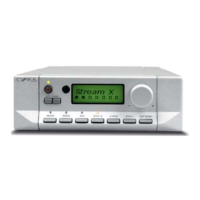
Selecting a source
From the Home Menu
Select one of the Source Icons from the Home Menu.•
Select the Network icon to listen to music from a music library •
located on a networked component.
Select the TuneIn Radio icon to listen to Internet Radio.•
Select the USB icon to listen to a USB source.•
Select the iPod icon to listen to an iPod connected to the USB •
port.
Select the Aux Input icon to open a sub-menu of the AUX sources •
available.
A sub-menu will open with a list of all AUX inputs. Select the AUX
input you want to play from the list.
Volume control
To set the volume from the remote control
Press the •
or button to increase or decrease the volume.
A volume level bargraph and level display will be displayed briefly. The
volume setting is then displayed on the ‘Now Playing’ screen.
Muting the sound
To mute the sound completely, press the •
button.
The Mute symbol will be shown on the display to confirm.
Press the •
button again to restore the volume.
Select Stream to send •
wireless commands to a Cyrus
Streamline
2
.
Select CyIR to send Infra-red •
commands to a Cyrus amplifier.
The remote control will switch to the
selected mode. More details of the
infra-red commands available are
listed in the section ‘Controlling a
Cyrus Audio System’ on page 21.


 To Next Page