CZUR TECH CO., LTD.
1.
2.
3.
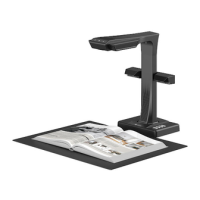
Plug in power adapter, connect device with projector, TV or
electronic board via HDMI cable.
Power on device, enter visual presenter mode automatically.
Note.
1)
2)
If projector or TV shows no signal, switch “signal source”,
choose HDMI port.
In HDMI mode, DEVICE should be disconnect with PC.
1)
2)
First time usage, green light flash one time only (without
“Wi-Fi name” and “Wi-Fi password”).
If device was connected with Wi-Fi before, the “Wi-Fi
name” and “Wi-Fi password” will be saved, green light
flash until light on (Device connect to router successfully).
2.2 VISUAL PRESENTER MODE (HDMI)
2.2.1 Presentation Preparation
2.3 WI-FI MODE
2.3.1 Scanning Preparation
1.
2.
3.
Zoom out” and “Zoom in” button have six levels 12 times to
zoom the displayed screen.
In HDMI mode, TFT screen shut automatically.
Adjust the object/ document to show the correct orientation
on the displayed screen.
1.
2.
“Czur cloud” account registration method.
Visit “www.czur.cc” web on PC, and register your account use
your E-mail.
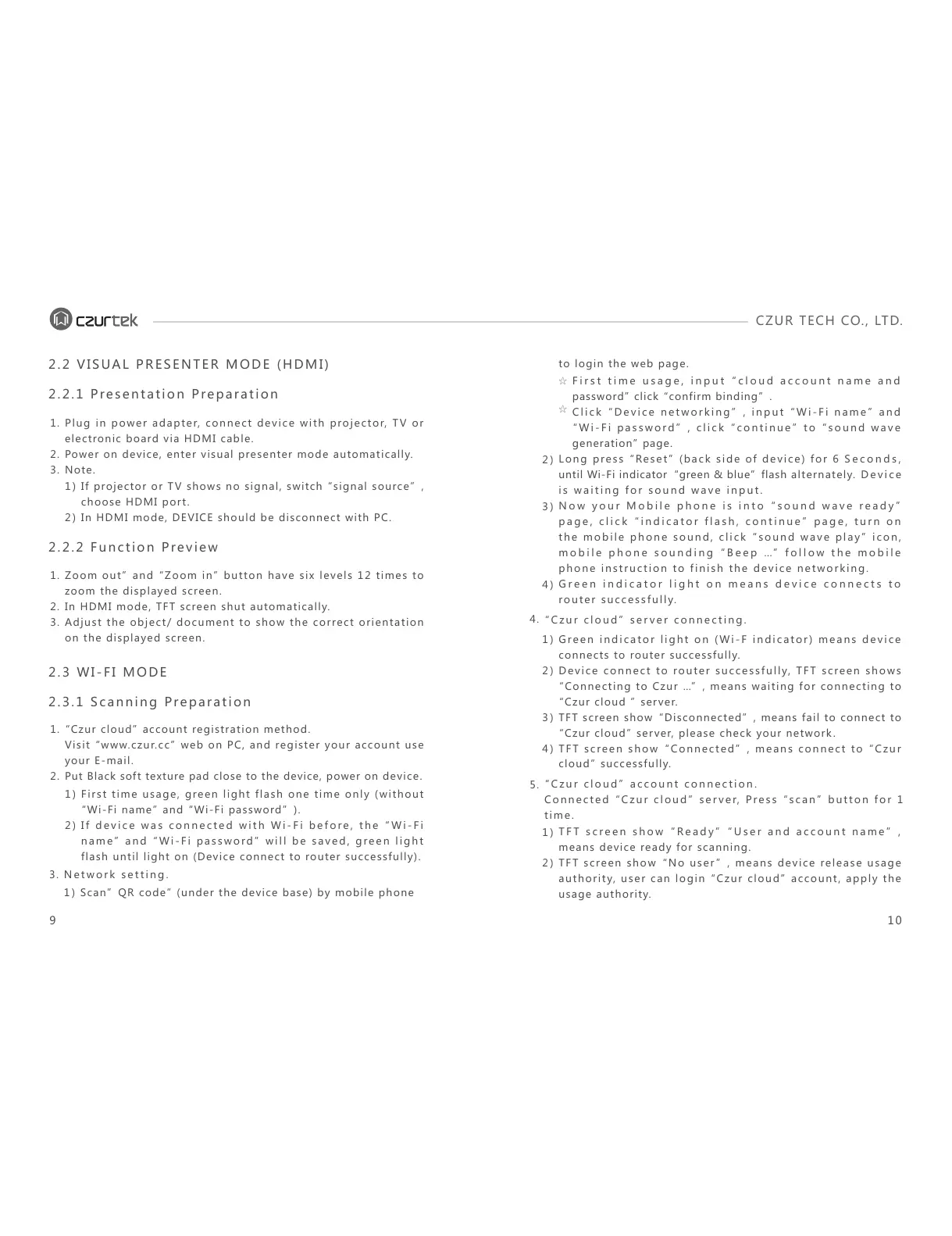
Put Black soft texture pad close to the device, power on device.
2)
3)
4)
to login the web page.
Long press “Reset” (back side of device) for 6 Seconds,
until Wi-Fi indicator“green & blue”flash alternately. Device
is waiting for sound wave input.
Now your Mobile phone is into “sound wave ready”
page, click “indicator flash, continue” page, turn on
the mobile phone sound, click “sound wave play” icon,
mobile phone sounding “Beep …” follow the mobile
phone instruction to finish the device networking.
Green indicator light on means device connects to
router successfully.
First time usage, input “cloud account name and
password” click “confirm binding”.
Click “Device networking”, input “Wi-Fi name” and
“Wi-Fi password”, click “continue” to “sound wave
generation” page.
☆
☆
1) Scan”QR code” (under the device base) by mobile phone
3. Network setting.
1)
2)
3)
4)
1)
2)
Green indicator light on (Wi-F indicator) means device
connects to router successfully.
Device connect to router successfully, TFT screen shows
“Connecting to Czur …”, means waiting for connecting to
“Czur cloud ” server.
TFT screen show“Disconnected”, means fail to connect to
“Czur cloud” server, please check your network.
TFT screen show“Connected”, means connect to “Czur
cloud” successfully.
4.
5.
“Czur cloud” server connecting.
TFT screen show“Ready” “User and account name”,
means device ready for scanning.
TFT screen show“No user”, means device release usage
authority, user can login “Czur cloud” account, apply the
usage authority.
“Czur cloud” account connection.
Connected “Czur cloud” server, Press “scan” button for 1
time.
2.2.2 Function Preview
9 10


 To Next Page