EasyManua.ls Logo

CZZN GL60 Plus - User Manual

CZZN GL60 Plus
24 pages
Print Icon
To Next Page IconTo Next Page
Loading...
GL60 Plus Gimbal Searchlight User Manual
V1.0
2021.09.30
Question and Answer IconNeed help?

Do you have a question about the CZZN GL60 Plus and is the answer not in the manual?

Overview

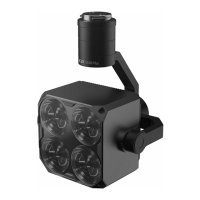
The GL60 Plus Gimbal Searchlight is a precision optical device designed for nighttime drone operations, including inspection, search, film and TV making fill-in light, power grid repair, and emergency lighting. It is specifically designed to interface with DJI SKYPORT V2 adapter rings and DJI M300 RTK drone OSDK adapters, offering a plug-and-play solution without the need for an extra power supply.

Technical Specifications:

  • Weight: 750 grams
  • Rated Power: 120 W
  • Electrical Interface: DJI SkyPort V2.0
  • Control Link: PSDK
  • Supply Voltage: PSDK 17V+OSDK 24V (for 128W total power), PSDK 17V (for 68W total power)
  • LED Power: 120W or 60W
  • Luminous Flux: 13400 ± 3% (for 120W LED power), 8000 ± 3% (for 60W LED power)
  • Luminous Efficacy: 111.67 lm/W (for 120W LED power), 133.33 lm/W (for 60W LED power)
  • Illumination Distance: Effective irradiation distance of 150 m.
    • 120W: 50m (13.2 spot diameter), 100m (26.4 spot diameter), 150m (39.5 spot diameter)
    • 60W: 50m (13.2 spot diameter), 100m (26.4 spot diameter), 150m (39.5 spot diameter)
  • Illumination Area:
    • 120W: 50m (136 m²), 100m (544 m²), 150m (1225 m²)
    • 60W: 50m (136 m²), 100m (544 m²), 150m (1225 m²)
  • Central Illuminance:
    • 120W: 50m (85 Lux), 100m (24 Lux), 150m (11 Lux)
    • 60W: 50m (45 Lux), 100m (100m (12 Lux), 150m (6 Lux)
  • Angle of Illumination: 15°
  • Optical Imaging Structure: Consists of multiple lenses, ensuring uniform brightness and high color consistency.
  • Operating Temperature: -20°C to 50°C
  • Dimensions: L126W131H167

Usage Features:

  • Installation: The GL60 Plus is installed similarly to a DJI drone gimbal camera. Users must ensure it is correctly installed and securely mounted before takeoff.
  • Power Management: Before takeoff, the power is limited to 30% by default, but can be manually adjusted to 50% or 100%. After takeoff, the power can reach 100%.
  • DJI Pilot APP Integration:
    • Identification: Upon correct installation, the DJI Pilot APP will detect the GL60 Plus, displaying "GL60 Plus" in the lower left corner of the main interface, confirming successful identification.
    • Manual Flight: Users can proceed to manual flight mode after successful identification.
    • Hovering Options: A blue virtual button on the interface provides hovering options, including:
      • Turn the light on
      • Flashing mode
      • Gimbal fine tune
      • Double gimbals synchronized button
      • Brightness tuning
    • Multi-Gimbal Synchronization: The device supports multi-gimbal synchronization, allowing users to select and synchronize gimbal I and gimbal II. When synchronized, the horizontal angle of the GL60 Plus matches that of the followed payload.
    • Payload Settings: Accessing the third-party payload option in the menu bar leads to the GL60 Plus gimbal searchlight interface, where users can control various settings.
    • Real-time Data Display: Clicking the "Data" button opens a dialogue box displaying real-time parameters such as drive temperature, LED temperature, brightness, temperature limit, and mode (e.g., 60W).
    • Light Control: Users can control the light's brightness, activate flashing mode, and adjust brightness via a progress bar.
    • Fine Tuning: The H20 and GL60 Plus Tilt fine tuning buttons, along with Heading and Horizontal fine tuning buttons, allow precise adjustment of the light spot position. Fine tuning can be adjusted by ±5° at a time, up to the control limit angle.
    • Exposure Adjustment: If the camera is overexposed when observing a target, users can slide the exposure button on the screen to adjust it.
  • Environmental Resilience: The GL60 Plus is waterproof and dustproof, enabling reliable operation in harsh weather conditions.

Maintenance Features:

  • Temperature Control: Features an advanced automatic temperature control system, ensuring light attenuation is less than 5% after 1000 hours of operation.
  • Firmware Upgrade:
    • Online Firmware Upgrade:
      1. Open the CZZN software.
      2. Click the menu button (top right) and select "Firmware Management."
      3. In the firmware management interface, locate the latest firmware version and click "Refresh" or "Upgrade."
      4. Confirm the update, ensuring the device is in normal connection state and the battery is sufficient.
      5. After a successful update, the GL60 Plus enters a re-calibration status. If it doesn't respond, restarting the drone might be necessary.
    • TF Card Firmware Update:
      1. Visit the official CZZN website (www.gzczzn.com).
      2. Navigate to the "lighting series" and view details, then click "software download" to access the download center.
      3. Download the latest firmware to a TF card.
      4. Insert the TF card into the GL60 Plus TF card slot.
      5. Connect the drone and GL60 Plus. The device will enter a re-calibration status, and the update operation will complete after a few seconds.
  • Repair Policy: As a precision optical device, the main body is fully sealed. In case of hardware problems, the device should be returned to the manufacturer for after-sales service. Disassembly or repair by unauthorized personnel will void the warranty and repair eligibility.
  • Support: For any questions or suggestions, users can contact dev@gzczzn.com. For issues arising from drone firmware updates, users are advised to contact their local agent or the manufacturer.

CZZN GL60 Plus Specifications

General IconGeneral
BrandCZZN
ModelGL60 Plus
CategoryLighting Equipment
LanguageEnglish

Related product manuals