8D-Link COVR-C1210 User Manual
Section 2 - Installation
Web Based Installation
If you do not wish to use the D-Link Wi-Fi app, you can manually set up the COVR-C1210 and congure your Covr Wi-Fi network
using the web-based user interface. Follow the instructions below to set up your COVR-C1210 AC1200 Dual Band Wi-Fi Router.
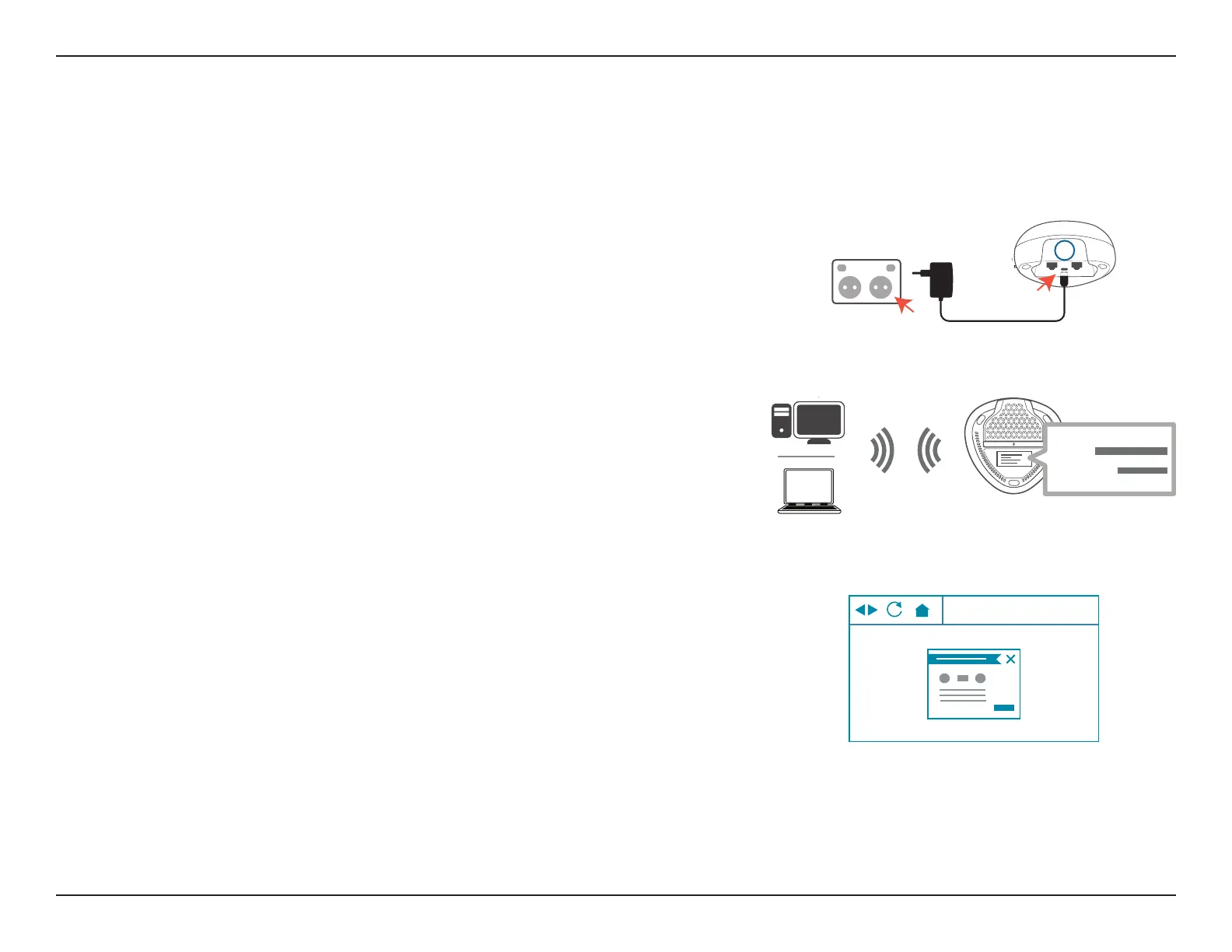
Step 1
Position the COVR-C1210 close to your Internet-connected modem. Next,
connect the power adapter to the device and plug the adapter into a power
outlet.
G
A
Step 2
Wait for the COVR-C1210 to boot up. When the COVR LED starts blinking
orange, wirelessly connect your computer to the Wi-Fi name (SSID) printed
on the back of the device, or on the included Quick Install Card.
Wi-Fi
Wi-Fi
SSID:
Password:
Your COVR-C1210 AC1200 Dual Band Wi-Fi Router is now set up and ready to use. You can now congure your Covr Wi-Fi
settings using the free D-Link Wi-Fi mobile app or the web-based user interface. Refer to the Conguration section on page
page 9 for more information on conguring your network using the web-based user interface.
http://covr.local./
Step 3
Type http://covr.local./ into a web browser and follow the on-screen
instructions to complete the setup.


 To Next Page
 Loading...