EasyManua.ls Logo

D-Link DAP-1820 - User Manual

D-Link DAP-1820
12 pages
Print Icon
To Next Page IconTo Next Page
Loading...
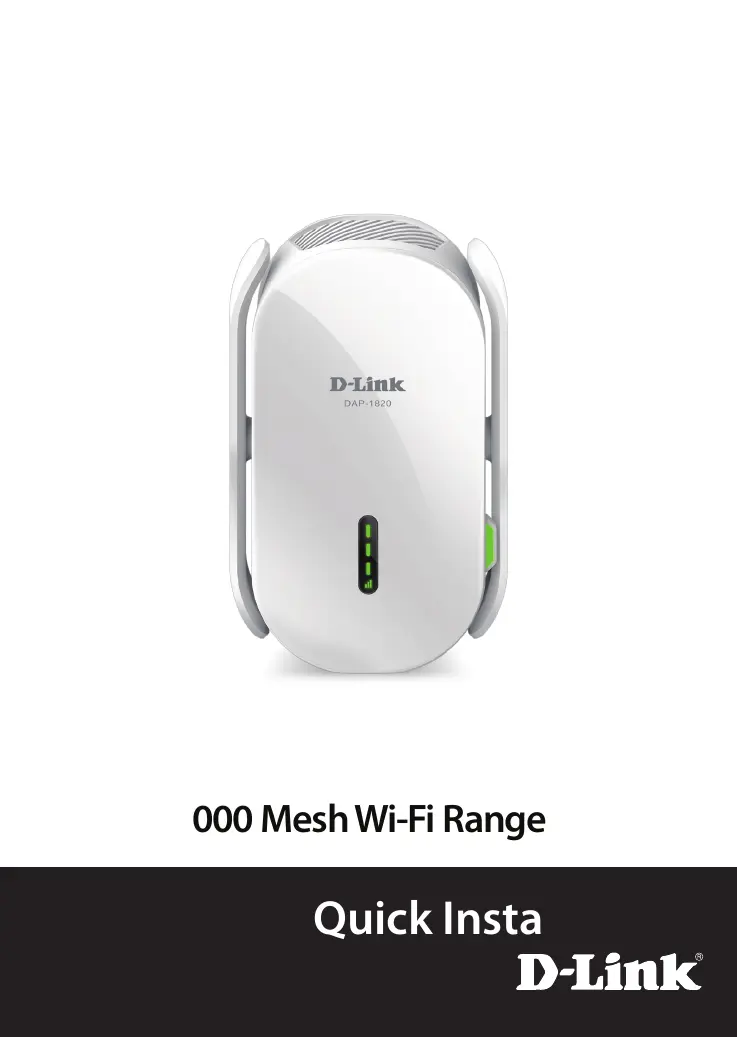
DAP-1820
Quick Install Guide
AC2000 Mesh Wi-Fi Range Extender

Questions and Answers

  • M
    Matthew WongJul 28, 2025
    Why does my D-Link DAP-1820 Extender wireless connection keep dropping?
    • M
      Mckenzie BrownJul 28, 2025
      Your D-Link Range Extender might be out of range of your wireless router. Try moving the Extender closer to the router and check that the Status LED is solid green. Also remember that when extending a wireless signal, devices connected to the Range Extender might experience lower speeds compared to a direct connection to the router.
  • A
    Andrea BlackburnAug 6, 2025
    What to do if D-Link DAP-1820 WPS setup is not working?
    • J
      jeremy62Aug 6, 2025
      WPS may be disabled on some Routers or Modems. If the WPS Status LED on your Router or Modem does not start blinking when you have pressed the WPS button, try again and hold it a little longer. If it still does not blink, stop, and configure your Range Extender using Method Two: D-Link WiFi Setup, on page 6.
  • K
    Kelsey JohnsonAug 16, 2025
    What to do if I forgot my D-Link DAP-1820 admin password?
    • R
      Robert GonzalezAug 16, 2025
      If you've forgotten your Range Extender's admin password or wish to reset it to factory defaults, press and hold the reset button on the bottom of the extender for a few seconds until the Status light turns red. Keep in mind that this will erase all your customized settings. After the reset, set up your Range Extender using your preferred method.

Summary

Package Contents

Getting Started

Before You Begin

Essential preparation steps and considerations before setting up the Wi-Fi range extender.

Product Overview and Setup Methods

Product Overview

Details the physical components, LED indicators, and signal strength for the Range Extender.

Method One: Quick WPS Setup

Step-by-step guide for setting up the range extender using the WPS button.

Method Two: D-Link Wi-Fi Setup

Instructions for setting up the range extender using the D-Link Wi-Fi mobile application.

Troubleshooting and Support

Troubleshooting Common Issues

Addresses connectivity problems, performance issues, and changing wireless settings.

Range Extender Placement Guide

Guidance on optimal placement for the range extender to ensure the best Wi-Fi coverage.

Advanced Troubleshooting & Features

Covers password reset, WPS issues, Mesh Smart Roaming, and SSID behavior.

Technical Support

Provides contact information and website links for technical assistance in the USA and Canada.

D-Link DAP-1820 Specifications

General IconGeneral
TypeNetwork repeater
WPS push buttonYes
Ethernet LAN data rates10, 100, 1000 Mbit/s
Wi-Fi bandDual-band (2.4 GHz / 5 GHz)
Security algorithmsWPA, WPA2
Networking standardsIEEE 802.11a, IEEE 802.11ac, IEEE 802.11b, IEEE 802.11g, IEEE 802.11n, IEEE 802.3ab, IEEE 802.3u
Ethernet LAN (RJ-45) ports1
CertificationFCC, UL, IC, CB, CE
Product colorWhite
Antenna typeExternal
Antennas quantity2
AC input voltage100 - 240 V
AC input frequency50 - 60 Hz
Storage temperature (T-T)-20 - 65 °C
Operating temperature (T-T)0 - 40 °C
Storage relative humidity (H-H)5 - 95 %
Operating relative humidity (H-H)10 - 90 %
Weight and Dimensions IconWeight and Dimensions
Depth85.4 mm
Width140 mm
Height48.6 mm
Weight274 g

Videos

How to Set Up D-Link DAP 1820 WiFi Extender Using WPS

How to Reset D-Link DAP 1820 WiFi Extender

Related product manuals