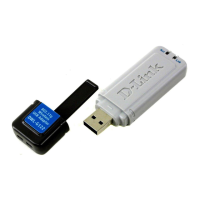
Your Installation is Complete!
After you’ve continued in Windows XP (or after the computer restarts in the
other Windows operating systems), the D-Link Air DWL-120 Configura-
tion Utility will automatically start and the utility icon will appear in the
bottom right hand corner of the desktop screen (systray). If this icon
appears GREEN, then you have successfully installed the DWL-120,
are connected to a wireless network and are ready to communicate!
Appendix
Using the Configuration Utility
A
B
C
D
E
F
G
A. Associated SSID: The
Service Set Identifier is the
name assigned to the
wireless network. The factory
SSID setting is set to default
C. Network Type: The
factory setting is set to
Infrastructure. Ad-Hoc
mode is used for peer-to-
peer networking.
B. Mac Address:
Displays the MAC
Address of the Access
Point that is associated
with the DWL-120.
E. WEP: (Wireless
Encryption Proto-
col) Displays
encryption status.
D. Status: Displays
the current connec-
tion state of the
DWL-120.
F. Link Quality: Displays the
wireless signal strength for the
DWL-120 wireless connection
to the access point.
G. System: Displays the MAC
Address and Firmware version for
the DWL-120.
Double-click the utility icon to use
the configuration utility.


 To Next Page
 Loading...