EasyManua.ls Logo

Daikin EKRUCBS - User Manual

Daikin EKRUCBS
8 pages
Print Icon
To Next Page IconTo Next Page
Loading...
Installationandoperationmanual
DaikinAlthermasimplifieduserinterface
English
Installationandoperation
manual
DaikinAlthermasimplifieduserinterface
EKRUCBS
Question and Answer IconNeed help?

Do you have a question about the Daikin EKRUCBS and is the answer not in the manual?

Summary

For the user

1 Buttons

Detailed explanation of the interface buttons and their operational functions for user control.

2 Status icons

Description and meaning of various status icons displayed on the user interface.

For the installer

3 Overview: Installation and configuration

General information regarding the installation and configuration of the simplified user interface.

4 To connect the simplified user interface

Step-by-step guide for connecting the simplified user interface to the indoor unit.

5 To update the software with Updater

Instructions for updating the user interface software using the dedicated Updater tool.

6 To update the software manually

Procedure for performing a manual software update on the user interface.

Summary

For the user

1 Buttons

Detailed explanation of the interface buttons and their operational functions for user control.

2 Status icons

Description and meaning of various status icons displayed on the user interface.

For the installer

3 Overview: Installation and configuration

General information regarding the installation and configuration of the simplified user interface.

4 To connect the simplified user interface

Step-by-step guide for connecting the simplified user interface to the indoor unit.

5 To update the software with Updater

Instructions for updating the user interface software using the dedicated Updater tool.

6 To update the software manually

Procedure for performing a manual software update on the user interface.

Overview

This document is an installation and operation manual for the Daikin Altherma simplified user interface, model EKRUCBS. It provides instructions for both installers and end-users on how to set up, operate, and maintain the device.

Function Description

The Daikin Altherma simplified user interface (EKRUCBS) acts as a room thermostat and a control panel for Daikin Altherma heating and cooling systems. It is designed to work in conjunction with a main user interface, which serves as the central control unit for the system. The simplified user interface allows users to monitor and adjust various parameters related to space heating/cooling and domestic hot water (DHW) production directly from the room where it is installed.

Usage Features

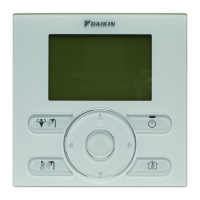
The simplified user interface features a clear display and a set of intuitive buttons for navigation and control.

  • Buttons:

    • Space Heating/Cooling Control (a): This button allows access to the room temperature home page. From this page, users can read the actual room temperature, adjust the desired room temperature using the navigation buttons (e), and turn ON or OFF the room temperature control.
    • Domestic Hot Water Control (b): This button leads to the domestic hot water home page. Here, users can view the actual DHW tank temperature (if a DHW tank is present) or the desired instant DHW temperature (if instant DHW production by a boiler is configured). Users can also turn ON or OFF the domestic hot water control.
    • DHW Tank Booster Mode (c): This button activates the DHW tank booster mode. This feature is available only if a DHW tank is part of the system and DHW control is active.
    • ON/OFF (d): This button allows users to turn ON or OFF either the space heating/cooling or domestic hot water control, depending on the currently active home page.
    • Navigation Buttons (e): These buttons are used to adjust the desired room temperature when on the room temperature home page.
  • Status Icons: The display features several icons to indicate the current operational status of the unit:

    • Heating Mode: Indicates that the space operation mode is set to heating.
    • Cooling Mode: Indicates that the space operation mode is set to cooling.
    • DHW Operation: Indicates that domestic hot water operation is active.
    • DHW Tank Booster Active: Shows that the DHW tank booster mode is active.
    • Unit Operating: Indicates that the unit is currently operating.
    • Actual Temperature: Displays the current measured temperature.
    • Desired Temperature: Displays the target temperature set by the user.
    • Malfunction: Alerts the user to a malfunction. If this icon is displayed, users are advised to check the main user interface for more information or contact their installer.
    • Emergency Operation: Indicates that the unit is running in emergency operation mode. Similar to a malfunction, users should consult the main user interface or an installer if this icon appears.

Installation and Configuration

The simplified user interface is designed for easy installation and configuration, primarily by a qualified installer.

  • Connection: The simplified user interface connects to the indoor unit via a cable. The cable should be secured using cable ties to the cable tie mountings.
  • Software Compatibility: It is crucial that the simplified user interface has the same software version as the main user interface. If there is a version mismatch, an update is required. The software version can be found on the packaging box of each interface.
  • Software Update Methods:
    • Using Updater Software: This is the recommended method. It requires a PC with Daikin's Updater software and a specific USB cable (EKPCCAB3 or higher). The process involves connecting the user interface to the PC, powering on the indoor unit, opening Updater, navigating to the "Update procedure," typing in the interface name (EKRUCBL* or EKRUCBS), selecting the language pack (for EKRUCBL*), and following on-screen instructions.
    • Manual Software Update: This method is more time-consuming (up to 2.5 hours) and involves copying software from one user interface to another, then converting the updated interface back to its intended state.
      1. Copying Software: Power ON the indoor unit. If a data difference is detected, the interfaces will display a "Synchronization" screen. Users must select "Send data" or "Receive data" depending on which interface is more up-to-date. The process involves confirming the action, and a progress bar will appear. Once complete, both interfaces will have identical software.
      2. Converting the Updated Interface: After copying, the receiving interface will have transformed into the sender type (e.g., if a simplified interface received software from a main interface, it will now function as a main interface). To convert it back, power OFF the indoor unit. Then, while pressing specific buttons (illustrated in the manual), power ON the indoor unit. Wait for text to appear on the display, then release the buttons. This will convert the interface to its intended state.

Maintenance Features

The manual primarily focuses on installation and operation, with maintenance aspects largely revolving around software updates to ensure optimal performance and compatibility. Regular software updates are essential for addressing potential bugs, improving functionality, and maintaining synchronization between the simplified and main user interfaces. In case of malfunctions indicated by the status icons, the primary maintenance action for the user is to check the main user interface for detailed information or contact a qualified installer for professional diagnosis and repair.

Daikin EKRUCBS Specifications

General IconGeneral
BrandDaikin
ModelEKRUCBS
CategoryHeat Pump Accessories
LanguageEnglish