29
Chapter 4: Connecting So Smart to a Network
Setting Up Folder / Drive Sharing on Win-XP PC:
◈
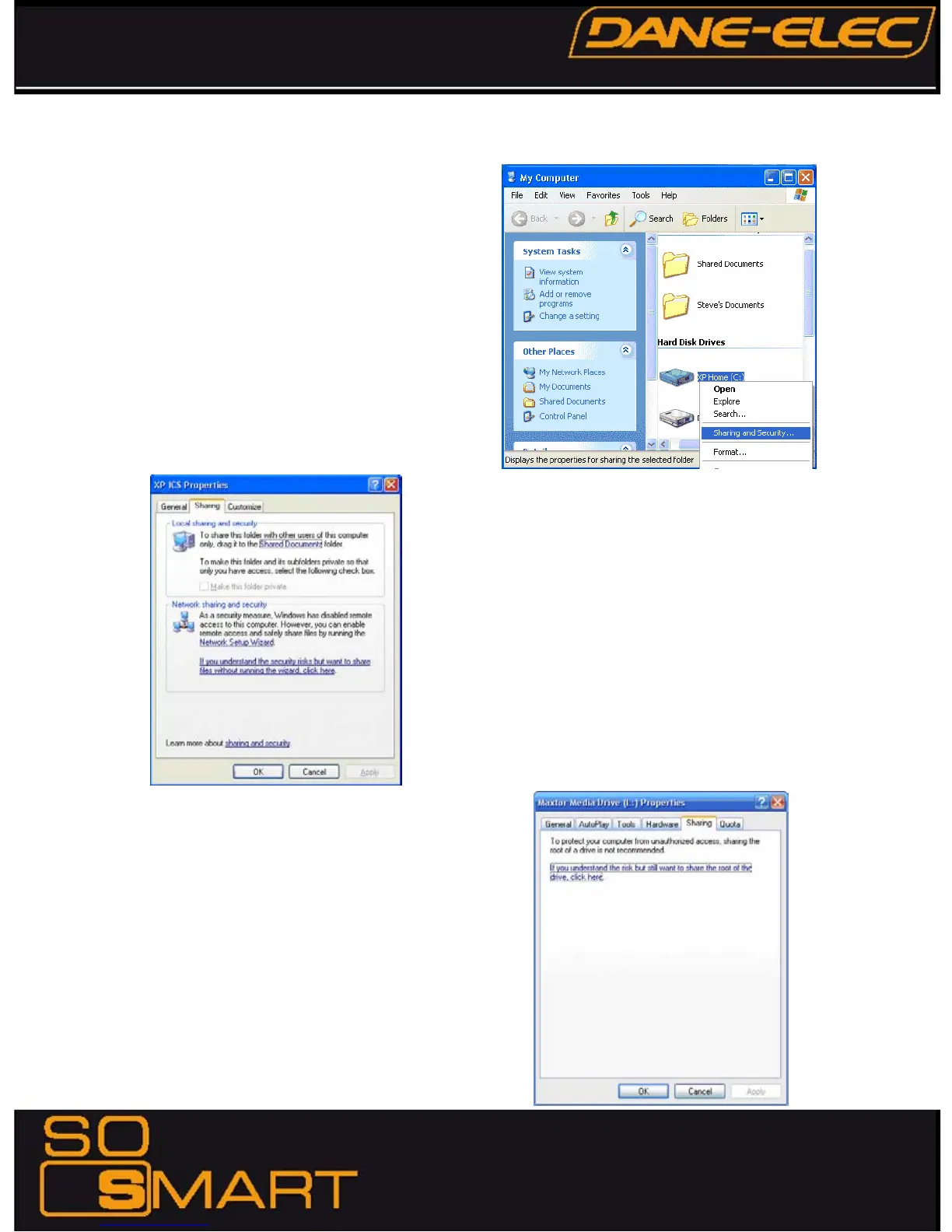
Right-click the folder or drive that you want to share, and
then click SHARING AND SECURITY.
Tip: If you want to share your entire My Documents folder,
open My Documents, and then click the UP button on
the toolbar. You can then select the My Documents
folder.
Under Network Sharing and Security Section:
If you see a message that reads, As a security measure,
Windows has disabled remote access to this computer.
Click the Network Setup Wizard link and follow the
instructions
If you are sharing a Drive, under the Sharing tab, click:
If you understand the risk but still want to share the root of
the drive, click here.
Click on the warning message link to expose the sharing
options. Assuming you already have your internet connection
configured and firewall settings in place, you can choose the
Just Enable File Sharing option (unless you already enabled
file sharing previously) When you finish, your computer should
be prepared to share files on the network.




 To Next Page