www.Day6Outdoors.com Page 13
Preview Image for Aiming
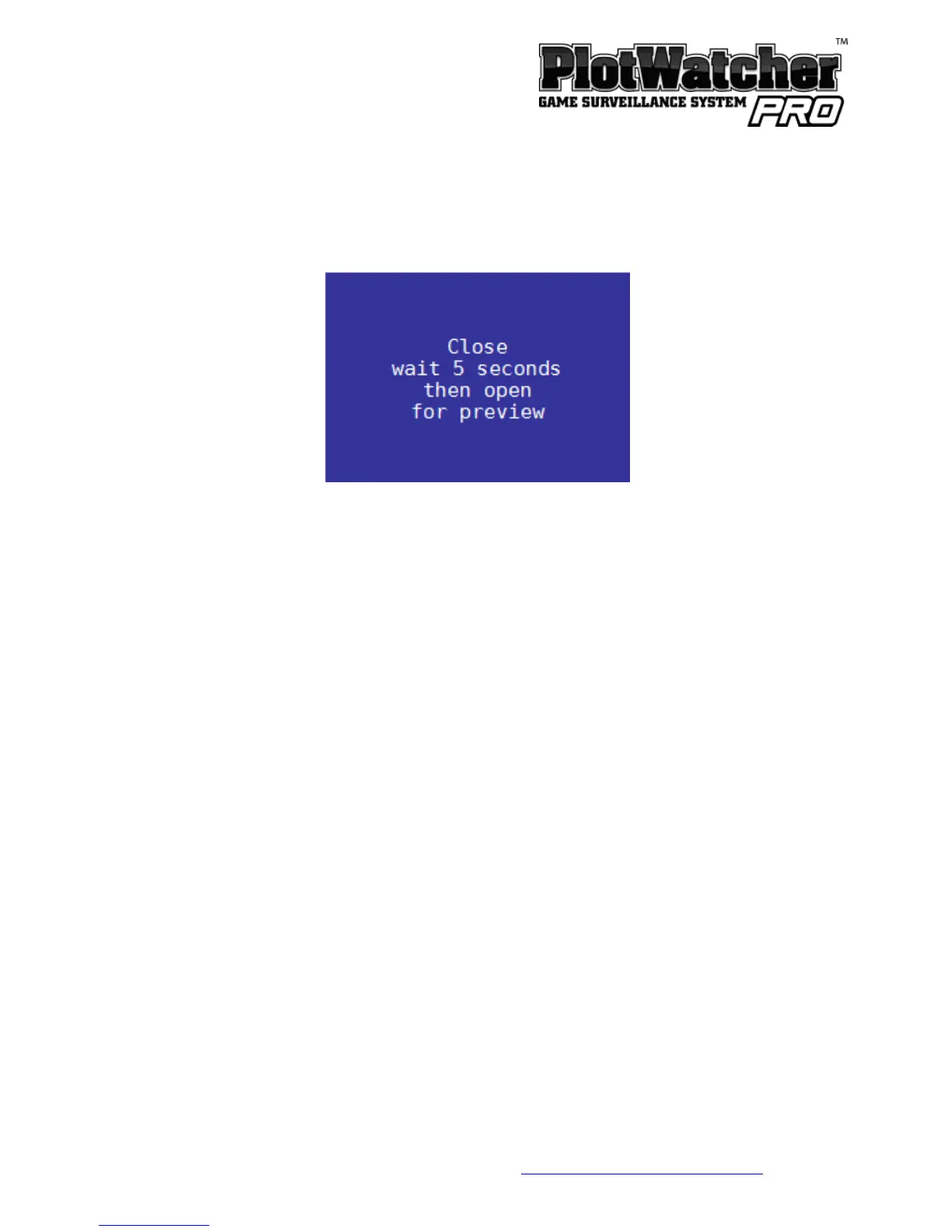
To inspect the aim of the camera, slide the POWER switch from ON to
PREVIEW. You will see the following screen:
Close the door and hold it shut for 5 seconds while an image is taken. Then
open the door to preview your image on the screen. Adjust the aim if
necessary, and close the door again for 5 seconds to take another image.
Repeat until you are satisfied with the aim. Then slide the POWER switch back
to ON before proceeding to capture time-lapse video by closing and latching
the door.


 To Next Page