pg. 6
Automatic Room Correction with iWoofer Pro
Even with high-class speakers and subwoofers, the complexity of room acoustics can cause
nonlinearities in audio signals once the sound bounces around your room and eventually reaches your
listening position. Room reflections combined with the direct sound from a speaker will usually create a
misrepresentation of your audio signal, meaning what you hear is not the same as what the recording /
mastering engineer heard in their studio. Phasing issues are especially true with the very long
wavelengths of bass frequencies, as they wrap around the whole room and then eventually find their
way to your listening position. Room reflections are the main reason that recording engineers go
through the extraordinary effort with room treatment, speaker placement, and sometimes precise EQ to
make their studios and speakers have a flat response as possible. Flat response means the audio signal is
represented accurately (it will look like a straight, horizontal line when taking frequency response
measurements).
Room correction is powerful because it can take a measurement of your listening position, and apply
precise FIR filters to automatically 'flatten' the response and minimize any adverse effects of room
acoustics. The Automatic Room Correction algorithm works by taking a measurement right next to your
subwoofer (a near field measurement) and then takes more measurements in your listening position to
determine what DSP parameters need adjusting for optimum room correction. If you look closely, you
will see that your near field response will look more like a flat line while your listening position
measurement will likely look more ragged as represented by dips and peaks throughout. Depending on
which type of correction you choose, the app will apply equalization to make your listening position
more faithfully represent the original audio signal.
Before you start
- For optimal results, take off any case you might have on your iOS device. Because the
microphone on your iOS device was calibrated for the iWoofer app without a case on, your case
can cause inaccuracies in measurements due to diffraction.
- Make sure to follow the "AVR and Subwoofer Amplifier Settings" section earlier in the manual
before proceeding with room correction.
- In the X-Over menu of the iWoofer app, set your desired high pass (subsonic filter) and low pass
filters for your subwoofer. These settings are used by the room correction function to determine
how high and low to correct the frequency response. If you decide to change these crossover
points after doing room correction, you will need to rerun the room correction function for
optimal results.
- Remove all EQ settings you might have made in the X-Over menu.
- If a sweep is not audible while running the AutoEQ, make sure your sub is powered on, and the
audio connections are correct. If the sweep is not audible once confirming the subwoofer is
connected correctly, try restarting the app and or removing and then reconnecting power to the
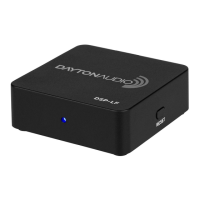
DSP-LF hardware unit. The DSP-LF unit has a standby function and will temporarily shut off if it
does not receive input for a period of time, but you can quickly kick it out of standby with a
power cycle.
- Turn off any input signal going into your DSP-LF, so it does not interfere with your
measurements.


 To Next Page
 Loading...