10
Section 3
ZonePro
™
ZonePro
™
User Manual
The System Setup section of the ZonePro manual will provide the user with detailed instruc-
tion for Configuration of the ZonePro unit and any Zone Controllers that may be used with it.
The following sub-sections will provide you with detailed information regarding the various
setup functions. Typical setup procedure of a ZonePro unit is as follows:
Step 1, Configuration Wizard - Use the Configuration Wizard to create the system configura-
tion including I/O setup and naming along with DSP selection. The Configuration Wizard
also provides Zone controller setup, routing setup and front panel setup for the 640.
Step 2, P
arameter Editing - Double clicking on the various modules allows editing of parame-
ters to adjust settings for individual installations or scenes.
Step 3, Scene Storing -
Whether using a single scene or many, storing the scene is important
to make sure that all parameter changes are saved. If just one scene is desired save this as
the Default Scene.
Step 4, Scene W
izard - If multiple scenes are desired with routing or zone controller assign-
ment changes, use the Scene Wizard to make those changes. Repeat Steps 2 and 3.
Step 5, Sc
hedule Wizard - If multiple scenes are to be loaded using the Schedule function,
setup the Schedule using the Schedule Wizard for each scene change. Make sure the clock is
correct by clicking on Edit then Time from the Menu Bar.
Step 6, File Save -
It is recommended that you save off a copy of your ZonePro device file
using the File Save on the Menu bar. This file is a back-up and might come in handy for
similar future installations.
The Wizard function is used to configure the ZonePro processing modules, Zone Controllers
and Front Panel. It provides a menu based decision tree to speed setup. This sub-section will
walk you through each page of the Wizard function.
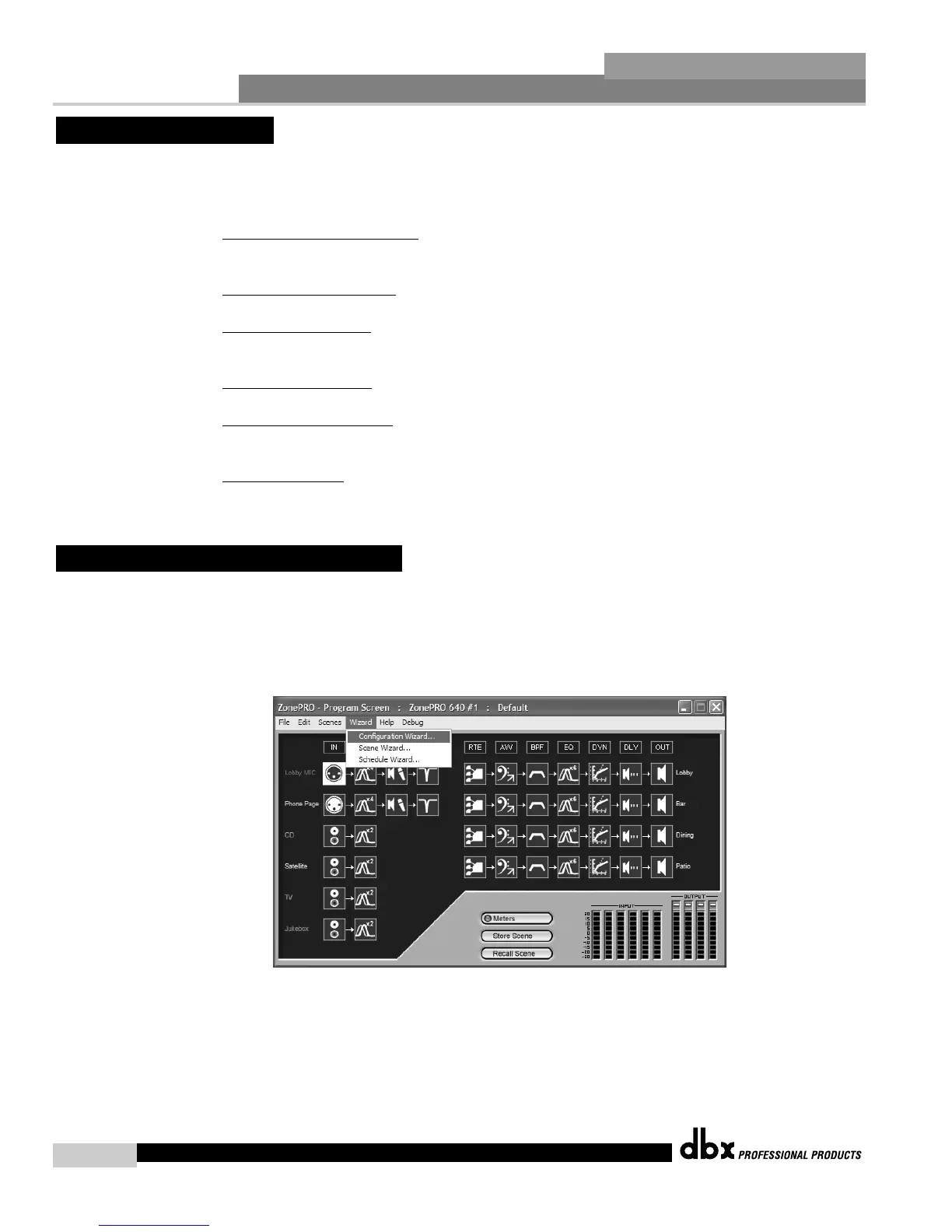
• From the Program Screen view of the setup, the display will appear something like this:
• Select the Wizard pull down from the menu bar and then select the option labeled
Configuration Wizard. Once selected, a window will appear as follows:
3.2 - Configuration Wizard
3.1 - Overview


 To Next Page