-10-
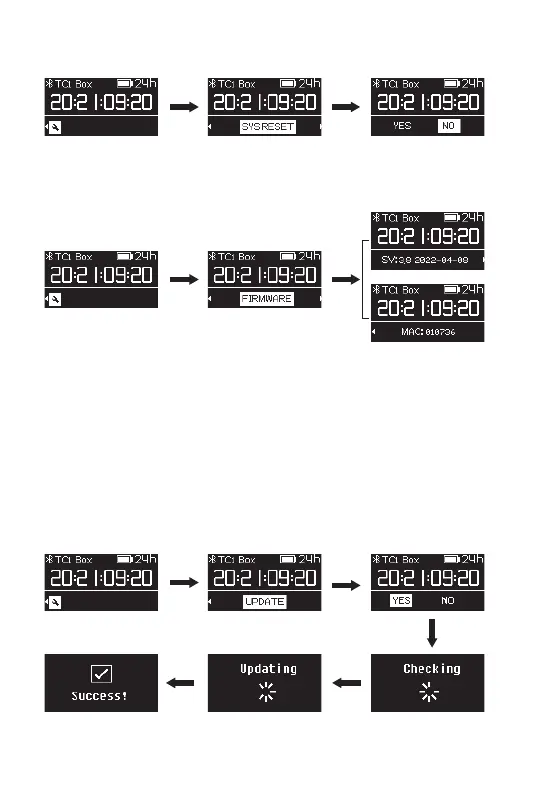
(3) Enter ”SYS RESET“ option in the menu to reset the system and restore the default
settings.
(4) Enter “FIRMWARE” option to see which FW version your TC-1 is running. Rotate
the function control wheel , to view the MAC address of your TC-1.
(5) Firmware Update
You can update the firmware with a U disk (exFat/Fat32 USB flash drive). Download
the latest update from our website. Place the Firmware in the root directory of the
U disk. Use the “USB-C to USB-A Firmware Update Adapter” to connect the U disk to
the USB-C input port , select “UPDATE” option from menu, and update the firmware
following the on-screen instructions. After the firmware update is completed, the
”SUCCESS “ message is displayed. The firmware version will reflect the update and
you can enter FIRMWARE in the General Settings menu to check.
* TC-1 also supports firmware update via Sidus Audio™ OTA process.



 To Next Page