-11-
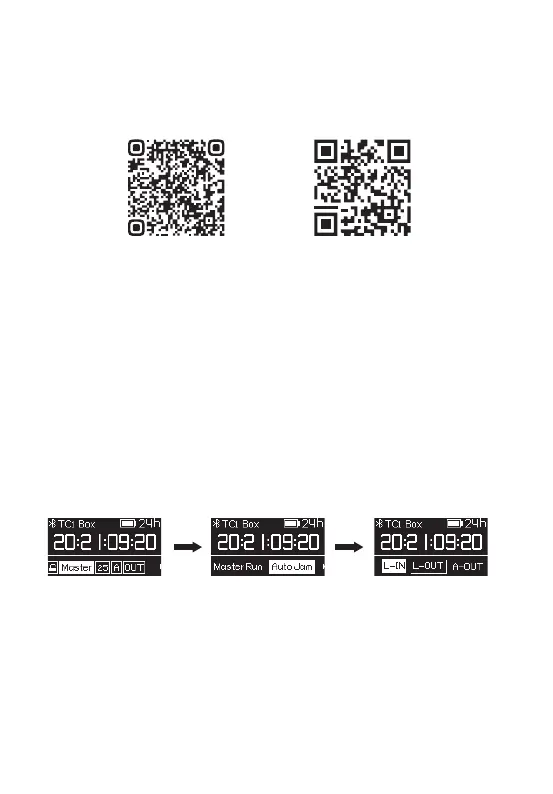
15. Setup Sidus Audio™ App for IOS & Android
You can download the Sidus Audio™ app from the iOS App Store or Google Play
Store for enhancing the functionality of the TC-1. Please visit
sidus.link/support/helpcenter for more details regarding how to use the app to
control your Deity Timecode Box TC-1 (Kit).
16. Timecode Synchronization
* TC-1 uses a precision oscillator that generates timecode with a high degree of
accuracy (approximately less than 1 frames per 48 hours). We recommend to feed every
recording device with the timecode from a TC-1 to ensure frame accuracy for the entire
shoot.
(1) Cable Sync
You can use the included 3.5mm cable or a suitable adapter cable to Jam the TC-1
to an external timecode. Follow the steps below:
Set TC-1 mode to Auto Jam or Jam Once And Lock and set out type as L-IN. When
connected to 3.5 mm cable, TC-1 automatically detects and takes over incoming
frame rate and timecode immediately on jam-sync.
(2) Wireless Master Sync
If you don’t have a mobile device at hand, you can synchronize TC-1 units with each
other via wireless master sync.
Start one TC-1 in Master Run mode and all other TC-1 units in Auto Jam or Jam Once
And Lock mode. Set all TC-1 units to the same channel (A group, for instance). Enter
the master unit’s TC setting , and select SYNC to perform the wireless master sync
using the timecode that master TC-1 is running. All TC-1 units will synchronize
within a few seconds. You also can select SET to synchronize timecode starting out
from 00:00:00:00 or custom starting point.
sidus.link/support/helpcenterGet Sidus Audio™ App


 To Next Page