-7-
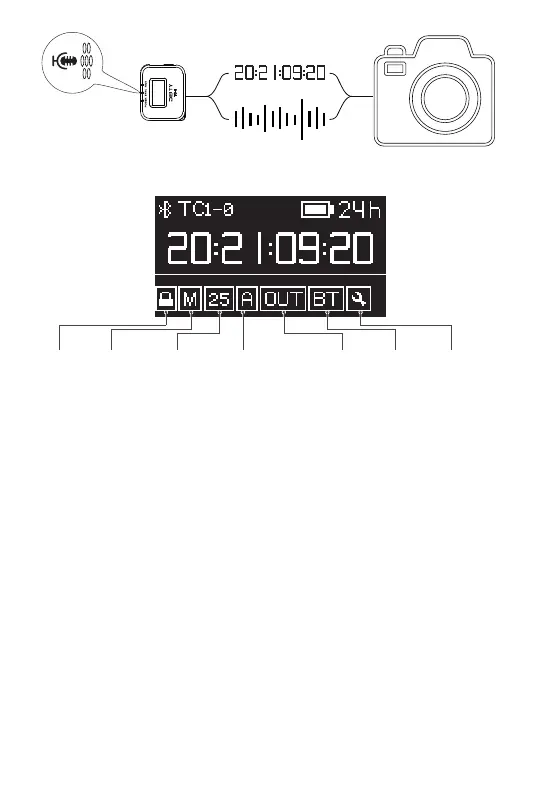
6. OLED Display Overview
7. Lock/Unlock Setting
Enter the Lock/Unlock option in the main interface and you can select "LOCK" to
lock the screen immediately. When the screen is locked, the buttons will not work.
This helps to prevent settings from changing during operation. Select ”AUTO” to
follow the previous screen locking setting. You can also quickly lock or unlock the
screen by short-pressing the MENU/BACK button three times.
8. TC-1 Mode Selection
Rotate the function control wheel to select the mode and short-press to select the
desired working mode. There are three options:
Master Run: In this mode your TC-1 wirelessly outputs timecode to other TC-1 units
in the same group in either Auto Jam mode or Jam Once And Lock mode. It can also
be jam-synced via a 3.5mm cable.
Auto Jam: In this mode your TC-1 waits to be jam-synced by an external timecode
source. The system default mode is Auto Jam.
Jam Once And Lock: In this mode your TC-1 locks after being synced once. The
TC-1 will then not follow any commands from master TC-1 or Sidus Audio™ App.
You will need to change the mode to unlock.
Channel:
A group~ H group
FPSMode:
Master Run
Auto Jam
Jam Once And Lock
Lock/
Unlock
Out Type :
L-IN
L-OUT
A-OUT
BT:
ON
OFF
Reset
General Settings:
DID (Deity ID)
SCREEN
SYS RESET
FIRMWARE
UPDATE



 To Next Page