Dejavoo Systems Instruction Manual V525.15 46
VOIDS
A Void transaction will nullify a transaction only when that transaction resides in the current
batch; the transaction amount must be exactly the same as the original transaction amount.
The Dejavoo Terminal will check the data base for the original transaction use the If/Then
chart below for more information.
Support of Void transactions on debit cards will vary by host; it may or may not be allowed,
check with your Merchant Services provider for further clarification. You can void the following
transaction types: Sale, Return & Ticket Only.
This section will provide the process for:
Void Transaction - Find Transaction #
If the Terminal can match
card # and Amount in batch…
The Terminal will process a VOID.
If the Terminal can match the
card# but not the dollar
amount…
The terminal will then allow you to search
by transaction number or view all open
transactions with that account number.
If the Terminal does not find
card in batch…
The Terminal will display “Card Not
Found” and cancel the VOID transaction.
For Example: The customer purchased a summer dress then brought it back a few hours
later because it didn’t fit. Since the terminal has not settled and the original
transaction resides in the current batch the merchant processed a VOID
transaction to nullify the original sale.
VOID CREDIT TRANS – CARD PRESENT
1.
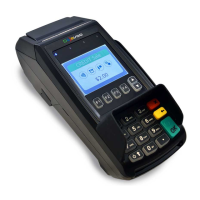
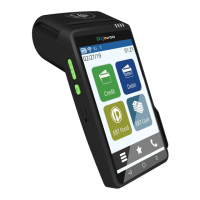
NON TOUCH SCREEN TOUCH SCREEN
Press the Yellow backspace
key to change the
transaction type to VOID
Input the VOID AMOUNT
and press OK
Use your fingertip to Tap the
word SALE then Tap the
word VOID
Input the VOID AMOUNT
and press OK
Continued on next page


 To Next Page