EasyManua.ls Logo

Dell Alienware 610M - User Manual

Dell Alienware 610M
9 pages
Print Icon
To Next Page IconTo Next Page
Loading...
8/13/2021
Dell Alienware 610M Gaming Mouse Usage and Troubleshooting Guide | Dell US
https://www.dell.com/support/kbdoc/en-us/printview/000128230/10/en
1/9
Article Number: 000128230 Print
Dell Alienware 610M Gaming Mouse Usage and
Troubleshooting Guide
Summary: The Alienware 610M Gaming Mouse has many features and options, refer to each section to
learn about the features of the Alienware 610M Gaming Mouse and how to use them.
Article Content
Symptoms
Refer to each section to learn about the features of the Alienware 610M Gaming Mouse and how to use them.
Cause
Table of Contents
1. What's in the Alienware 610M Gaming Mouse box
2. Mouse Features
3. Adjustable DPI (Dots Per Inch)
4. Scrolling speed
5. Setting up your gaming mouse
. Installing the Alienware Command Center (AWCC) and Alienware Gaming Peripheral Driver
7. Installing and Using the AW610M Pairing Tool
. Troubleshooting
9. Additional Information
Resolution
What's in the Alienware 610M Gaming Mouse box
Figure 1: Alienware 610M Gaming Mouse Box Contents
Numbers reference image above:
Alienware Gaming Mouse - AW610M
Micro USB to USB-A extension cable
Adapter
USB dongle (USB 2.0)
Documents
Back to Top

Questions and Answers

Summary

Whats in the Alienware 610 M Gaming Mouse box

Alienware Gaming Mouse - AW610 M

Identifies the primary device included in the package.

Micro USB to USB-A extension cable

Describes the included cable for charging or connectivity.

Adapter

Details the included adapter for connecting the USB dongle.

USB dongle (USB 2.0)

Specifies the wireless USB receiver for mouse connection.

Documents

Refers to the included printed materials like manuals or quick start guides.

Mouse Features

DPI;battery indicators

Details the indicators for DPI settings and battery status.

DPI adjustment button

Explains how to change the mouse's DPI settings.

Scrolling speed slider switch

Details the control for adjusting scroll wheel speed.

Power slider

Describes the switch for turning the mouse on or off.

Micro USB port

Specifies the port for charging or wired connection.

Adjustable DPI (Dots Per Inch)

DPI settings and customization

Lists available DPI settings and notes customization via AWCC.

Scrolling Speed

Setting up your gaming mouse

Unpacking your gaming mouse

Steps for preparing the mouse for initial use, including removing protective sheets.

Connecting the mouse in Wireless mode

Instructions for connecting the mouse wirelessly to portable devices.

Connecting the mouse in Wired mode

Charging the battery

Information on the mouse's rechargeable battery and initial charging recommendations.

Installing the Alienware Command Center (AWCC) and Alienware Gaming Peripheral Driver

AWCC and Driver Installation Steps

Detailed steps for downloading and installing AWCC and the gaming peripheral driver.

Installing and Using the AW610 M Pairing Tool

Pairing Tool Installation and Usage

Instructions for installing and using the AW610M Pairing Tool to resolve connectivity issues.

Troubleshooting

Mouse is not functioning

Solutions for when the mouse is unresponsive, including driver checks and restarts.

Mouse lighting is off

Steps to address the mouse lighting being off, such as waking from sleep.

Mouse not running based on configuration

Troubleshooting steps for when the mouse behavior differs from selected AWCC configurations.

Resolving cursor issues

Guidance for common cursor problems like unresponsiveness or incorrect movement.

Resolving mouse button issues

Solutions for problems related to mouse button functionality or responsiveness.

Troubleshooting a slow moving cursor

Steps to fix issues with slow or lagging cursor movement.

Troubleshooting cursor lagging

Adjusting pointer speed

Instructions on how to adjust the mouse pointer speed via Windows settings.

Wireless interference solutions

Addresses cursor lag due to wireless interference using the extension adapter.

Troubleshooting lift off distance (LOD) surface calibration issues

LOD calibration considerations

Explains LOD calibration dependence on surfaces and suggests dark mouse pads.

Mouse Usage and Troubleshooting Guide

Additional Information

Dell Mouse Support Site

Provides links to support resources, drivers, and user guides for the mouse.

Summary

Whats in the Alienware 610 M Gaming Mouse box

Alienware Gaming Mouse - AW610 M

Identifies the primary device included in the package.

Micro USB to USB-A extension cable

Describes the included cable for charging or connectivity.

Adapter

Details the included adapter for connecting the USB dongle.

USB dongle (USB 2.0)

Specifies the wireless USB receiver for mouse connection.

Documents

Refers to the included printed materials like manuals or quick start guides.

Mouse Features

DPI;battery indicators

Details the indicators for DPI settings and battery status.

DPI adjustment button

Explains how to change the mouse's DPI settings.

Scrolling speed slider switch

Details the control for adjusting scroll wheel speed.

Power slider

Describes the switch for turning the mouse on or off.

Micro USB port

Specifies the port for charging or wired connection.

Adjustable DPI (Dots Per Inch)

DPI settings and customization

Lists available DPI settings and notes customization via AWCC.

Scrolling Speed

Setting up your gaming mouse

Unpacking your gaming mouse

Steps for preparing the mouse for initial use, including removing protective sheets.

Connecting the mouse in Wireless mode

Instructions for connecting the mouse wirelessly to portable devices.

Connecting the mouse in Wired mode

Charging the battery

Information on the mouse's rechargeable battery and initial charging recommendations.

Installing the Alienware Command Center (AWCC) and Alienware Gaming Peripheral Driver

AWCC and Driver Installation Steps

Detailed steps for downloading and installing AWCC and the gaming peripheral driver.

Installing and Using the AW610 M Pairing Tool

Pairing Tool Installation and Usage

Instructions for installing and using the AW610M Pairing Tool to resolve connectivity issues.

Troubleshooting

Mouse is not functioning

Solutions for when the mouse is unresponsive, including driver checks and restarts.

Mouse lighting is off

Steps to address the mouse lighting being off, such as waking from sleep.

Mouse not running based on configuration

Troubleshooting steps for when the mouse behavior differs from selected AWCC configurations.

Resolving cursor issues

Guidance for common cursor problems like unresponsiveness or incorrect movement.

Resolving mouse button issues

Solutions for problems related to mouse button functionality or responsiveness.

Troubleshooting a slow moving cursor

Steps to fix issues with slow or lagging cursor movement.

Troubleshooting cursor lagging

Adjusting pointer speed

Instructions on how to adjust the mouse pointer speed via Windows settings.

Wireless interference solutions

Addresses cursor lag due to wireless interference using the extension adapter.

Troubleshooting lift off distance (LOD) surface calibration issues

LOD calibration considerations

Explains LOD calibration dependence on surfaces and suggests dark mouse pads.

Mouse Usage and Troubleshooting Guide

Additional Information

Dell Mouse Support Site

Provides links to support resources, drivers, and user guides for the mouse.

Overview

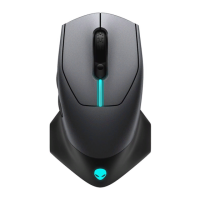
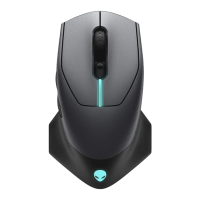
The Dell Alienware 610M Gaming Mouse is a high-performance peripheral designed for an enhanced gaming experience, offering both wired and wireless connectivity options. This mouse is equipped with a range of features that allow for precise control, customization, and comfortable use during extended gaming sessions.

Function Description

The Alienware 610M Gaming Mouse serves as a primary input device for computers, specifically optimized for gaming. Its core function is to translate physical movements into on-screen cursor actions and to register button presses for various in-game commands. The mouse supports adjustable DPI (Dots Per Inch) settings, allowing users to fine-tune tracking resolution for different gaming scenarios, from precise aiming to rapid movements. It also features customizable scrolling speed, enabling users to navigate through menus or web pages at their preferred pace. The inclusion of programmable buttons, such as forward and backward buttons, further enhances its utility by allowing users to assign specific functions or macros for quick access. The mouse operates in both wireless mode, utilizing a USB dongle for connectivity, and wired mode, through a micro USB to USB-A extension cable, which also facilitates battery charging.

Usage Features

The Alienware 610M Gaming Mouse is designed with several features to optimize its usability and performance.

Connectivity:

  • Wireless Mode: For untethered gaming, the mouse connects wirelessly via a USB dongle (USB 2.0). This dongle can be plugged directly into a portable device's USB 2.0 port or connected to a desktop using an adapter and a micro USB to USB-A extension cable. The dongle is conveniently stored within the mouse itself when not in use, ensuring it's always at hand.
  • Wired Mode: When a wired connection is preferred or when charging the battery, the mouse can be connected directly to a computer using the micro USB to USB-A extension cable. This mode also automatically initiates battery charging.

DPI Adjustment:

  • The mouse features a dedicated DPI adjustment button, allowing users to instantly switch between different tracking resolutions. The current DPI setting is indicated by an LED indicator color.
  • Default DPI settings include: 800 (Blue), 1800 (Green - default), 3500 (Yellow), 9000 (Orange), and 16000 (Red).
  • For advanced customization, the Alienware Command Center (AWCC) application allows users to change these default DPI settings, customize DPI stages, and modify the associated LED colors, providing a personalized experience tailored to individual preferences and game requirements.

Scrolling Speed:

  • A physical wheel notch slider on the mouse enables quick adjustment of the scrolling speed. Users can push the slider up to set the speed to 12 or down to set it to 24, offering flexibility for various tasks.

Programmable Buttons:

  • Beyond the standard left and right buttons and scroll wheel, the mouse includes forward and backward buttons, which can be customized through the AWCC software to execute specific commands or macros, enhancing efficiency in gaming and productivity applications.

Power Management:

  • The mouse is equipped with a power slider to easily turn it on or off, conserving battery life when not in use.
  • It features an embedded rechargeable battery. Battery status is indicated by LED colors: flashing amber for low power, morphing amber and green for charging, and solid green when fully charged. For optimal performance, it is recommended to fully charge the battery before the first use.

Alienware Command Center (AWCC) Integration:

  • The AWCC application is crucial for unlocking the full potential of the Alienware 610M Gaming Mouse. It allows users to control and customize various features, including DPI settings, LED colors, button assignments, and more.
  • Installation of AWCC and the Alienware Gaming Peripheral Driver is necessary for comprehensive customization. Dell provides the latest versions of these software components on its support site.
  • AWCC requires Windows 10 version 16299 or later, and it is recommended to update Windows and computer drivers before installation.

AW610M Pairing Tool:

  • In situations where the mouse cursor does not move due to an un-coupled pairing between the mouse and the USB wireless dongle, the AW610M Pairing Tool can be used to re-establish the connection. This tool guides users through the necessary steps to troubleshoot and resolve pairing issues, ensuring continuous wireless functionality.

Maintenance Features

The Alienware 610M Gaming Mouse is designed with ease of maintenance in mind, focusing on simple steps to ensure its longevity and consistent performance.

Cleaning:

  • To resolve issues such as a slow-moving cursor or erratic cursor behavior, it is essential to ensure that the optical opening at the bottom of the mouse is clean. Dust and debris can interfere with the sensor's ability to track movement accurately. Regular cleaning of this area will help maintain optimal tracking performance.

Surface Optimization:

  • For consistent cursor movement, it is important to use the mouse on a surface with sufficient pattern. The optical sensor relies on reflections from the surface to detect movement. A uniform or highly reflective surface can make it harder for the mouse to track accurately. Using a mouse pad, especially one designed for gaming, is highly recommended to provide an optimal tracking surface and prevent issues with cursor movement.

Troubleshooting and Support:

  • The device manual provides a comprehensive troubleshooting section that addresses common problems such as the mouse not functioning, lighting being off, cursor issues, mouse button issues, and slow-moving cursors.
  • Solutions often involve simple steps like restarting the computer, checking USB connections, ensuring AWCC is installed and configured correctly, or using the AW610M Pairing Tool for connectivity problems.
  • Dell's support resources, including the Dell Support Site, Knowledge Base articles, and online driver pages, offer additional information and assistance for maintaining and optimizing the mouse's performance. These resources provide guidance on driver updates, software installation, and general troubleshooting, ensuring users can keep their device in top condition.

By following these usage and maintenance guidelines, users can ensure their Dell Alienware 610M Gaming Mouse delivers a reliable and high-performance experience for all their gaming and computing needs.

Dell Alienware 610M Specifications

General IconGeneral
DPI16000
Polling Rate1000 Hz
Connectivity TechnologyWired, Wireless
Wireless Technology2.4 GHz
Movement Detection TechnologyOptical
Hand OrientationRight-handed
Cable Length1.8 m
SensorOptical
ColorDark Side of the Moon

Related product manuals