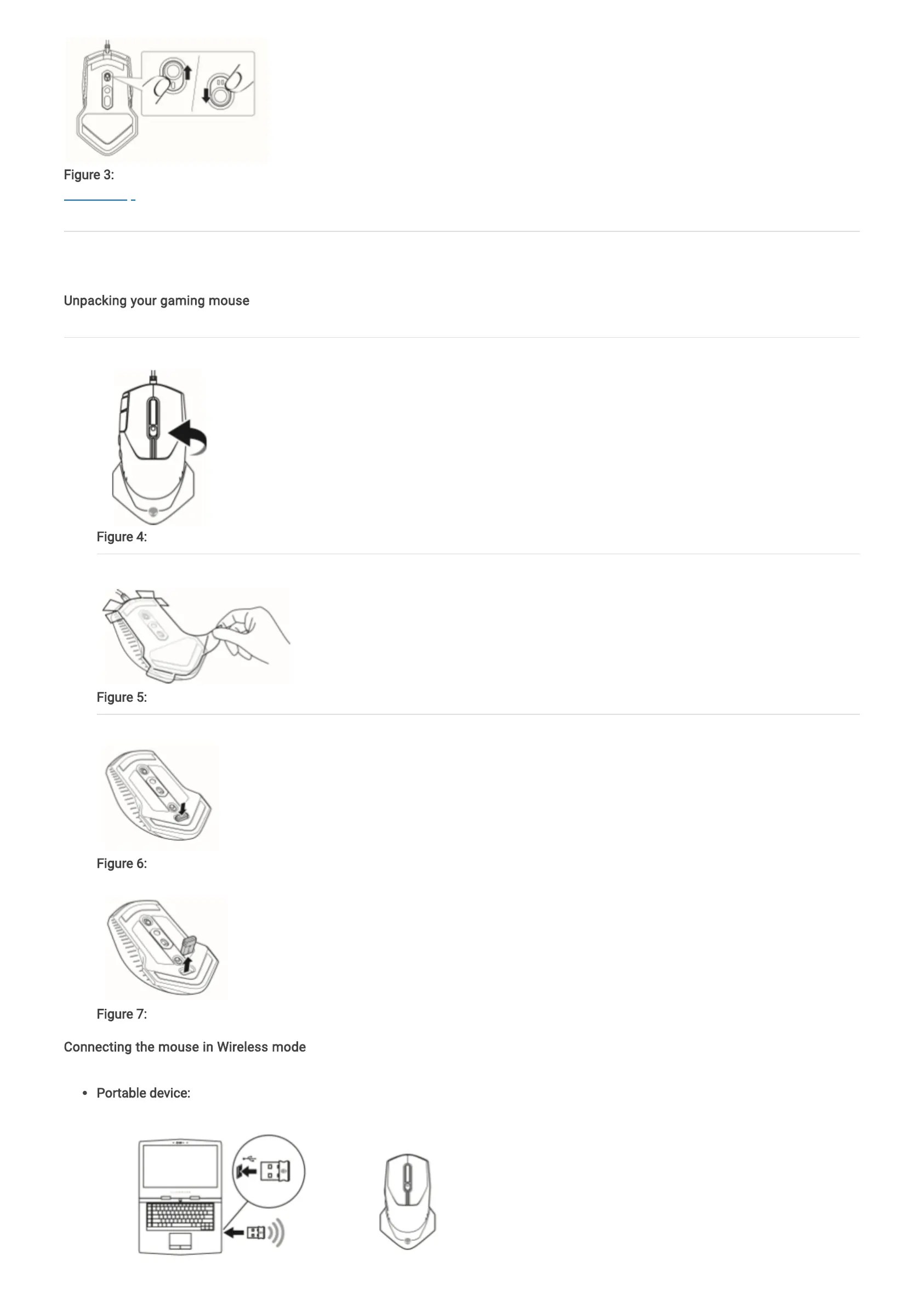
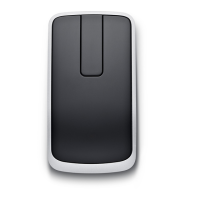
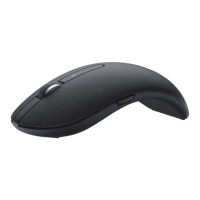
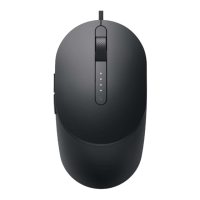
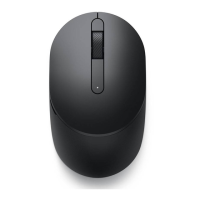
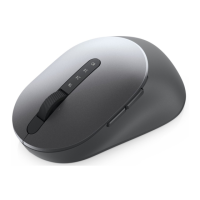
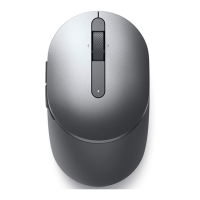
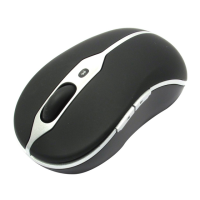
Figure 3: Alienware 610M Gaming Mouse Changing Scrolling Speed
Back to Top
Setting up your gaming mouse
Unpacking your gaming mouse
1. Place the mouse on the surface with the scrolling speed slider switch facing up.
Figure 4: Alienware 610M Gaming Mouse Setup
2. Remove the protective sheet.
Figure 5: Alienware 610M Gaming Mouse Removing Protective Sheet
3. Push the USB dongle inside to release it from the slot.
Figure 6: Alienware 610M Gaming Mouse Release USB Dongle
4. Remove the USB dongle from its slot.
Figure 7: Alienware 610M Gaming Mouse Remove USB Dongle
Connecting the mouse in Wireless mode
Portable device:
1. Connect the USB dongle to the USB 2.0 port on your portable device.


 To Next Page