Setting up the monitor │ 17
Connecting your monitor
WARNING: Before you begin any of the procedures in this section, follow
the Safety instructions.
NOTE: Do not connect all cables to the computer at the same time.
To connect your monitor to the computer:
1. Turn off your computer and disconnect the power cable.
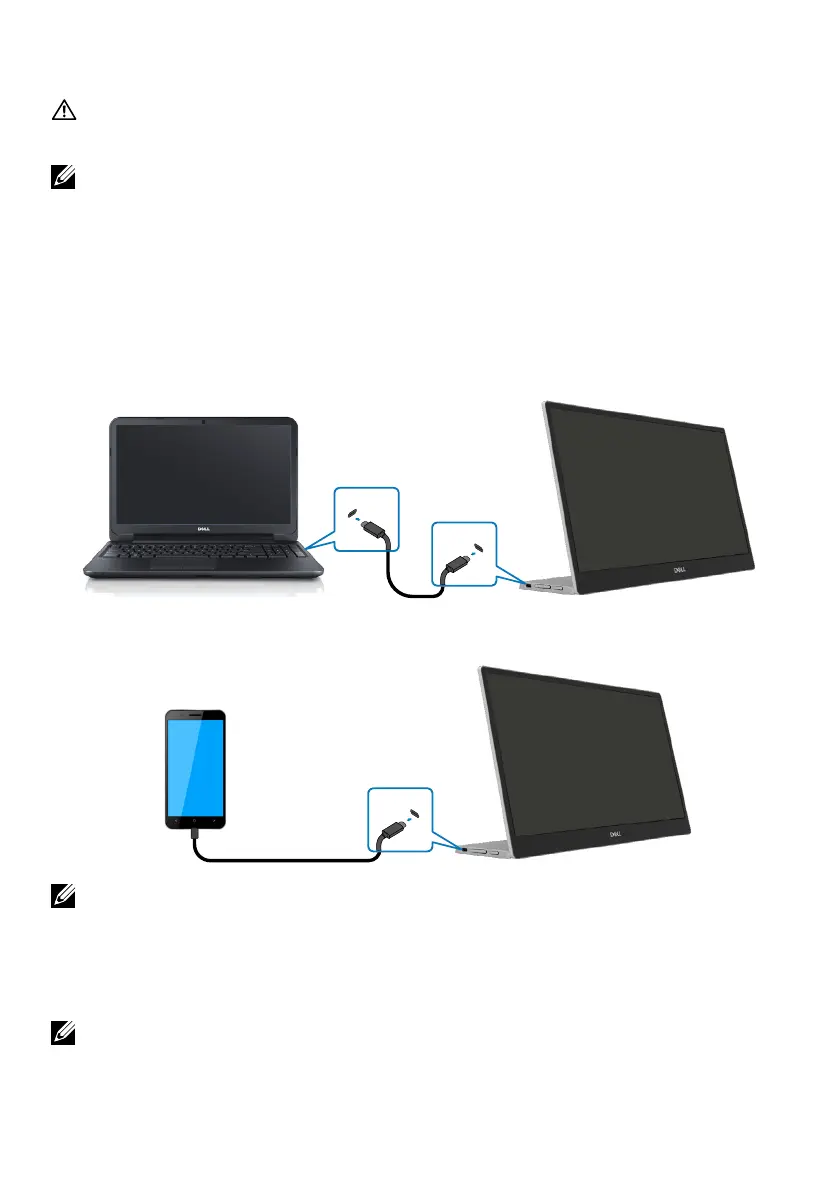
2. There are 2 kinds of usage for the C1422H: normal usage and charging usage.
Normal usage
There are 2 kinds of normal usage for C1422H: notebook and mobile phone.
1. Connect the USB Type-C port of notebook and C1422H with a USB Type-C cable.
USB Type-C
USB Type-C
2. Connect the USB Type-C port of mobile phone and C1422H with a USB Type-C cable.
Type-C
mobile phone
USB Type-C
NOTE: For normal usage, devices of notebook and mobile phone that connect
to C1422H need to support video signal and power output of 7.5W(5V/1.5A).
When you encounter abnormal display condition, please check your devices
to see if they support USB Type-C Alt-mode display and PD2.0 or above. After
checking, please re-connect and try again.
NOTE: It is suggested to connect to power adapter when connecting to
mobile phone.



 To Next Page