EasyManua.ls Logo

Dell C5517H - User Manual

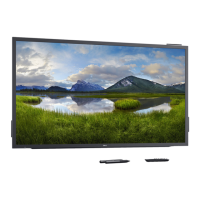
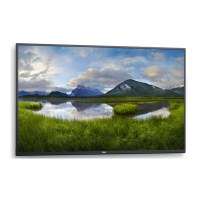
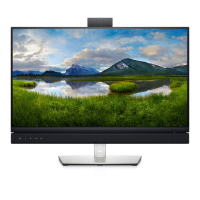
Dell C5517H
74 pages
Print Icon
To Next Page IconTo Next Page
Loading...
Model No.: C5517H
Regulatory model: C5517Hc
User’s Guide
Dell C5517H

Other manuals for Dell C5517H

Questions and Answers

  • M
    Melissa PalmerAug 20, 2025
    What to do if my Dell C5517H Monitor has no video but the power LED is on?
    • K
      kathleenrodriguezAug 20, 2025
      If your Dell monitor's power LED is on but there's no video, try these steps: Increase the brightness and contrast in the On-Screen Display (OSD) menu. Perform a monitor self-test. Inspect the video cable connector for bent or broken pins. Ensure the correct input source is selected in the Input Source Select menu. Finally, run the built-in diagnostics.
  • S
    Sheri JohnsonAug 22, 2025
    Why is there no sound or low sound on my Dell C5517H Monitor?
    • C
      Casey BellAug 22, 2025
      If you're experiencing no sound or low sound on your Dell monitor, ensure the audio cable is properly connected to the monitor. Adjust the volume settings on both your monitor and computer. Verify that the computer sound card driver is correctly installed and activated. Also, make sure the correct audio source is selected on the OSD.
  • E
    erica60Aug 25, 2025
    Why doesn't the picture fill the entire screen on my Dell C5517H Monitor?
    • W
      westsusanAug 25, 2025
      The monitor may display in less than full screen due to different video formats (aspect ratio) of DVDs. The option selected in Display Settings-Aspect Ratio may also affect the picture fitting on the screen. You can also run the built-in diagnostics.
  • S
    Stephanie HolderAug 26, 2025
    What to do if my Dell C5517H has missing pixels?
    • R
      richard12Aug 26, 2025
      Cycle the power on and off. A pixel that is permanently off is a natural defect that can occur in LCD technology.
  • S
    skinnerlisaAug 28, 2025
    How to resolve brightness problems on a Dell C5517H?
    • B
      bergerjefferyAug 28, 2025
      To fix brightness issues on your Dell monitor, try resetting the monitor to its factory settings. You can also use the Auto Adjust feature via the OSD. Additionally, manually adjust the brightness and contrast controls through the OSD.
  • D
    dawsonalecAug 30, 2025
    How to fix horizontal or vertical lines on a Dell Monitor?
    • J
      joanne80Aug 30, 2025
      To address horizontal or vertical lines on your Dell monitor, try the following: Reset the monitor to its factory settings. Perform Auto Adjust via the OSD. Adjust the Phase and Pixel Clock controls via the OSD. Perform a monitor self-test to see if the lines appear in self-test mode. Check the video cable connector for bent or broken pins.
  • A
    angelamartinSep 1, 2025
    How to fix poor focus on a Dell Monitor?
    • D
      Debbie WellsSep 1, 2025
      To improve focus on your Dell monitor, try the following: Perform Auto Adjust via the OSD. If using a VGA source, adjust the Phase and Pixel Clock controls via the OSD. Eliminate any video extension cables. Reset the monitor to its factory settings. Change the video resolution to the correct aspect ratio (16:9).
  • T
    Tabitha GuerraSep 3, 2025
    Why is the video shaky or jittery on my Dell Monitor?
    • R
      robin88Sep 3, 2025
      If you're experiencing shaky or jittery video on your Dell monitor, try these steps: Perform Auto Adjust via the OSD (for VGA source only). Adjust the Phase and Pixel Clock controls via the OSD (for VGA source only). Reset the monitor to Factory Settings. Check for environmental factors that may cause interference. Relocate the monitor and test it in another room.
  • G
    Gregory JohnstonSep 5, 2025
    Why does my Dell Monitor display the wrong color?
    • G
      grahamdavidSep 5, 2025
      If your Dell monitor displays incorrect colors, try these solutions: Change the Color Setting Mode in the Color Settings OSD to Graphics or Video, depending on what you're viewing. Experiment with different Color Preset Settings in the Color Settings OSD. If Color Management is off, adjust the R/G/B values in the Color Settings OSD. Also, change the Input Color Format to PC RGB or YPbPr in the Advanced Setting OSD.
  • T
    Teresa SandersSep 7, 2025
    How to resolve synchronization problems on a Dell C5517H Monitor?
    • A
      allisonjohnSep 7, 2025
      To resolve synchronization problems on your Dell monitor, try these steps: Reset the monitor to factory settings. Perform Auto Adjust via the OSD (for VGA source only). Adjust Phase and Pixel Clock controls via the OSD (for VGA source only). Perform a monitor self-test to see if the scrambled screen appears in self-test mode. Check for bent or broken pins in the video cable connector. Restart the computer in safe mode.

Summary

About Your Monitor

Product Features

Details the key features and specifications of the Dell C5517H monitor.

Monitor Specifications

Details power management, connector pin assignments, USB, and RS232 settings.

Flat-Panel Specifications

Lists detailed physical and performance specifications of the monitor.

Setting Up the Monitor

Connecting Your Monitor

Instructions for connecting the monitor to a computer via cables.

Operating the Monitor

Using the OSD Menu System

Guide on accessing and navigating the On-Screen Display (OSD) menu.

Troubleshooting

Monitor Self-Test Procedure

Instructions for running the monitor's self-test feature.

Built-in Diagnostics

Guide to using the monitor's built-in diagnostic tool for screen issues.

Common Problems and Solutions

Lists common monitor symptoms and their possible solutions.

Setting Up Your Monitor

Setting Maximum Display Resolution

Guide to setting the display resolution to 1920 x 1080 in Windows.

Dual Monitor Setup Guide

Instructions for setting up dual monitors in Windows 7, 8, and 10.

Configuring Multiple Displays

Details on selecting display options like Duplicate or Extend in Windows.

Setting Display Styles for Multiple Monitors

Explains how to choose display styles like Duplicate or Show Desktop Only.

Dell C5517H Specifications

General IconGeneral
Screen Size55 inches
Panel TypeIPS
Brightness350 cd/m²
Aspect Ratio16:9
Refresh Rate60 Hz
Color Support16.7 million colors
USB HubYes
Response Time8ms (gray to gray)
Viewing Angle178° (vertical) / 178° (horizontal)
ConnectivityHDMI, DisplayPort, USB
Resolution1920 x 1080 (Full HD)
VESA MountYes

Related product manuals