EasyManua.ls Logo

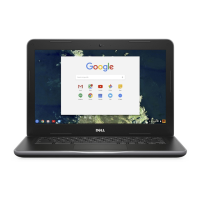
Dell Chromebook 3100 2-in-1 - User Manual

Dell Chromebook 3100 2-in-1
18 pages
Print Icon
To Next Page IconTo Next Page
Loading...
|
|
/
Quick Start
快速入 | 快速啟動 | Démarrage rapide | Quick Start
Mulai Cepat | クイックスタート | 빠른 시작 | Início rápido
Руководство по быстрому началу работы | Початок роботи
Brzi početak | Brzo pokretanje | Inicio rápido
ﻊﯾرﺳﻟا لﯾﻐﺷﺗﻟا הריהמ הלחתה
Regulatory Model/Type
管制型号/类型 | 管制型號/類型 | Type/Modèle réglementaire | Vorschriftenmodell/-Typ | Tipe/Model Resmi
規制モデル / タイプ | 규정 모델/유형 | Tipo ou modelo de normalização
Нормативная модель/тип | Модель/тип за нормативами | Regulatorni model/tip
Regulatorni model/tip Modelo/tipo regulatorio
ﻲﺑﺎﻗرﻟا زارطﻟا/عوﻧﻟا הניקת גוס/םגד
Información para NOM, o Norma Oficial Mexicana
La información que se proporciona a continuación se mostrará en los dispositivos que se describen en este
documento, en conformidad con los requisitos de la Norma Oficial Mexicana (NOM):
Importador:
Dell México, S.A. de C.V
Av. Javier Barros Sierra, no 540, Piso 10, Col. Lomas de Santa Fe
Delegación Álvaro Obregón, Ciudad de México. C.P. 01219
R.F.C: DME9204099R6
País de origen: Hecho en China
Chromebook 3100 2-in-1
P30T
P30T001

Other manuals for Dell Chromebook 3100 2-in-1

Questions and Answers

  • L
    lindaterryAug 17, 2025
    What to do if my Dell Chromebook 3100 2-in-1 Chromebook would not power on?
    • T
      Tracy MaloneAug 17, 2025
      If your Dell Laptop Chromebook won't power on, try these steps: 1. Remove all external devices. If it starts, reconnect devices one by one to find the problem device. If removing devices doesn't help, proceed to the next steps without reconnecting them. 2. Charge it for at least an hour using the AC adapter, especially if the battery is low. For a new Chromebook, turn it off, plug in the adapter, and then turn it back on. 3. Check for a power indicator light near the charging port. If it doesn't light up after charging, try a hard reset by pressing Refresh + Power. 4. Try a different AC adapter with the same power voltage. 5. Remove the AC adapter and try turning it on using only battery power.
  • R
    Richard Silva PhDAug 19, 2025
    What to do if Dell Laptop screen is blank?
    • B
      Brandon AliAug 20, 2025
      If your Dell Laptop Chromebook screen is blank, follow these steps, checking if the screen turns on after each: 1. Ensure the Chromebook is on. If using battery, plug it in and press the power button. 2. Restart the Chromebook by holding the power button until it shuts off, then turn it back on.
  • D
    David PhillipsAug 22, 2025
    What to do if Chrome OS stops responding on Dell Laptop?
    • T
      Traci TapiaAug 23, 2025
      If your Dell Laptop's Chrome OS stops responding, try these steps: 1. Turn off the computer. 2. Disconnect all peripheral devices, USB devices, and media cards. 3. Disconnect the AC adapter. 4. Press and hold the power button for 10 seconds. 5. Reconnect the AC adapter and turn on the system.
  • D
    Diane LopezAug 26, 2025
    How to fix audio issues on a Dell Chromebook 3100 2-in-1 Laptop?
    • S
      sawyerdouglasAug 26, 2025
      If you are experiencing audio issues on your Dell Laptop, such as static or low volume, ensure the device isn't muted and adjust the volume. Reboot the Chromebook. Test audio from different sources like YouTube and local files. If speakers don't respond, unplug all cables and try playing audio from various sources again. If problems persist after rebooting, further troubleshooting may be needed.
  • J
    Jack GomezAug 28, 2025
    How to resolve screen issues on a Dell Laptop?
    • S
      sylviawoodAug 28, 2025
      If your Dell Laptop screen isn't working correctly (images too dark or no image), try these steps: 1. Adjust the brightness using the brightness keys on the keyboard. 2. Check the display settings in the status area (bottom-right) to ensure there are no issues with mirrored or extended display. 3. Reboot the Chromebook.
  • B
    brandon50Aug 30, 2025
    How to troubleshoot camera issues on a Dell Chromebook 3100 2-in-1?
    • B
      Brooke AndrewsAug 31, 2025
      If your Dell Laptop camera isn't working properly (blurry images or poor performance): 1. Check that the camera isn't blocked by anything. 2. Try different apps that use the camera, like Google+ Hangouts or the built-in camera app. 3. Reboot the Chromebook.
  • C
    connor22Sep 2, 2025
    What to do if Dell Laptop touchpad is not responding?
    • R
      Richard ChapmanSep 2, 2025
      If the touchpad on your Dell Laptop is not responding, try these steps, moving the cursor after each: 1. Tap the Esc key several times. 2. Drumroll your fingers across the touchpad for a few seconds. 3. Restart the Chrome OS by holding the power button until it turns off, then turn it back on. 4. If the cursor still doesn't move, log in from the Guest account using the tab key to navigate. 5. For touchpad issues with non-owner accounts, delete and recreate the user account, using the tab key to navigate.
  • C
    Craig SimpsonSep 5, 2025
    Why are the hotkeys not responding on my Dell Chromebook 3100 2-in-1?
    • S
      smithchristopherSep 5, 2025
      If the hotkeys on your Dell Laptop (like volume or brightness) aren't responding, try these steps, testing the keys after each: 1. If it's volume or brightness, ensure you're not at the upper or lower limit. 2. If the back/forward buttons don't work, check if the same icons in a browser are grayed out (e.g., back button grayed out means there's no previous page). 3. Restart the Chrome OS by holding down the power button until the device turns off, then turn it back on again. 4. Try using the keys in the Guest account. 5. If hotkey issues occur with non-owner accounts, delete and recreate the user account.
  • J
    John LewisSep 8, 2025
    How to recover a forgotten sign-in password on a Dell Chromebook 3100 2-in-1?
    • D
      Daniel GouldSep 8, 2025
      If you've forgotten your Dell Laptop's Chrome OS sign-in password: * If it's a managed device, contact your administrator to reset the password using the Google Admin Console. * If it's not managed, sign in as a guest or use another PC. * Go to https://www.google.com/accounts/recovery/ in a browser. * Choose 'I don't know my password' and enter the email used to sign in to Google. * Click 'Continue' and follow the instructions to reset your password.
  • T
    Troy Santiago MDSep 12, 2025
    How to fix Bluetooth issues on a Dell Chromebook 3100 2-in-1 Laptop?
    • C
      Curtis DunlapSep 12, 2025
      To resolve Bluetooth issues on your Dell Laptop: 1. Verify that the Bluetooth device is supported by the Chromebook. 2. Disable and re-enable Bluetooth in the status area (lower-right corner). 3. Restart the Chromebook.

Summary

Quick Start Guide

Safety and Maintenance

General Safety Best Practices

Guidance on reading safety information and best practices for safe operation.

Internal Access and Component Handling

Warning against unauthorized removal of the computer cover.

Power Adapter Specifications

Input Power Requirements

Specifies the input voltage and frequency ranges for the power adapter.

Output Power Delivery

Details the output current and voltage provided by the power adapter.

Initial Setup Procedures

Connecting Power and Display

Instructions for connecting the power adapter and display.

Powering On the Device

Steps to turn on the computer and its connected display.

Hardware Component Identification

Dell Chromebook 3100 2-in-1 Specifications

General IconGeneral
RAM4GB LPDDR4
Storage32GB eMMC
Display11.6-inch HD (1366 x 768) Touchscreen
GraphicsIntel UHD Graphics 600
Operating SystemChrome OS
Battery LifeUp to 10 hours
Camera720p HD Webcam
ColorBlack
ProcessorIntel Celeron N4020
Ports2 x USB-C, 1 x MicroSD card reader, 1 x Headphone/Mic combo jack
WirelessBluetooth 5.0

Related product manuals