EasyManua.ls Logo

Dell Chromebook 3100 - User Manual

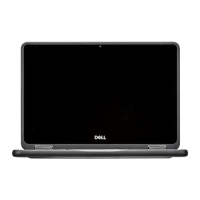
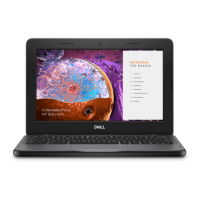
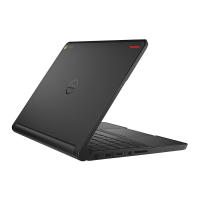
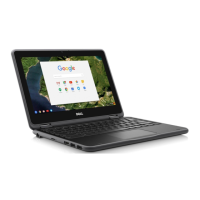
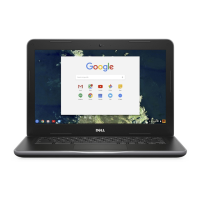
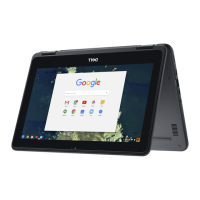
Dell Chromebook 3100
94 pages
Print Icon
To Next Page IconTo Next Page
Loading...
Dell Chromebook 3100
Service Manual
Regulatory Model: P29T
Regulatory Type: P29T001
March 2021
Rev. A03

Other manuals for Dell Chromebook 3100

Questions and Answers

  • K
    kevinhoganJul 25, 2025
    What to do if Chrome OS stops responding on my Dell Laptop?
    • M
      Michael KelleyJul 26, 2025
      If your Dell Laptop's Chrome OS stops responding, try the following steps. First, turn off the computer. Then, disconnect all peripheral and USB devices, and remove any media cards. Disconnect the AC adapter, press and hold the power button for 10 seconds. Reconnect the AC adapter, and turn the system back on. If the problem continues, reset or recover the Chromebook.
  • F
    Francisco StoneJul 31, 2025
    How to recover a forgotten password on a Dell Chromebook 3100 Laptop (Chrome OS)?
    • C
      Carla DillonJul 31, 2025
      If you've lost or forgotten your sign-in password on your Dell Laptop (Chrome OS), first determine if it's a managed device. If it is, contact your administrator to reset the password via Google Admin Console. If it's not a managed device, sign in as a guest or use a different PC. Then, open a browser and go to https://www.google.com/accounts/recovery/. Select 'I do not know my password' and enter the email you use to sign in to Google. Click 'Continue' and follow the instructions to reset your password.
  • L
    Lawrence HernandezAug 6, 2025
    How to fix touchpad or hotkeys issues on a Dell Laptop?
    • J
      Jason OlsonAug 7, 2025
      To resolve touchpad or hotkey issues on your Dell Laptop, start by restarting the Chrome OS: hold the power button until the device turns off, then turn it back on. If the issue persists, try using the keys in the Guest account. For hotkey problems with non-owner accounts, delete and recreate the user account. If these steps do not work, reset or recover your Chromebook.
  • R
    Roy MiddletonAug 12, 2025
    Why does my Dell Chromebook 3100 show the 'He's Dead, Jim!' error message?
    • M
      Molly TurnerAug 12, 2025
      If you're getting the 'He's Dead, Jim!' error message on your Dell Laptop, it might be due to low memory. If the page closed unexpectedly, reload it. If the message keeps appearing, close inactive tabs or programs to free up memory.
  • J
    Jacqueline RamosAug 18, 2025
    What to do if Chrome OS is missing or damaged on my Dell Chromebook 3100?
    • L
      Lisa BookerAug 18, 2025
      To fix a missing or damaged Chrome OS on your Dell Laptop, insert a recovery USB stick into one of the USB ports and perform a system recovery.

Summary

Computer Safety and Preparation

Safety Precautions and ESD Protection

General safety measures and static discharge prevention for servicing.

Hardware Component Servicing

Base Cover Procedures

Removing and installing the computer's base cover.

SIM Card and WWAN Card Procedures

Replacing the SIM card and WWAN card for connectivity.

Battery Removal and Installation

Steps to safely remove and install the battery.

Keyboard and Speaker Servicing

Procedures for replacing the keyboard and internal speakers.

Display Assembly and Panel Replacement

Servicing the display screen, bezel, hinges, and cable.

Input Output Board Replacement

Procedures for removing and installing the input/output board.

System Board Replacement

Procedures for removing and installing the main system board.

Chromebook Technology Features

USB, Type-C, and Thunderbolt Connectivity

Overview of USB standards, Type-C ports, and Thunderbolt.

Wireless and Bluetooth Functionality

Connecting to Wi-Fi and Bluetooth devices.

Troubleshooting and System Recovery

Hardware Issue Diagnosis and Resolution

Solutions for power, display, audio, and camera problems.

Chrome OS and CROSH Diagnostics

Troubleshooting OS errors and using CROSH command-line tools.

Chromebook Reset and Recovery Procedures

Steps to reset or recover the operating system.

Dell Support and Resources

Accessing Online Help and Contact Information

Finding support documentation and contacting Dell for assistance.

Dell Chromebook 3100 Specifications

General IconGeneral
RAM4GB LPDDR4
Storage16GB/32GB eMMC
Display11.6-inch HD (1366 x 768) Anti-Glare
Operating SystemChrome OS
Battery LifeUp to 14 hours
Wireless802.11ac Wi-Fi, Bluetooth 5.0
GraphicsIntel UHD Graphics 600
ProcessorIntel Celeron N4000
Ports2 x USB 3.1, 1 x MicroSD card reader, 1 x headphone/microphone combo jack
Battery42 Whr, 3-cell Li-ion

Related product manuals