EasyManua.ls Logo

Dell E1916H - User Manual

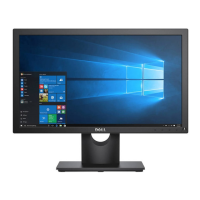
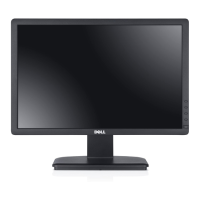
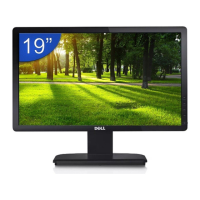
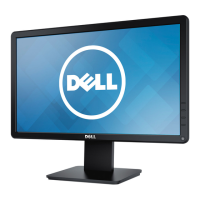
Dell E1916H
79 pages
Print Icon
To Next Page IconTo Next Page
Loading...
Regulatory model: E1916Hf / E1916Hef / E2016Hb / E2216Hf /
E2316Hf / E2416Hb
User‘s Guide
Dell E1916H
Dell E1916He
Dell E2016H
Dell E2216H
Dell E2316H
Dell E2316Hr
Dell E2416H

Questions and Answers

  • L
    Lisa MccormickAug 19, 2025
    What to do if Dell monitor has no video but power LED is on?
    • T
      Thomas PattersonAug 19, 2025
      If your Dell monitor displays no video but the power LED is on, try the following: * Increase the brightness and contrast controls via the OSD (On-Screen Display). * Perform the monitor's self-test feature check. * Inspect the video cable connector for bent or broken pins. * Ensure the correct input source is selected via the Input Source Select menu. * Run the built-in diagnostics.
  • M
    michaelroweAug 21, 2025
    How to resolve brightness problems on a Dell E1916H?
    • M
      Matthew WeissAug 21, 2025
      If you are experiencing brightness problems with your Dell monitor, try resetting the monitor to its factory settings. You can also try using Auto Adjust via the OSD, or manually adjust the brightness and contrast controls in the OSD.
  • G
    Gary MonroeAug 23, 2025
    What to do if Dell E1916H Monitor shows 'No Input Signal' when pressing user controls?
    • D
      Derek RamirezAug 23, 2025
      If your Dell monitor displays 'No Input Signal' when user controls are pressed, check the signal source and ensure the computer is not in power-saving mode by moving the mouse or pressing a key. Verify the signal cable is properly plugged in, and re-plug it if necessary. You can also try resetting the computer or video player.
  • C
    Christopher HarrisonAug 26, 2025
    Why is the screen image too small on my Dell E1916H Monitor?
    • A
      Autumn WoodAug 26, 2025
      If the screen image on your Dell monitor appears too small, check the Aspect Ratio setting in the Display OSD. If needed, reset the monitor to Factory Settings.
  • L
    Lauren VillanuevaAug 28, 2025
    How to fix poor focus on a Dell monitor?
    • K
      karen83Aug 28, 2025
      To correct poor focus on your Dell monitor, perform Auto Adjust via the OSD. You can also adjust the Phase and Pixel Clock controls via the OSD. Eliminate any video extension cables. If problems persist, reset the monitor to factory settings and change the video resolution to the correct aspect ratio (16:9).
  • J
    johnsonlisaAug 30, 2025
    How to fix horizontal or vertical lines on a Dell monitor?
    • T
      tallenAug 30, 2025
      If you see horizontal or vertical lines on your Dell monitor, reset the monitor to its factory settings. You can also perform Auto Adjust via the OSD, and adjust the Phase and Pixel Clock controls via the OSD. Additionally, perform a monitor self-test feature check to see if these lines appear in self-test mode. Check the video cable connector for bent or broken pins.
  • C
    Cindy DaySep 1, 2025
    How do I fix shaky or jittery video on my Dell monitor?
    • M
      Marcia LeeSep 1, 2025
      To resolve shaky or jittery video on your Dell monitor, perform Auto Adjust via the OSD. Also, adjust the Phase and Pixel Clock controls via the OSD. If that doesn't work, reset the monitor to its Factory Settings. Check for any environmental factors that might be causing interference. As a last resort, relocate the monitor and test it in another room.
  • M
    Maria FigueroaSep 3, 2025
    How to correct geometric distortion on a Dell monitor?
    • K
      Keith NelsonSep 3, 2025
      To address geometric distortion on your Dell monitor, reset the monitor to Factory Settings. Alternatively, try Auto Adjust via the OSD, or manually adjust the brightness and contrast controls via the OSD.
  • E
    Erin WilsonSep 5, 2025
    How to resolve synchronization problems on a Dell E1916H?
    • K
      Kenneth ThompsonSep 5, 2025
      To resolve synchronization problems with your Dell monitor, reset the monitor to Factory Settings. You can also perform Auto Adjust via the OSD and adjust the Phase and Pixel Clock controls via the OSD. Check if the scrambled screen appears in self-test mode by performing a monitor self-test feature check. Inspect the video cable connector for bent or broken pins. As a final step, restart the computer in safe mode.
  • C
    Christopher AndrewsSep 7, 2025
    How to fix wrong color display on a Dell E1916H?
    • R
      raymondwalkerSep 7, 2025
      If your Dell monitor is displaying the wrong color, change the Color Mode in the Color OSD to Graphics or Video, depending on the application you are using. You can also try different Color Preset Settings in the Color OSD. If Color Management is turned off, adjust the R/G/B values in the Color OSD. Finally, change the Input Color Format to PC RGB or YPbPr in the Color OSD.

Summary

About Your Monitor

Product Features

Lists monitor's capabilities.

Setting Up the Monitor

Attaching the Stand

How to assemble and attach the monitor stand.

Connecting Your Monitor

Instructions for connecting video cables.

Operating the Monitor

Using the On-Screen Display (OSD) Menu

Navigating and adjusting settings via the OSD.

Troubleshooting

Self-Test and Built-in Diagnostics

Procedures for diagnosing monitor issues.

Common and Product-Specific Problems

Troubleshooting common and model-specific issues.

Dell E1916H Specifications

General IconGeneral
3DNo
Panel typeTN
Pixel pitch0.3 x 0.3 mm
Aspect ratio16:9
Backlight typeW-LED
Display surfaceMatt
Display diagonal18.5 \
Display resolution1366 x 768 pixels
Display technologyLED
Viewable size diagonal470.1 mm
Viewing angle, vertical65 °
Contrast ratio (typical)600:1
Display number of colors16.78 million colors
Viewing angle, horizontal90 °
Display brightness (typical)220 cd/m²
Supported graphics resolutions1366 x 768
On/off switchYes
HDCP-
HDMI ports quantity0
CertificationCECP, TCO
Product colorBlack
Market positioningBusiness
LED indicatorsPower
Panel mounting interface100 x 100 mm
Input current1 A
AC input voltage100 - 240 V
AC input frequency50 - 60 Hz
Power consumption (max)17 W
Power consumption (standby)0.3 W
Power consumption (typical)14 W
Power consumption (PowerSave)10.4 W
Sustainability certificatesEPEAT Silver, ENERGY STAR
Operating altitude0 - 5000 m
Non-operating altitude0 - 12191 m
Storage temperature (T-T)-20 - 60 °C
Operating temperature (T-T)0 - 40 °C
Storage relative humidity (H-H)5 - 90 %
Operating relative humidity (H-H)10 - 80 %
Package weight3600 g
Cables includedAC, DisplayPort
Weight and Dimensions IconWeight and Dimensions
Depth (with stand)167 mm
Height (with stand)359 mm
Depth (without stand)51.5 mm
Width (without stand)445.4 mm
Height (without stand)266 mm
Weight (without stand)2260 g

Related product manuals