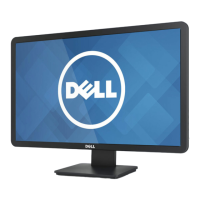
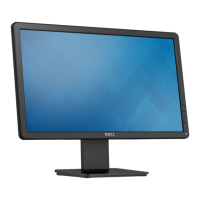
20" LCD Color Monitor Dell E207WFP
9
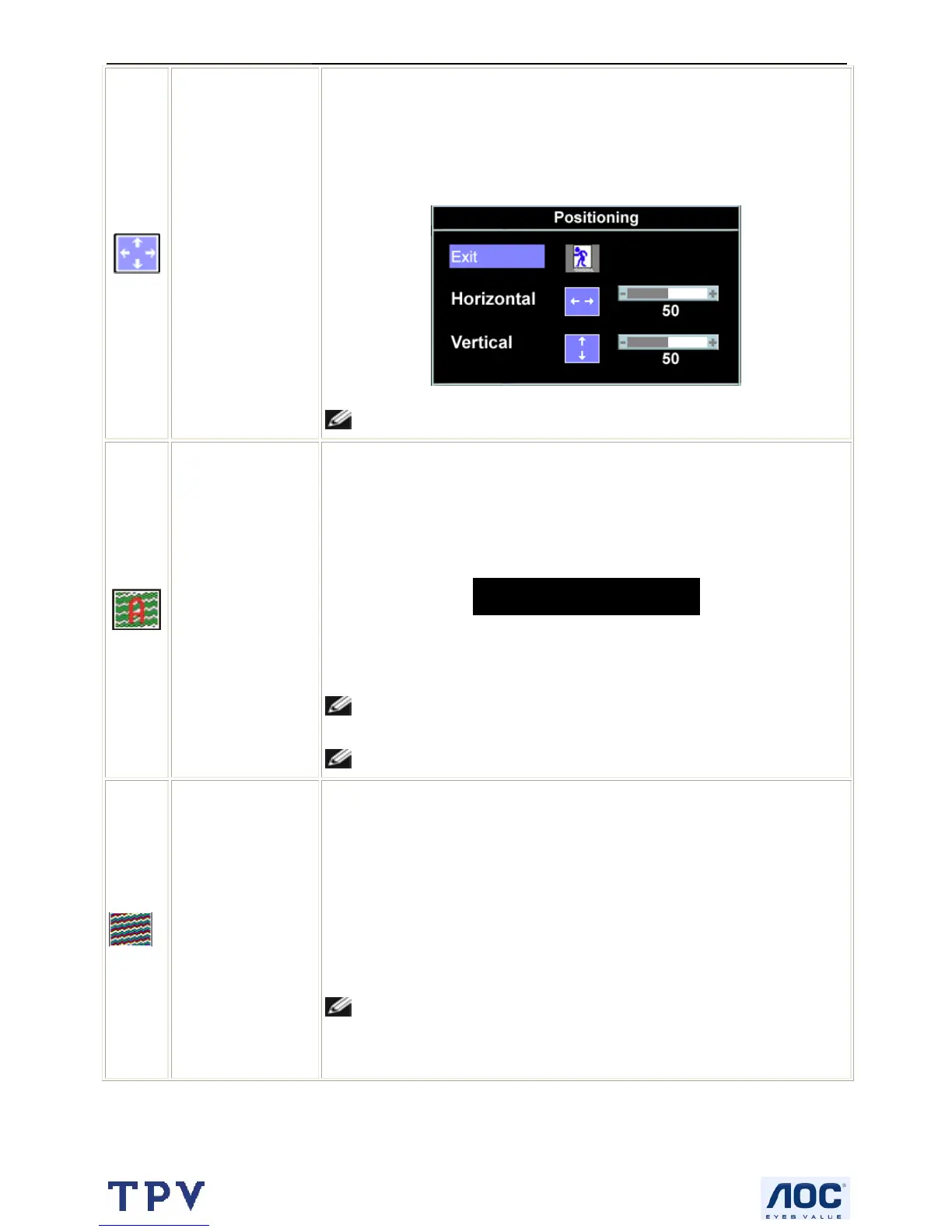
Positioning:
Horizontal
Vertical
Positioning moves the viewing area around on the monitor screen.
When making changes to either the Horizontal or Vertical settings, no changes
occur to the size of the viewing area. The image shifts in response to your
selection.
Minimum is 0 (-) and maximum is 100 (+)
.
NOTE: When using DVI source, the Positioning option is not available.
Auto Adjust
Even though your computer recognizes your monitor on startup, the Auto
Adjustment function optimizes the display settings for use with your particular
setup.
Select to activate automatic setup and adjustment. The following dialog appears
on a black screen as the monitor self-adjusts to the current input:
Auto Adjust In Progress
Auto Adjustment allows the monitor to self-adjust to the incoming video signal.
After using Auto Adjustment, you can further tune your monitor by using the Pixel
Clock (Coarse) and Phase (Fine) controls under Image Settings.
NOTE: In most cases, Auto Adjust produces the best image for your
configuration.
NOTE: When using DVI source, the Auto Adjust is not available.
Image settings:
Pixel Clock
(Coarse)
Phase (Fine)
The Phase and Pixel Clock adjustments allow you to more closely adjust your
monitor to your preference. These settings are accessed through the main OSD
menu, by selecting Image Settings.
Use the - and + buttons to make adjustments. (Minimum: 0 ~ Maximum: 100)
If satisfactory results are not obtained using the Phase adjustment, use Pixel
Clock (Coarse) and then use Phase (fine), again.
NOTE: This function may change the width of the display image. Use the
Horizontal function of the Position menu to center the display image on the
screen.


 To Next Page