EasyManua.ls Logo

Dell E2015HV - User Manual

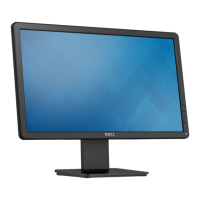
Dell E2015HV
82 pages
Print Icon
To Next Page IconTo Next Page
Loading...
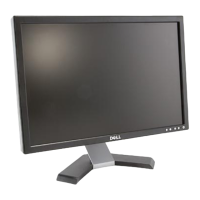
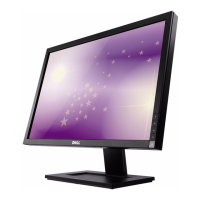
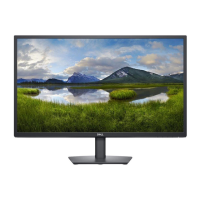
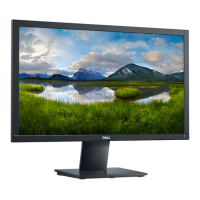
Model No.: E2015HV / E2215HV / E2715H
Regulatory model: E2015HVf / E2215HVf / E2715Hf
User‘s Guide
Dell E2015HV
Dell E2215HV
Dell E2715H

Table of Contents

Other manuals for Dell E2015HV

Questions and Answers

  • B
    bsmithSep 8, 2025
    Why is there Missing Color on my Dell Monitor?
    • S
      Susan HarrisSep 9, 2025
      If your Dell monitor is displaying missing colors, attempt the following: * Perform a monitor self-test feature check. * Ensure that the video cable connecting the monitor to the computer is connected properly and is secure. * Check for bent or broken pins in the video cable connector.
  • L
    Linda WareAug 23, 2025
    How to resolve Brightness Problems on Dell Monitor?
    • J
      Jack GonzalesAug 23, 2025
      To resolve brightness issues on your Dell monitor, consider the following steps: * Reset the monitor to Factory Settings. * Auto Adjust via OSD. * Adjust brightness & contrast controls via OSD.
  • E
    Elizabeth TaylorAug 25, 2025
    How to resolve Low Volume on Dell E2015HV Soundbar?
    • R
      rwalkerAug 25, 2025
      To address low volume on your Dell monitor's soundbar: * Clear any obstructions between the Soundbar and the user. * Turn the Power/Volume knob on the Soundbar clockwise to the maximum volume setting. * Set all Windows volume controls to their maximum. * Increase the volume of the audio application. * Test the Soundbar using another audio source (For example: portable CD player, MP3 player).
  • J
    Jonathan ElliottAug 27, 2025
    What to do if there is No sound for system where the Soundbar draws power from an AC adapter on Dell E2015HV?
    • I
      imartinezAug 27, 2025
      If there is no sound and your Dell monitor's soundbar draws power from an AC adapter: * Turn the Power/Volume knob on the Soundbar clockwise to the middle position; check if the power indicator (white LED) on the front of the Soundbar is illuminated. * Confirm that the power cable from the Soundbar is plugged into the adapter.
  • J
    johnharrisAug 27, 2025
    Why is my Dell E2015HV Monitor image blurry?
    • E
      Ernest PageAug 27, 2025
      If your Dell monitor's focus is poor, you can try these solutions: * Perform Auto Adjust via the OSD. * Adjust the Phase and Pixel Clock controls via the OSD. * Eliminate video extension cables. * Reset the monitor to Factory Settings. * Change the video resolution to the correct aspect ratio (16:9).
  • R
    raymondgrahamSep 22, 2025
    What to do if Dell E2015HV Monitor shows No Input Signal when user controls are pressed?
    • B
      Bobby SmithSep 22, 2025
      If your Dell monitor displays 'No Input Signal' when the user controls are pressed: * Check the signal source. * Ensure the computer is not in power saving mode by moving the mouse or pressing any key on the keyboard. * Check whether the signal cable is plugged in properly. * Re-plug the signal cable if necessary. * Reset the computer or video player.
  • D
    Dustin SpencerSep 16, 2025
    What to do with Safety-Related Issues on Dell E2015HV?
    • W
      William GoodwinSep 16, 2025
      If you encounter any safety-related issues with your Dell monitor: * Do not perform any troubleshooting steps. * Contact Dell immediately.
  • A
    adamgilmoreSep 18, 2025
    What to do if I Cannot adjust the Dell E2015HV Monitor with the buttons on the front panel?
    • B
      brianhensleySep 18, 2025
      If you cannot adjust your Dell monitor using the front panel buttons: * Turn off the monitor, unplug the power cord, plug it back in, and then turn on the monitor. * Check whether the OSD menu is locked. If yes, press and hold the button beside the Power button for 10 seconds to unlock.
  • T
    Tim AndersonSep 7, 2025
    How do I fix Horizontal or Vertical Lines on my Dell E2015HV?
    • A
      ahillSep 7, 2025
      If you're seeing horizontal or vertical lines on your Dell monitor, try these steps: * Reset the monitor to Factory Settings. * Perform Auto Adjust via OSD. * Adjust Phase and Pixel Clock controls via OSD. * Perform a monitor self-test feature check and determine if these lines are also in self-test mode. * Check for bent or broken pins in the video cable connector.
  • A
    Anna AndersonSep 4, 2025
    How to fix Geometric Distortion on Dell E2015HV?
    • P
      Paul HolmesSep 4, 2025
      To correct geometric distortion on your Dell monitor, try the following: * Reset the monitor to Factory Settings. * Auto Adjust via OSD. * Adjust brightness & contrast controls via OSD.

Summary

Dell Display Manager Guide

Overview

Explains the purpose and function of Dell Display Manager software for monitor management.

Quick Settings Dialog

Describes how to use the Quick Settings dialog for convenient monitor adjustments.

Basic Display Functions

Details how to adjust basic display settings like Preset Modes and contrast.

Preset Modes to Applications

Explains how to assign specific preset color modes to applications for automatic switching.

Energy-Conservation Features

Outlines options for conserving energy, such as dimming brightness or sleep modes.

Monitor Features and Specifications

Package Contents

Lists all components included with the monitor shipment for user verification.

Product Features

Highlights the key technical specifications and capabilities of the monitors.

Identifying Front Panel Controls

Identifies and describes the front panel buttons and their functions.

Key Monitor Specifications

Details critical specifications like power, resolution, panel type, and connectivity.

Setting Up the Monitor

Attaching the Stand

Step-by-step guide on how to assemble and attach the monitor stand.

Connecting Your Monitor

Instructions for connecting the monitor to a computer using various video cables.

Wall Mounting

Provides instructions for mounting the monitor on a wall using a VESA-compatible kit.

Operating the Monitor

Power and Front-Panel Controls

Explains how to power on the monitor and use its front-panel buttons for adjustments.

On-Screen Display (OSD) Menu

Guides the user on accessing and navigating the monitor's OSD menu system.

Setting Maximum Resolution

Instructions for setting the optimal display resolution in Windows operating systems.

Using the Tilt Feature

Explains how to adjust the monitor's viewing angle by tilting the stand.

Troubleshooting Monitor Issues

Self-Test and Diagnostics

Guides on using built-in features to check monitor functionality and identify issues.

Common and Product-Specific Problems

Provides solutions for frequent monitor issues and model-unique problems.

Dell Soundbar Problems

Offers troubleshooting steps for common issues with Dell soundbars.

Appendix and Support Information

Safety Instructions

Important safety warnings and precautions for using the monitor.

Regulatory and Contact Information

Details FCC notices, regulatory compliance, and Dell support contact methods.

Dell E2015HV Specifications

General IconGeneral
BrandDell
ModelE2015HV
CategoryMonitor
LanguageEnglish

Related product manuals