EasyManua.ls Logo

Dell E2722H - User Manual

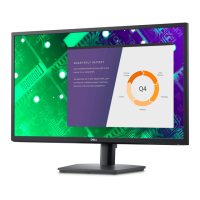
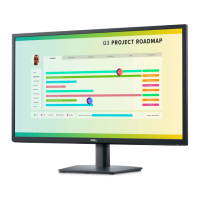
Dell E2722H
72 pages
Print Icon
To Next Page IconTo Next Page
Loading...
Monitor Model: E2722H/E2722HS
Regulatory Model: E2722Hc/E2722HSc
Dell E2722H/E2722HS Monitor
User’s Guide

Other manuals for Dell E2722H

Questions and Answers

  • S
    Stephen MurrayAug 17, 2025
    What to do if my Dell E2722H says 'No Input Signal'?
    • T
      Taylor RogersAug 17, 2025
      If your Dell monitor displays 'No Input Signal', ensure your computer isn't in Standby Mode by moving the mouse or pressing a key. Verify the video cable is properly plugged in; disconnect and reconnect if needed. You may also need to reset your computer or video player.
  • J
    James JamesAug 20, 2025
    How to fix a Dell E2722H Monitor with no video and the power LED off?
    • J
      joelcooperAug 20, 2025
      If your Dell monitor's power LED is off and there's no video, make sure the video cable is securely connected between the monitor and computer. Check if the power outlet works with another device. Ensure the power button is pressed and the correct input source is selected via the Input Source menu.
  • D
    Dennis GarciaAug 22, 2025
    How to solve brightness problems on a Dell E2722H Monitor?
    • L
      louiswalkerAug 22, 2025
      To resolve brightness issues on your Dell monitor, first reset the monitor to Factory Settings. If the problem persists, adjust the brightness and contrast controls via the OSD (On-Screen Display).
  • A
    Adam SantanaAug 25, 2025
    What to do if Dell E2722H has no video but power LED is on?
    • T
      Timothy DavisAug 26, 2025
      If your Dell monitor's power LED is on but there's no video, try increasing the brightness and contrast using the OSD. Perform the monitor's self-test feature check. Inspect the video cable connector for bent or broken pins. Run the built-in diagnostics and ensure the correct input source is selected via the Input Source menu.
  • T
    tristan27Aug 28, 2025
    How to resolve synchronization problems on a Dell Monitor?
    • M
      Melissa RobersonAug 28, 2025
      To address synchronization problems with your Dell monitor, first reset the monitor to Factory Settings. Then, perform the monitor's self-test feature check to see if the scrambled screen appears in self-test mode. Check the video cable connector for bent or broken pins. As a final step, restart the computer in safe mode.
  • E
    Eric ChambersAug 31, 2025
    How do I fix horizontal or vertical lines on my Dell E2722H Monitor?
    • K
      Keith AllenAug 31, 2025
      If your Dell monitor is displaying horizontal or vertical lines, first reset the monitor to Factory Settings. Then, perform the monitor's self-test feature check to see if these lines appear in self-test mode as well. Check the video cable connector for bent or broken pins. Finally, run the built-in diagnostics.
  • J
    jennifer80Sep 2, 2025
    What to do if my Dell Monitor is missing color?
    • J
      James KelleySep 3, 2025
      If your Dell monitor is missing color, perform the monitor's self-test feature check. Ensure the video cable connecting the monitor to the computer is properly connected and secure. Check the video cable connector for bent or broken pins.
  • M
    Maurice EvansSep 5, 2025
    How to fix geometric distortion on a Dell E2722H?
    • Z
      Zachary PhillipsSep 5, 2025
      To correct geometric distortion on your Dell monitor, reset the monitor to its Factory Settings. If the distortion remains, adjust the horizontal and vertical controls via the OSD.
  • A
    Amanda BrownSep 8, 2025
    How to improve poor focus on a Dell Monitor?
    • R
      Raymond SmithSep 8, 2025
      To fix poor focus on your Dell monitor, try these steps: * Eliminate video extension cables. * Reset the monitor to Factory Settings. * Change the video resolution to the correct aspect ratio.
  • R
    richardhernandezSep 12, 2025
    How to prevent image retention on a Dell E2722H Monitor?
    • M
      Miguel PollardSep 12, 2025
      If you notice image retention on your Dell monitor from a static image left for a long time, set the screen to turn off after a few minutes of idle time. You can adjust this in Windows Power Options or Mac Energy Saver settings. Alternatively, use a dynamically changing screensaver.

Summary

Safety instructions

About your monitor

Package contents

Lists all items included with the monitor for setup and usage.

Product features

Details the technical capabilities and functionalities of the monitor.

Monitor Front View Identification

Identifies components on the front panel of the monitor.

Monitor specifications

Setting up the monitor

Connecting the stand

Provides step-by-step instructions for attaching the monitor stand.

Removing the stand

Operating your monitor

Monitor Control Buttons Overview

Explains how to use the monitor's physical buttons for adjustments.

OSD Button Lock Functions

Guides on locking/unlocking OSD and power buttons via menu or panel.

OSD Menu - Basic Settings

Accesses Brightness/Contrast, Auto Adjust, Input Source, and Color settings.

Setting the maximum resolution

Troubleshooting

Self-Test

Procedure to check monitor functionality without computer connection.

Built-in diagnostics

Tool to diagnose screen abnormalities and identify issues.

Common problems

Lists typical monitor issues and their potential solutions.

Dell E2722H Specifications

General IconGeneral
Pixel pitch0.3114 x 0.3114 mm
Screen shapeFlat
Pixel density81 ppi
Response time8 ms
Backlight typeLED
Display diagonal27 \
Anti-glare screenYes
Display technologyLCD
Native aspect ratio16:9
Vertical scan range48 - 75 Hz
Maximum refresh rate60 Hz
Response time (fast)5 ms
Horizontal scan range30 - 85 kHz
Viewable size diagonal686 mm
NTSC coverage (typical)83 %
Viewable size, vertical336.31 mm
Contrast ratio (typical)1000:1
Display number of colors16.7 million colors
Display diagonal (metric)68.6 cm
Viewable size, horizontal597.89 mm
Display brightness (typical)300 cd/m²
Supported graphics resolutions1920 x 1080 (HD 1080)
DisplayPort version1.2
HDMI ports quantity0
Tilt angle range-5 - 21 °
Panel mounting interface100 x 100 mm
AC input voltage100 - 240 V
Power supply typeInternal
AC input frequency50 - 60 Hz
Energy efficiency scaleA to G
Power consumption (max)30 W
Power consumption (off)0.3 W
Power consumption (typical)17 W
Package weight6870 g
Doesn't containPVC/BFR
Sustainability certificatesENERGY STAR, RoHS
Product colorBlack
Heavy metals freeHg (mercury)
Market positioningHome
Operating altitude0 - 5000 m
Non-operating altitude0 - 12192 m
Storage temperature (T-T)-20 - 60 °C
Operating temperature (T-T)0 - 40 °C
Storage relative humidity (H-H)5 - 90 %
Operating relative humidity (H-H)10 - 80 %
Cables includedAC, DisplayPort
Harmonized System (HS) code85285210
Weight and Dimensions IconWeight and Dimensions
Bezel width (top)12.89 mm
Bezel width (side)12.71 mm
Depth (with stand)188.29 mm
Height (with stand)458.9 mm
Weight (with stand)4550 g
Bezel width (bottom)16.14 mm
Depth (without stand)50.41 mm
Width (without stand)623.3 mm
Height (without stand)370.87 mm
Weight (without stand)3820 g

Related product manuals