Need help?
Do you have a question about the Dell KM7120W and is the answer not in the manual?
Details about the Dell wireless mouse, including its top and bottom views and button functions.
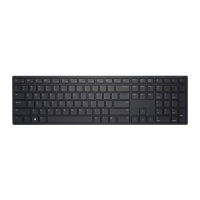
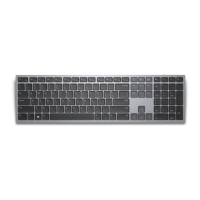
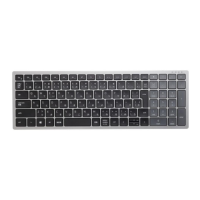
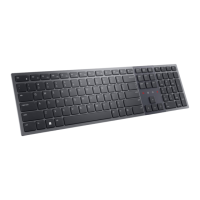
Details about the Dell wireless keyboard, including its top and bottom views and button functions.
Step-by-step instructions for installing batteries in the Dell wireless mouse.
Guide to pairing the wireless mouse using a USB dongle or Bluetooth connection.
Instructions for pairing the wireless keyboard via USB dongle or Bluetooth connection.
Troubleshooting steps for when the mouse or keyboard is unresponsive or not functioning.
Steps to resolve issues when the mouse/keyboard cannot be paired using Bluetooth.
Solutions for common mouse issues like unresponsive pointer or buttons.
Troubleshooting steps for lost or intermittent wireless connections.
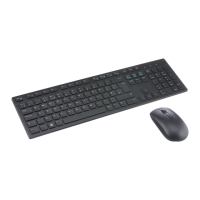
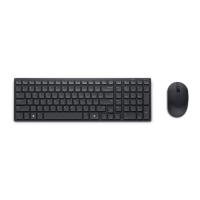
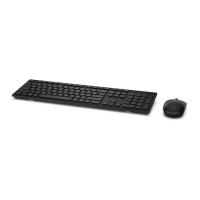
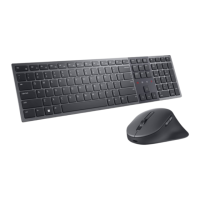
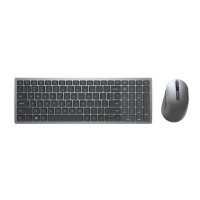
The Dell Multi-device Wireless Keyboard and Mouse Combo (KM7120W) is designed to provide a versatile and convenient input solution for various computing environments. This combo allows users to connect and switch between multiple devices using both USB dongle and Bluetooth connectivity, enhancing productivity across different platforms such as laptops, desktops, and compatible mobile devices.
The KM7120W combo includes a wireless keyboard (KB7120Wc) and a wireless mouse (MS5320Wc), both designed for multi-device connectivity. The primary function of this combo is to offer a seamless input experience, allowing users to control up to three different devices with a single keyboard and mouse set. This is achieved through a combination of a Dell Universal USB dongle for RF (Radio Frequency) connection and two separate Bluetooth channels. The multi-device capability is particularly useful for users who frequently switch between a desktop computer, a laptop, and a tablet or smartphone, eliminating the need for multiple peripheral sets.
The wireless mouse is equipped with several features to enhance usability. It has standard left and right buttons, a scroll wheel for navigation, and forward and backward buttons for quick browsing. A connection-mode button is located on the mouse, allowing users to switch between connected devices. The mouse also features connection-mode lights that indicate the current connection status and battery level. A white LED blinking signifies that the device is not connected, a solid white LED indicates a successful connection, and an amber LED blinking warns of a low battery. The mouse uses an optical sensor for precise tracking and has a power switch on its bottom for turning it on or off. It is powered by one AA-type battery.
The wireless keyboard offers a full layout for comfortable typing. Similar to the mouse, it has connection-mode lights and a connection-mode switch button to facilitate switching between paired devices. The keyboard also features a power switch. The connection-mode lights on the keyboard function similarly to those on the mouse: blinking white for no connection, solid white for a connected device, and blinking amber for a low battery. The keyboard is powered by two AA-type batteries.
Both the keyboard and mouse support multi-device pairing. For the mouse, device 1 is typically paired via the Dell Universal USB dongle, which is pre-paired at the factory. Devices 2 and 3 can be paired using Bluetooth. To pair with a Bluetooth device, users press the connection-mode button twice (within 3 seconds) to select the desired Bluetooth channel (2 or 3). The corresponding connection-mode light will blink for 3 minutes, indicating that the mouse is in pairing mode. Users then search for "Dell Mouse" in their computer's Bluetooth settings to complete the pairing. Once paired, the connection light turns solid white for 3 seconds and then off, confirming the connection.
The keyboard follows a similar pairing process. Device 1 is connected via the USB dongle, and devices 2 and 3 are paired via Bluetooth. To initiate Bluetooth pairing for devices 2 or 3, the connection-mode button on the keyboard is pressed twice (within 3 seconds). The respective connection-mode light will blink, and users can then find "Dell Keybd" in their computer's Bluetooth settings to establish the connection. The connection light behavior is consistent with the mouse, indicating pairing status and successful connection.
For the mouse, battery installation involves locating a slot on the side of the mouse cover, prying it open, and installing one AA battery into the compartment. The USB dongle is also stored in this compartment when not in use. After installing the battery, the cover is replaced, and the power switch is slid down to turn on the mouse.
For the keyboard, the battery cover is removed from the bottom of the device. Two AA batteries are then installed into the battery compartment, ensuring correct polarity as indicated. The battery cover is then replaced, and the power switch is slid to the right to turn on the keyboard.
The manual provides guidance for common issues. If the mouse or keyboard cannot be used, users are advised to check if the batteries are inserted correctly, verify the battery level (replacing exhausted batteries or recharging rechargeable ones), and turn the device off and on again. A flashing amber battery status light indicates low power, while no light suggests a fully depleted battery.
For USB dongle connections, it's recommended to ensure the dongle is directly connected to the computer, avoiding port replicators or USB hubs, and to try changing the USB port.
If pairing with Bluetooth fails, users should check the battery level, restart the mouse/keyboard, and then restart the computer. It's also important to verify that the operating system supports Bluetooth Low Energy (BLE) mode (e.g., Windows 10/8, Chrome/Android) and that BLE mode is enabled on the computer. If the device is not listed in Bluetooth settings, users are instructed to ensure the pairing mode is enabled on the mouse or keyboard by pressing the Bluetooth-pairing button.
Issues with the mouse pointer not moving or left/right buttons not working are also addressed by checking battery levels and restarting the mouse. If a wireless pairing error message is received, the same battery and restart checks apply. If the wireless connection is lost, users should confirm the USB dongle is directly connected and try a different USB port.
The Dell Multi-device Wireless Keyboard and Mouse Combo is designed for ease of use and flexibility, allowing users to manage multiple devices efficiently with a single set of peripherals.
 General
| Connectivity | Wireless |
|---|---|
| Multi-Device | Yes |
| Device Type | Keyboard and Mouse Combo |
| Pointing Device | Mouse |
| Buttons Qty | 3 |
| Color | Black |
| Keyboard Technology | Membrane |
| Keyboard Layout | QWERTY |
| Keyboard Battery Life | Up to 36 months |
| Interface | Bluetooth, 2.4 GHz |
| Compatibility | Windows, Mac, Chrome, Android |
| Wireless Receiver | USB Receiver |
| Keyboard Weight | 0.49 kg |
| Mouse Dimensions | 4.3 x 2.4 x 1.5 inches |
| Mouse Weight | 2.29 oz |

 To Next Page