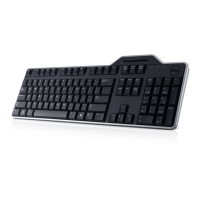
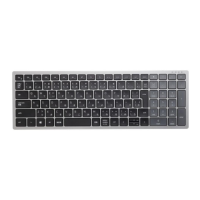
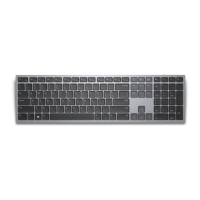
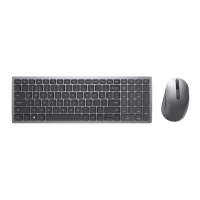
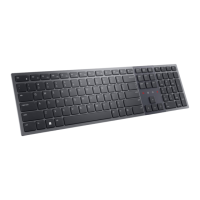
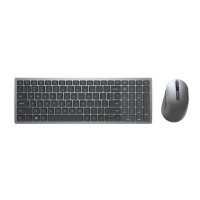
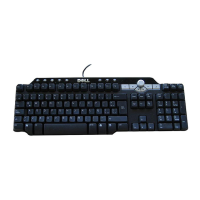
This document serves as a user's guide for the Dell Wireless Keyboard KB500, providing essential information for its setup, use, and troubleshooting. The keyboard is designed for seamless wireless connectivity, offering a clean and organized workspace without the clutter of cables.
Function Description
The Dell Wireless Keyboard KB500 is a full-sized wireless keyboard designed for general computing tasks. It connects to a computer via a USB receiver, utilizing a 2.4 GHz RF wireless protocol to ensure a stable and responsive connection. The keyboard is intended for use with various operating systems, including different versions of Windows, Android, Chrome, Linux, and Free-DOS, making it a versatile peripheral for a wide range of devices. Its primary function is to provide input to a computer, enabling users to type documents, navigate interfaces, and execute commands efficiently. The wireless design allows for greater flexibility in positioning the keyboard relative to the computer, enhancing user comfort and ergonomics.
Usage Features
The KB500 keyboard is designed for straightforward setup and ease of use. To begin using the keyboard, users must first install two AAA batteries into the battery compartment located on the underside of the device. The battery compartment is accessed by prying open its cover with a fingertip. Once the batteries are correctly inserted, the cover should be replaced. The keyboard also features extendable feet, which can be opened to adjust the typing angle for improved comfort. A power switch is provided to turn the keyboard on and off, helping to conserve battery life when not in use.
Pairing the keyboard with a computer is a simple process. The Dell Universal USB receiver, included with the keyboard, needs to be plugged into an available USB port on the computer. Once the receiver is connected and the keyboard is powered on, the devices should automatically pair. The manual emphasizes maintaining a close proximity (within 0.5 meters) between the keyboard and the computer during the initial setup to ensure a successful connection. The keyboard's wireless capability allows it to be paired with various devices such as laptops, desktops, and compatible mobile devices, offering flexibility across different computing environments.
For enhanced management and customization, the Dell Peripheral Manager software can be utilized. This software allows users to view important device information, such as the firmware version and battery status, through its Info tab. It also facilitates the upgrade of firmware, ensuring the keyboard remains up-to-date with the latest features and performance improvements. This feature is particularly useful for maintaining optimal performance and addressing any potential software-related issues.
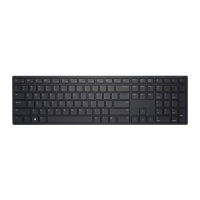
The keyboard's design focuses on providing a reliable and comfortable typing experience. The full-sized layout includes a numeric keypad, which is beneficial for data entry and other tasks requiring numerical input. The keys are designed for tactile feedback, promoting accurate and efficient typing. The wireless range of up to 10 meters allows users to operate the keyboard from a distance, which can be convenient in various settings, such as presentations or media consumption.
Maintenance Features
Maintaining the Dell Wireless Keyboard KB500 primarily involves managing its power source and ensuring a stable connection. The keyboard operates on two AAA batteries, and the manual provides clear instructions on how to install and replace them. A key maintenance feature is the battery-status light, which flashes amber 10 times when the battery power is low, signaling to the user that a replacement is needed. If the batteries are fully depleted, the light will not turn on. This visual indicator helps users anticipate battery changes, preventing unexpected interruptions during use. For rechargeable batteries, the advice is to ensure they are fully charged.
Troubleshooting guidance is comprehensive, addressing common issues such as the keyboard not functioning, inability to pair, or unresponsive buttons. If the keyboard is not working, users are advised to check the battery orientation and level. Ensuring the batteries are correctly inserted with the "+" and "-" ends aligned as indicated in the compartment is crucial. If the batteries are exhausted, replacing them is the recommended solution.
Connection issues are also covered. If the keyboard fails to pair or loses its wireless connection, users should verify that the USB receiver is directly connected to the computer, avoiding port replicators or USB hubs which can sometimes interfere with the signal. Inserting the USB receiver into a different USB port on the computer is another suggested step. Restarting the computer can also resolve various connectivity problems. The importance of maintaining a close distance (within 0.5 meters) between the keyboard and the computer is reiterated for both initial pairing and resolving connection drops, as this ensures optimal signal strength.
The Dell Peripheral Manager software also plays a role in maintenance by allowing users to keep the keyboard's firmware updated. Regular firmware updates can improve performance, add new features, and fix bugs, contributing to the longevity and reliability of the device. By following the guidelines for battery management, connection troubleshooting, and firmware updates, users can ensure their Dell Wireless Keyboard KB500 remains in optimal working condition.


 To Next Page
 General