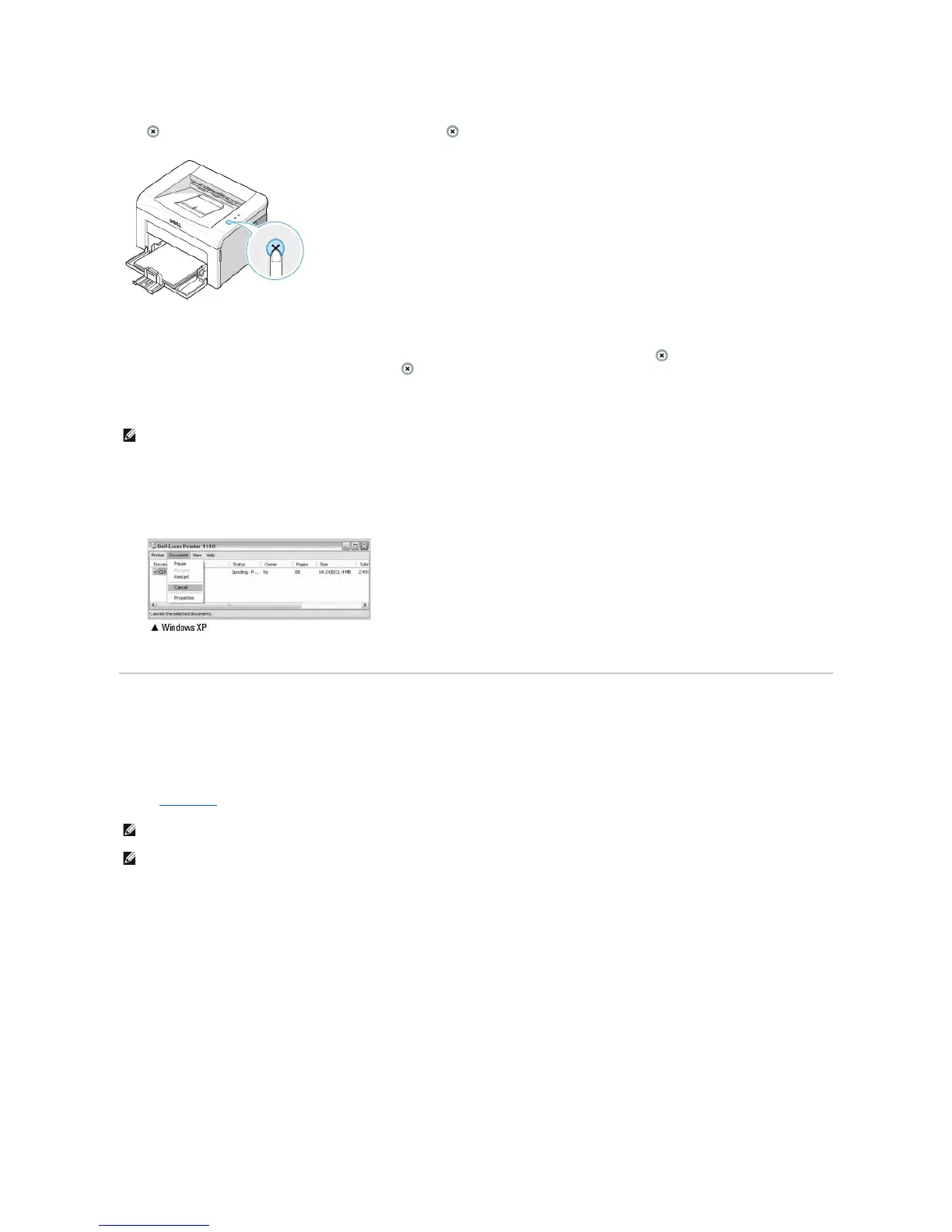
than one print job is in the printer's memory, you need to press once for each job.
To stop a print job from the Printers folder:
1. From the Windows Start button, click Settings.
2. Select to Printers (Windows 98/Me/2000) or Printers and Faxes (Windows XP) to open the Printers window and double-click the Dell Laser Printer
1110 icon.
3. From the Document menu, click Cancel (Windows 2000/XP) or Cancel Printing (Windows 98/Me).
Printer Settings
You can use the printer properties window, which allows you to access all of the printer options you may need when using your printer. When the printer
properties are displayed, you can review and change any settings needed for your print job.
The printer properties window may differ, depending on your operating system. The User's Guide shows the Printing Preferences window for Windows XP.
If you access printer properties through the Printers folder, you can view additional Windows-based tabs (refer to your Windows User's Guide) and the Printer
tab (see "Printer Tab").
a. Click the Windows Start button.
b. For Windows 98/Me/2000, click Settings and point to Printers.
For Windows XP, click Printers and Faxes.
c. Point to the Dell Laser Printer 1110 icon.
d. Right-click on the printer icon and:
l For Windows 98/Me, click Properties.
l For Windows 2000/XP, click Print Setup or click Properties and point to Printing Preferences.
e. Change the settings on each tab and click OK.
Layout Tab











 To Next Page