24 Quick Reference Guide
3
When the boot device list appears, highlight
CD/DVD/CD-RW
and press
<Enter>.
4
Select the
Boot from CD-ROM
option from the menu that appears and
press <Enter>.
5
Ty pe
1
to start the CD menu and press <Enter> to proceed.
6
Select
Run the 32 Bit Dell Diagnostics
from the numbered list. If
multiple versions are listed, select the version appropriate for your
computer.
7
When the Dell Diagnostics
Main Menu
screen appears, select the test you
want to run.
Dell Diagnostics Main Menu
1
After the Dell Diagnostics loads and the Main Menu screen appears, click
the button for the option you want.
NOTE: It is recommended that you select Test System to run a complete test on
your computer.
2
After you have selected the
Test System
option from the main menu, the
following menu appears.
NOTE: It is recommended that you select Extended Test from the menu below to
run a more thorough check of devices in the computer.
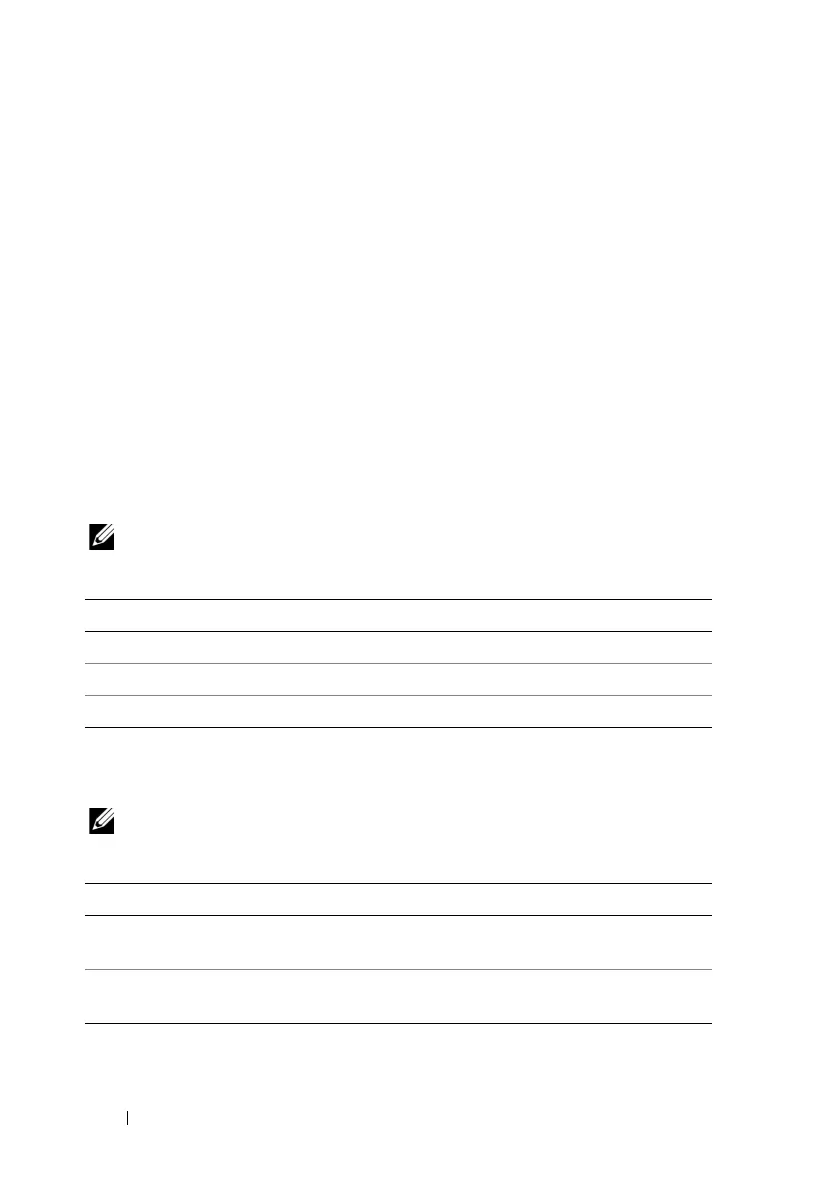
Option Function
Test Memory Run the stand-alone memory test
Test System Run System Diagnostics
Exit Exit the Diagnostics
Option Function
Express Test Performs a quick test of devices in the system. This
typically can take 10 to 20 minutes.
Extended Test Performs a thorough check of devices in the system. This
typically can take an hour or more.
Custom Test Use to test a specific device or customize the tests to be run.





 To Next Page