EasyManua.ls Logo

Dell NOT22104 - User Manual

Dell NOT22104
111 pages
Print Icon
To Next Page IconTo Next Page
Loading...
https://tehnoteka.rs
Uputstvo za upotrebu (EN)
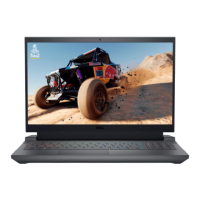
DELL laptop G15 5530 (NOT22104)
Tehnoteka je online destinacija za upoređivanje cena i karakteristika bele tehnike,
potrošačke elektronike i IT uređaja kod trgovinskih lanaca i internet prodavnica u Srbiji.
Naša stranica vam omogućava da istražite najnovije informacije, detaljne karakteristike
i konkurentne cene proizvoda.
Posetite nas i uživajte u ekskluzivnom iskustvu pametne kupovine klikom na link:
https://tehnoteka.rs/p/dell-laptop-g15-5530-not22104-akcija-cena/
1 / 111

Table of Contents

Questions and Answers

  • M
    mjacksonSep 2, 2025
    How to fix Wi-Fi connectivity issues on a Dell NOT22104?
    • B
      Brad HowellSep 2, 2025
      To resolve Wi-Fi connectivity issues on your Dell Laptop, perform a Wi-Fi power cycle. Turn off the modem, wireless router, and computer. Wait 30 seconds, then turn them back on.
  • J
    Justin GonzalezSep 1, 2025
    What to do if my Dell NOT22104 Laptop is unable to access the Internet due to Wi-Fi connectivity issues?
    • E
      Eric PerezSep 1, 2025
      If your Dell Laptop is unable to access the Internet due to Wi-Fi connectivity issues, perform a Wi-Fi power cycle.
  • H
    hshawAug 31, 2025
    What to do if Dell Laptop has swollen Lithium-ion battery?
    • R
      Robin LopezAug 31, 2025
      If you observe a swollen battery in your Dell Laptop, immediately stop using the laptop. Disconnect the AC adapter and allow the battery to fully discharge. Swollen batteries are unsafe and should be replaced and disposed of correctly. It is recommended to contact Dell product support to explore options for replacing the battery under your warranty or service contract.
  • D
    David MccannAug 30, 2025
    How to fix Wi-Fi issues on Dell Laptop?
    • W
      williamwatersAug 30, 2025
      To fix Wi-Fi connectivity issues on your Dell Laptop, perform a Wi-Fi power cycle procedure.
  • J
    Jeremy SmithAug 29, 2025
    How to fix Wi-Fi connectivity issues on Dell NOT22104 Laptop?
    • J
      Jeremy WrightAug 29, 2025
      If your Dell Laptop is having Wi-Fi connectivity issues, perform a Wi-Fi power cycle to resolve the problem.
  • H
    hannahyorkAug 28, 2025
    What to do if my Dell Laptop has no power?
    • J
      Jeffrey WatsonAug 28, 2025
      If your Dell Laptop experiences a No POST/No Power/No Boot situation, start the RTC reset. Ensure the system is powered off and connected to AC power, then press and hold the power button for thirty to thirty five (30-35) seconds.
  • J
    jonesginaAug 27, 2025
    What to do if Dell Laptop battery not powering on?
    • G
      Gregory NelsonAug 27, 2025
      If your Dell laptop's battery is not powering on, you can try to drain residual flea power. To do this, turn off the computer, disconnect the power adapter, remove the battery, press and hold the power button for 20 seconds, reinstall the battery, move the base cover back into place, and reconnect the power adapter.
  • D
    Drew ZamoraAug 26, 2025
    What does it mean if the battery status light blinks amber along with beep codes indicating failures on my Dell Laptop?
    • B
      brian42Aug 27, 2025
      If the battery status light blinks amber along with beep codes indicating failures, this 2,3 pattern continues until the computer is turned off, indicating no memory or RAM is detected.
  • J
    Joshua TaylorAug 25, 2025
    How to fix a Dell NOT22104 Laptop with no power?
    • K
      Kyle BeckAug 26, 2025
      To resolve a Dell Laptop that has no power and won't boot, start an RTC reset. Ensure the system is powered off and connected to AC power, then press and hold the power button for thirty to thirty-five (30-35) seconds.
  • N
    Nicole WagnerAug 25, 2025
    What to do if Dell Laptop has no POST/No Power/No Boot?
    • D
      Denise Rasmussen DDSAug 25, 2025
      If your Dell Laptop is experiencing No POST/No Power/No Boot situations, you can start the RTC reset. Do this by pressing and holding the power button for thirty to thirty five (30-35) seconds.

Dell NOT22104 Specifications

General IconGeneral
BrandDell
ModelNOT22104
CategoryLaptop
LanguageEnglish

Related product manuals