Back to Contents Page
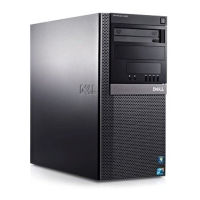
Mini Tower Computer
Dell™OptiPlex™210LUser'sGuide
About Your Mini Tower Computer
Inside Your Computer
About Your Mini Tower Computer
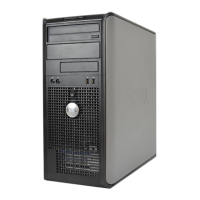
Front View
Insert a CD or DVD (if applicable) into this drive.
Insert a floppy disk into this drive.
hard-drive
activity light
This light flickers when the hard drive is in use.
Use the USB connectors on the front of the computer for devices that you
connect occasionally, such as joysticks or cameras, or for bootable USB
devices (see "System Setup" for more information on booting to a USB
device).
It is recommended that you use the USB connectors on the back of the
computer for devices that typically remain connected, such as printers and
keyboards.
Use the lights to help you troubleshoot a computer problem based on the
diagnostic code. For more information, see "Diagnostic Lights."
Press this button to turn on the computer.
NOTICE: To avoid losing data, do not turn off the computer by pressing
the power button for 6 seconds or longer. Instead, perform an operating
system shutdown.
NOTICE: If your operating system has ACPI enabled, when you press the
power button the computer will perform an operating system shutdown.
The power light illuminates and blinks or remains solid to indicate different
operating states:
l No light — The computer is turned off.
l Steady green — The computer is in a normal operating state.
l Blinking green — The computer is in a power-saving mode.
l Blinking or solid amber — See "Power Problems."







 To Next Page

