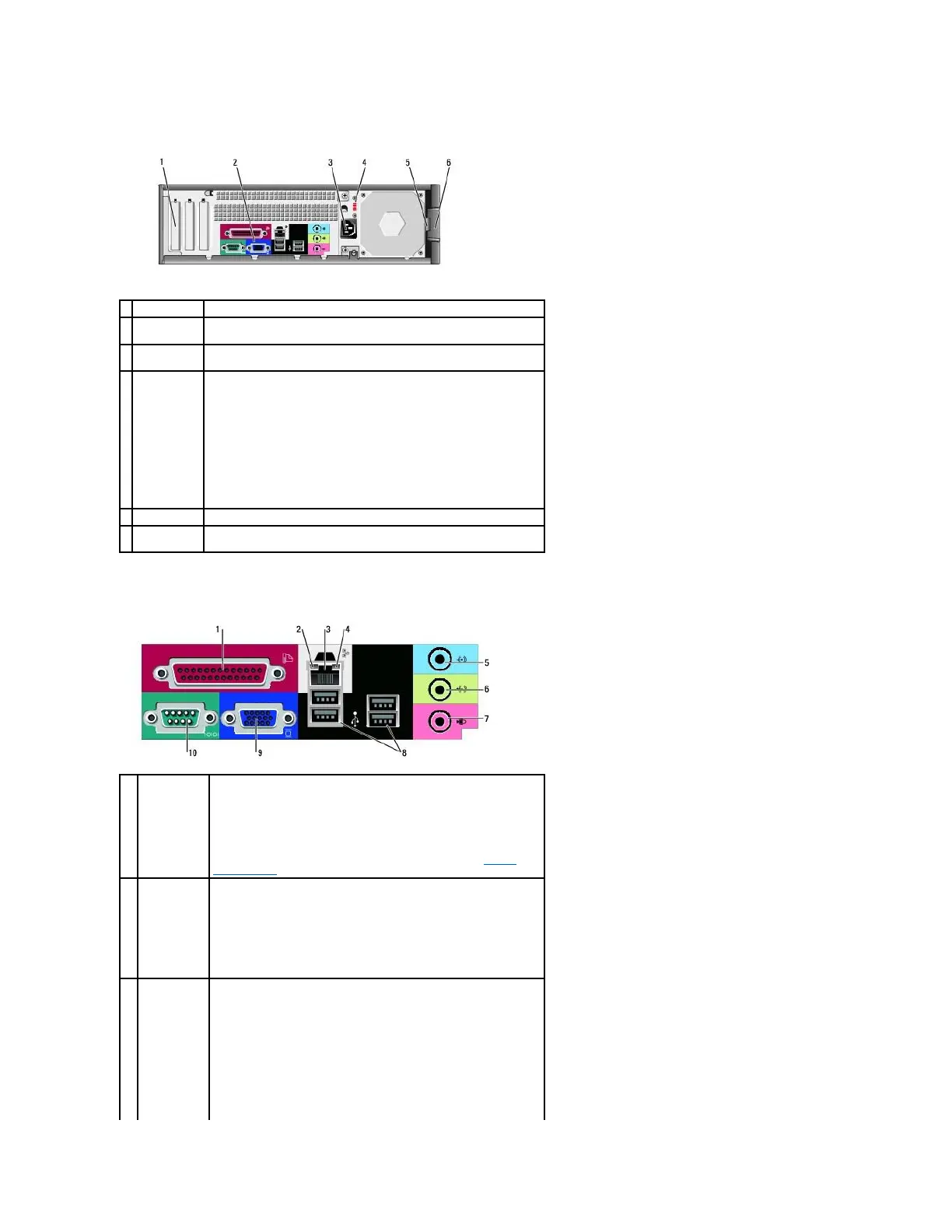
Back View
Back-Panel Connectors
Access connectors for any installed PC Cards.
Plug serial, USB, and other devices into the appropriate connector.
Insert the power cable into this connector.
Your computer is equipped with a manual voltage-selection switch. To
help avoid damaging a computer with a manual voltage-selection switch,
set the switch for the voltage that most closely matches the AC power
available in your location.
NOTICE: In Japan the voltage selection switch must be set to the 115-V
position.
Also, ensure that your monitor and attached devices are electrically rated
to operate with the AC power available in your location.
Insert a padlock to lock the computer cover.
Use this latch to open the computer cover.
Connect a parallel device, such as a printer, to the parallel connector. If
you have a USB printer, plug it into a USB connector.
NOTE: The integrated parallel connector is automatically disabled if the
computer detects an installed card containing a parallel connector
configured to the same address. For more information, see "System
Setup Options."
l Green — A good connection exists between a 10-Mbps network
and the computer.
l Orange — A good connection exists between a 100-Mbps network
and the computer.
l Yellow — A good connection exists between a 1-Gbps (or 1000-
Mbps) network and the computer.
l Off — The computer is not detecting a physical connection to the
network.
network
adapter
connector
To attach your computer to a network or broadband device, connect one
end of a network cable to either a network jack or your network or
broadband device. Connect the other end of the network cable to the
network adapter connector on the back panel of your computer. A click
indicates that the network cable has been securely attached.
NOTE: Do not plug a telephone cable into the network connector.
On computers with a network adapter card, use the connector on the
card.








 To Next Page