NOTE:
You can connect a Dell Docking Station to the Thunderbolt 4 ports. For more information, search in the
Knowledge Base Resource at www.dell.com/support.
NOTE:
A USB Type-C to DisplayPort adapter (sold separately) is required to connect a DisplayPort device.
NOTE:
Thunderbolt 4 supports two 4K displays or one 8K display.
4. Battery-status light
Indicates the battery-charge status.
● Solid yellow - Battery charge is low.
● Blinking yellow - Battery charge is critical.
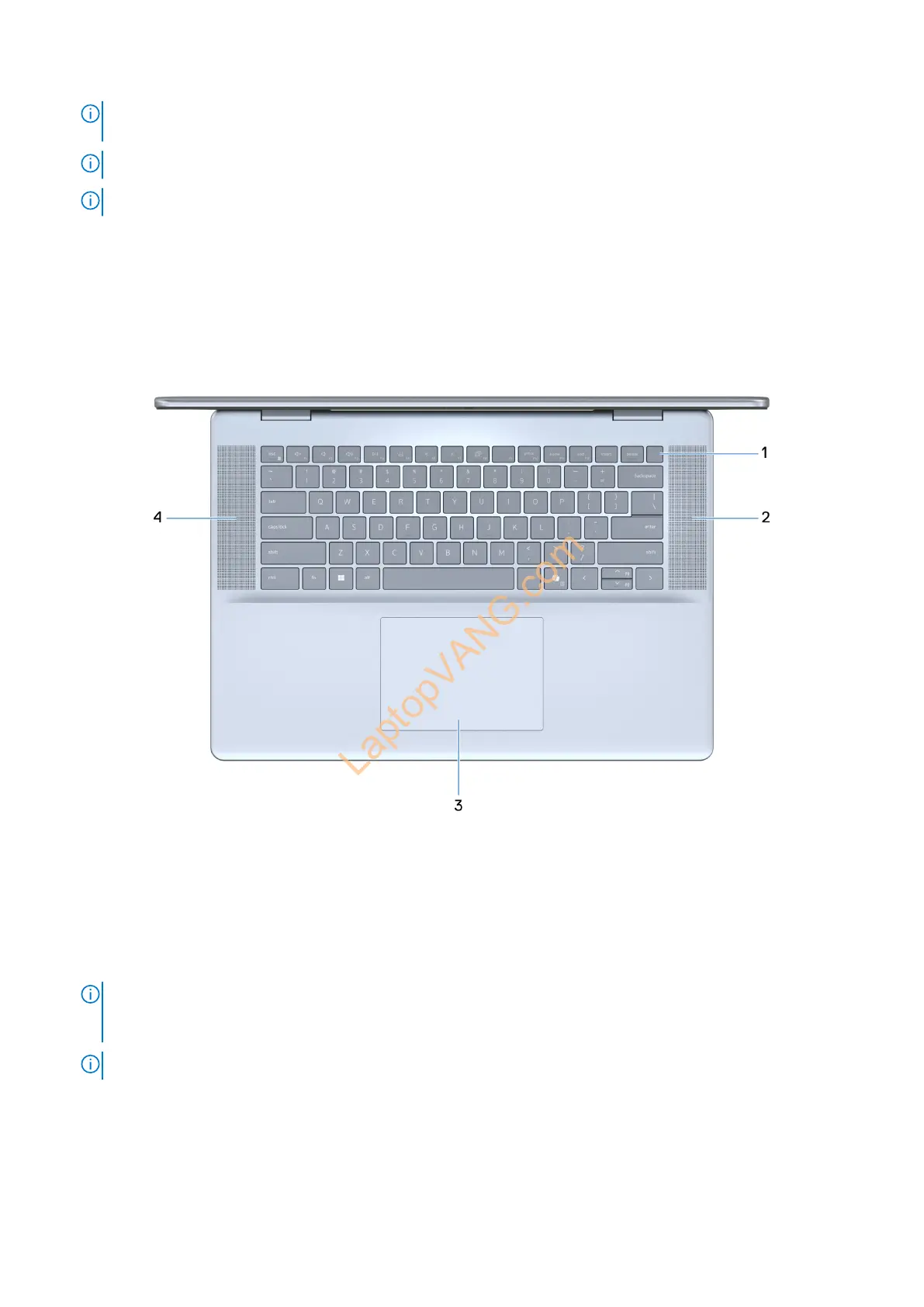
Top
Figure 3. Top view
1. Power button with optional fingerprint reader
Press to turn on the computer if it is turned off, in sleep state, or in hibernate state.
When the computer is turned on, press the power button to put the computer into a sleep state; press and hold the power
b
utton for 10 seconds to force shut-down the computer.
If the power button has a fingerprint reader, place your finger on the power button steadily to log in.
NOTE:
The power-status light on the power button is available only on computers without the fingerprint reader.
Computers that are shipped with the fingerprint reader that is integrated on the power button will not have the
power-status light on the power button.
NOTE:
You can customize the power-button behavior in Windows.
2. Right speaker
Provides audio output.
3. Touchpad
Move your finger on the touchpad to move the mouse pointer. Tap to left-click and two fingers tap to right-click.
Views of Inspiron 16 7640 2-in-1 7



 To Next Page