EasyManua.ls Logo

Dell P2720D - User Manual

Dell P2720D
63 pages
Print Icon
To Next Page IconTo Next Page
Loading...
Monitor Model: P2720D
Regulatory Model: P2720Dc
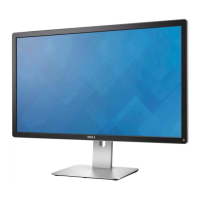
Dell 27 Monitor - P2720D
User’s Guide

Other manuals for Dell P2720D

Questions and Answers

  • E
    Eric MyersAug 20, 2025
    What to do if there is no video but the power LED is on for Dell Monitor?
    • S
      Steven SharpAug 20, 2025
      To resolve a Dell Monitor with no video but the power LED is on: * Increase brightness and contrast controls using the On-Screen Display (OSD). * Perform a monitor self-test feature check. * Check for bent or broken pins in the video cable connector. * Run the built-in diagnostics. * Ensure the correct input source is selected via the Input Source menu.
  • V
    Victoria TuckerAug 22, 2025
    How to troubleshoot shaky or jittery video on Dell Monitor?
    • D
      dfreemanAug 22, 2025
      To troubleshoot shaky or jittery video on a Dell Monitor: * Reset the monitor to Factory Settings (Factory Reset). * Check environmental factors. * Relocate the monitor and test in another room.
  • D
    Dr. Stephen DoughertyAug 25, 2025
    How to fix geometric distortion on Dell P2720D Monitor?
    • W
      wandamendozaAug 25, 2025
      To fix geometric distortion on your Dell Monitor: * Reset the monitor to Factory Settings (Factory Reset). * Adjust horizontal & vertical controls via the On-Screen Display (OSD).
  • S
    Sarah LucasAug 26, 2025
    How to correct brightness problems on Dell P2720D?
    • A
      Amanda JonesAug 26, 2025
      To correct brightness problems on a Dell Monitor: * Reset the monitor to Factory Settings (Factory Reset). * Adjust brightness & contrast controls via the On-Screen Display (OSD).
  • C
    Corey BushAug 28, 2025
    How to resolve horizontal or vertical lines on Dell P2720D Monitor?
    • J
      Jason JamesAug 28, 2025
      To resolve horizontal or vertical lines on a Dell Monitor: * Reset the monitor to Factory Settings (Factory Reset). * Perform a monitor self-test feature check to determine if these lines are also present in self-test mode. * Check for bent or broken pins in the video cable connector. * Run the built-in diagnostics.
  • D
    davidlongAug 30, 2025
    How to address synchronization problems on Dell P2720D?
    • C
      coltoncarrollAug 30, 2025
      To address synchronization problems on a Dell Monitor: * Reset the monitor to Factory Settings (Factory Reset). * Perform a monitor self-test feature check to see if the scrambled screen appears in self-test mode. * Check for bent or broken pins in the video cable connector. * Restart the computer in safe mode.
  • S
    Shelia PetersonAug 31, 2025
    How to resolve poor focus on Dell P2720D?
    • J
      Jacob VegaAug 31, 2025
      To resolve poor focus on a Dell Monitor: * Eliminate video extension cables. * Reset the monitor to Factory Settings (Factory Reset). * Change the video resolution to the correct aspect ratio.
  • K
    Kevin FischerSep 2, 2025
    What to do if Dell P2720D is missing color?
    • N
      Natalie ShannonSep 2, 2025
      If you are experiencing missing color on your Dell Monitor: * Perform a monitor self-test feature check. * Ensure the video cable connecting the monitor to the computer is properly connected and secure. * Check for bent or broken pins in the video cable connector.
  • M
    Mr. Gregory MeyerSep 4, 2025
    How to resolve video ghosting or overshooting on Dell P2720D Monitor?
    • M
      Mr. Matthew Green Jr.Sep 4, 2025
      If you see video ghosting or overshooting on your Dell Monitor, change the Response Time in the Display OSD to Fast or Normal, depending on your application and usage.
  • M
    Matthew HughesSep 6, 2025
    How to troubleshoot Dell P2720D with no video and power LED off?
    • K
      Kevin SmithSep 6, 2025
      To troubleshoot a Dell Monitor with no video and the power LED off: * Ensure the video cable connecting the monitor and the computer is properly connected and secure. * Verify the power outlet is functioning properly using other electrical equipment. * Ensure the power button is pressed. * Ensure the correct input source is selected via the Input Source menu.

Summary

Power management modes

Connectivity interfaces

USB Interface and Ports

Describes USB ports, transfer speeds, power consumption, and connector pinouts.

Initial Setup Procedures

Attaching the stand

Step-by-step instructions for attaching the monitor stand assembly.

Connecting your monitor

Guides on connecting the monitor to a computer using various cables.

Operating your monitor

Monitor Controls and OSD Navigation

Explains control buttons, OSD controls, and how to navigate the OSD menu.

Monitor Configuration

Setting the maximum resolution

Instructions on how to set the display resolution to the monitor's maximum.

Troubleshooting Guide

Self-Test and Diagnostics

Procedures for running self-tests and built-in diagnostics for monitor issues.

Common Problems and Solutions

Lists common monitor symptoms and provides possible solutions.

Appendix

Safety Instructions

Important safety warnings and guidelines for using the monitor.

Contacting Dell Support

Support Options and Contact Methods

Information on how to contact Dell support for sales, technical, or customer service.

Dell P2720D Specifications

General IconGeneral
Doesn't containBRF, PVC
Sustainability certificatesRoHS, ENERGY STAR
Feet colorBlack/Silver
CertificationTCO, NFPA 99
Product colorBlack
Market positioningBusiness
Pivot angle-90 - 90 °
Tilt angle range-5 - 21 °
Panel mounting interface100 x 100 mm
3DNo
Color gamut99 %
Pixel pitch0.233 x 0.233 mm
Screen shapeFlat
Pixel density108 ppi
Response time8 ms
Backlight typeLED
Display diagonal27 \
Display technologyLCD
Native aspect ratio16:9
Vertical scan range49 - 75 Hz
Maximum refresh rate60 Hz
Response time (fast)5 ms
Horizontal scan range29 - 113 kHz
Supported video modes480i, 480p, 576i, 576p, 720p, 1080i, 1080p, 1440p
Viewable size diagonal684.7 mm
Viewable size, vertical335.66 mm
Contrast ratio (typical)1000:1
Display number of colors16.78 million colors
Viewable size, horizontal596.74 mm
Display brightness (typical)350 cd/m²
Supported graphics resolutions640 x 480 (VGA), 720 x 400, 800 x 600 (SVGA), 1024 x 768 (XGA), 1152 x 864 (XGA+), 1280 x 1024 (SXGA), 1280 x 768 (WXGA), 1600 x 1200 (UXGA), 1680 x 1050 (WSXGA+), 1920 x 1080 (HD 1080), 1920 x 1200 (WUXGA), 2048 x 1080, 2560 x 1440
HDMI version1.4
USB hub version2.0 / 3.2 Gen 1 (3.1 Gen 1)
DisplayPort version1.2
USB upstream port typeUSB Type-B
Number of upstream ports1
VGA (D-Sub) ports quantity0
USB Type-A downstream ports quantity4
Current rating1.6 A
AC input voltage100 - 240 V
AC input frequency50 - 60 Hz
Energy efficiency scaleA to G
Power consumption (max)55 W
Power consumption (standby)0.2 W
Power consumption (typical)21.7 W
Power consumption (PowerSave)19 W
Storage temperature (T-T)-20 - 60 °C
Operating temperature (T-T)0 - 40 °C
Storage relative humidity (H-H)10 - 90 %
Operating relative humidity (H-H)10 - 80 %
Cables includedAC, DisplayPort, USB
Package depth690.12 mm
Package width424.94 mm
Package height169.93 mm
Package weight9130 g
Harmonized System (HS) code85285210
Weight and Dimensions IconWeight and Dimensions
Bezel width (top)7.4 mm
Depth (with stand)185 mm
Width (with stand)611.6 mm
Height (with stand)525.3 mm
Weight (with stand)6420 g
Bezel width (bottom)21.1 mm
Depth (without stand)43.6 mm
Height (without stand)364.1 mm
Weight (without stand)4570 g

Related product manuals