Setting Up the Monitor | 39
Using DPBS Function
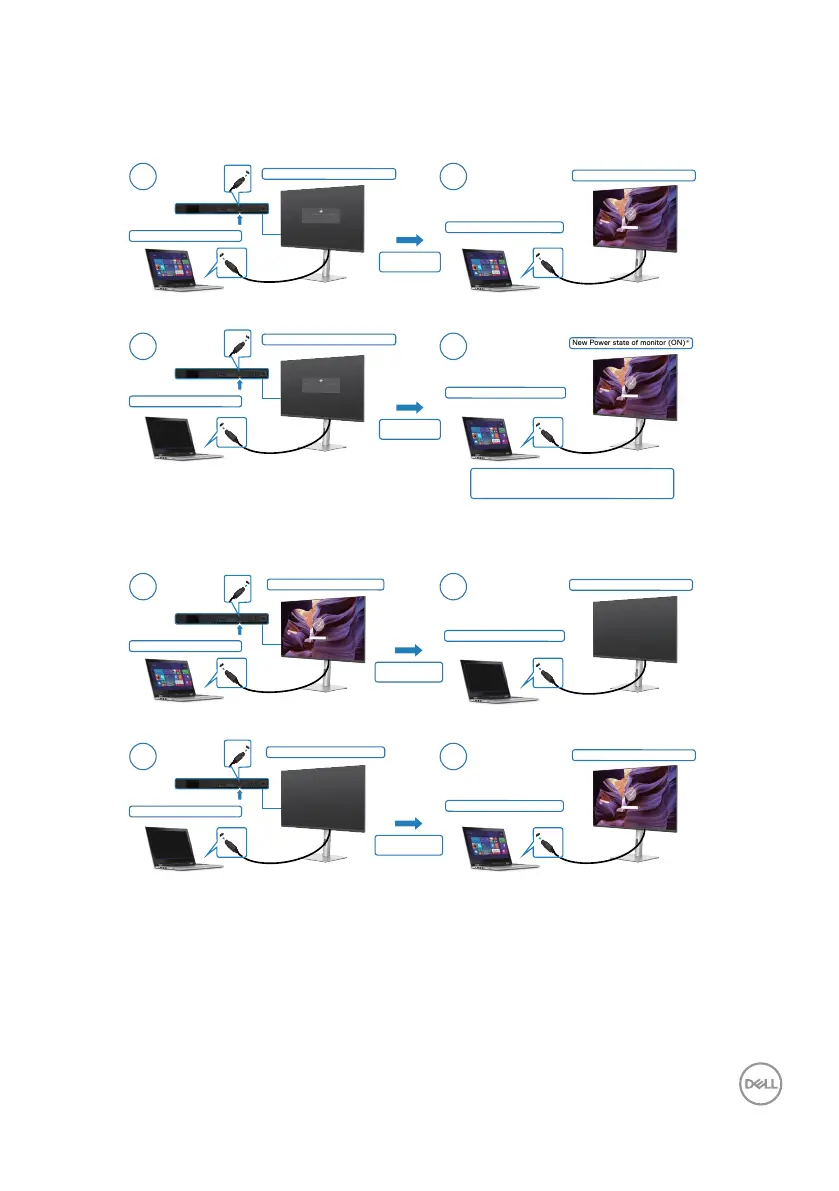
Waking on the USB-C cable
When you connect the USB-C cable, the Monitor/PC state is as follows:
No USB-C Cable
The display will go into Standby mode in 4 minutes.
www.dell.com/P3222QE
No USB-C Cable
The display will go into Standby mode in 4 minutes.
www.dell.com/P3222QE
New Power state of monitor (ON)*
Initial monitor power state (No cabel)
Initial monitor power state (No cabel)
New Power state of monitor (ON)
1 2
1 2
Initial system power state (OFF)
Initial system power state (ON)
New Power state of system (ON)*
New Power state of system (ON)
Connect USB-C
cable
Connect USB-C
cable
USB-C
USB-C
* Not all Dell PC systems support to
wake up the platform via the monitor.
USB-C
USB-C
USB-C
USB-C
When you press the monitor power button or PC power button, the Monitor/PC state
is as follows:
New Power state of monitor (ON)
New Power state of monitor (OFF)
Initial monitor power state (OFF)
Initial monitor power state (ON)
1 2
1 2
Press PC/Monitor
power button
Press PC/Monitor
power button
USB-C
USB-C
Initial system power state (OFF)
Initial system power state (ON)
New Power state of system (ON)
USB-C
USB-C
New Power state of system (OFF)
USB-C
USB-C


 To Next Page