Need help?
Do you have a question about the Dell P3223DE and is the answer not in the manual?
Lists all components included with the monitor, such as display, stand, and cables.
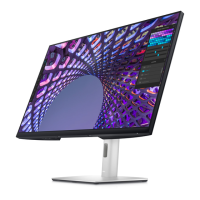
Details the key capabilities and specifications of the monitor, including resolution, connectivity, and adjustments.
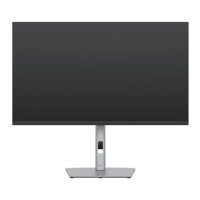
Identifies and describes the physical parts and controls of the monitor, detailing front, back, and bottom views.
Details the horizontal and vertical scan ranges and maximum resolution capabilities for optimal display.
Lists various display modes with their corresponding frequency and polarity settings for different uses.
Explains the number of external monitors supported via DisplayPort MST for daisy-chaining.
Outlines external monitor support via USB-C MST based on link rates and bit depth.
Provides details on power consumption, input voltage, frequency, and certifications like ENERGY STAR.
Lists connector types, dimensions, stand dimensions, and weight of the monitor for installation planning.
Details compliant standards, operating temperature, humidity, and thermal dissipation for usage conditions.
Shows the pin configurations for DisplayPort (in and out) and HDMI ports for connectivity reference.
Provides step-by-step instructions for securely attaching the monitor stand to the display base.
Explains how to adjust the monitor's position for optimal viewing comfort and ergonomics.
Guides users on configuring display rotation settings within their computer's operating system.
Offers advice on managing and organizing monitor cables for a tidy and efficient workspace.
Details how to connect the monitor to a computer using HDMI or DisplayPort cables for video output.
Explains how to connect multiple monitors using DisplayPort MST for daisy-chaining.
Guides users on connecting the monitor using a USB-C cable for data transfer and power delivery.
Instructs on connecting the monitor using a USB-A to USB-C cable for device compatibility.
Explains how to connect the monitor for network connectivity using an RJ45 Ethernet cable.
Describes the feature that syncs the monitor's power button with the PC's power state for unified control.
Provides initial setup steps for configuring the Dell Power Button Sync (DPBS) feature.
Explains how DPBS functions for waking and sleeping the monitor and PC in sync.
Details the procedure for safely detaching the monitor stand from the display unit.
Provides instructions for mounting the monitor on a wall using a VESA-compatible mounting kit.
Simple instruction on how to power on the monitor using its physical power button.
Explains how to use the joystick for navigating and interacting with the On-Screen Display (OSD) menus.
Describes how to access and utilize the monitor's quick menu launcher for common adjustments.
Details the icons and functions available in the menu launcher for quick access to settings.
Explains the function of each physical button on the monitor's front panel for user interaction.
Guides users through adjusting Brightness/Contrast settings via the main OSD menu interface.
Explains how to select different video input sources connected to the monitor via the OSD.
Describes how to adjust color settings and select from various preset color modes for desired visuals.
Explains how to set the video input mode between RGB and YCbCr formats for compatibility.
Details how to adjust image settings like aspect ratio, response time, and MST functionality.
Covers OSD language, rotation, transparency, and timer settings configuration for user preferences.
Explains how to lock/unlock the monitor's control buttons to prevent unintended access or changes.
Allows customization of shortcut keys, power LED state, and USB charging behavior for user convenience.
Provides access to OSD settings like Display Info, DDC/CI, and LCD Conditioning for advanced configuration.
Explains the Display Data Channel/Command Interface feature for software-based monitor parameter control.
Describes a feature to help reduce minor cases of image retention on the screen.
Displays the monitor's current firmware version for reference.
Provides the monitor's unique service tag for identification and warranty information.
Guides users on running the monitor's built-in diagnostic tool to check for screen abnormalities.
Resets all settings within the 'Others' OSD menu to their factory defaults.
Restores all monitor settings to their original factory defaults for a clean slate.
Explains how to lock the front-panel control buttons to prevent unauthorized access or accidental changes.
Guides users on how to unlock the monitor's control buttons after they have been locked.
Describes the process of performing a factory reset and its implications on monitor settings.
Explains common warning messages that may be displayed by the monitor during operation.
Provides instructions for setting the monitor to its maximum resolution within the Windows operating system.
Explains how to run a self-test to diagnose potential monitor functionality issues without a computer connection.
Guides users on using the monitor's built-in diagnostic tool for identifying screen abnormalities.
Lists common monitor issues encountered by users and their potential solutions.
Addresses problems specific to the monitor's features, connectivity, and components.
Details troubleshooting steps for specific issues related to the monitor's USB interfaces and connectivity.
Provides information on regulatory compliance and FCC notices for US users.
Offers various methods to contact Dell for technical support, sales, and customer service.
Provides a link to the EU product database for energy label and product information.
 General
| Pixel pitch | 0.2727 x 0.2727 mm |
|---|---|
| Screen shape | Flat |
| Pixel density | 93.24 ppi |
| Backlight type | LED |
| Display diagonal | 31.5 \ |
| Anti-glare screen | Yes |
| Display technology | LCD |
| Native aspect ratio | 16:9 |
| Vertical scan range | 56 - 76 Hz |
| Maximum refresh rate | 60 Hz |
| Response time (fast) | 8 ms |
| Horizontal scan range | 30 - 90 kHz |
| Supported video modes | 480p, 576p, 720p, 1080i, 1080p |
| Viewable size diagonal | 800.01 mm |
| Viewable size, vertical | 392.69 mm |
| sRGB coverage (typical) | 99 % |
| Contrast ratio (typical) | 1000:1 |
| Display number of colors | 1.07 billion colors |
| Display diagonal (metric) | 80 cm |
| Viewable size, horizontal | 698.11 mm |
| Display brightness (typical) | 350 cd/m² |
| Tilt angle range | -5 - 21 ° |
| Panel mounting interface | 100 x 100 mm |
| USB hub version | 3.2 Gen 1 (3.1 Gen 1) |
| Charging port type | USB Type-C |
| DisplayPort version | 1.4 |
| USB Power Delivery up to | 90 W |
| VGA (D-Sub) ports quantity | 0 |
| USB Type-A downstream ports quantity | 4 |
| Input current | 2.3 A |
| AC input voltage | 100 - 240 V |
| Power supply type | Internal |
| AC input frequency | 50 - 60 Hz |
| Energy efficiency scale | A to G |
| Power consumption (max) | 183 W |
| Power consumption (standby) | 0.3 W |
| Power consumption (typical) | 29.9 W |
| Cables included | AC, DisplayPort, USB Type-A to USB Type-C, USB Type-C to USB Type-C |
| DisplayPort cable length | 1.8 m |
| Package weight | 15320 g |
| Doesn't contain | PVC/BFR |
| Sustainability certificates | ENERGY STAR, RoHS, TCO |
| Feet color | Silver |
| Product color | Black |
| Heavy metals free | Hg (mercury) |
| Market positioning | Business |
| Operating altitude | 0 - 5000 m |
| Non-operating altitude | 5000 - 12192 m |
| Storage temperature (T-T) | -20 - 60 °C |
| Operating temperature (T-T) | 0 - 40 °C |
| Storage relative humidity (H-H) | 5 - 90 % |
| Operating relative humidity (H-H) | 20 - 80 % |
| Harmonized System (HS) code | 85285210 |
 Weight and Dimensions
| Bezel width (top) | 7.57 mm |
|---|---|
| Bezel width (side) | 7.55 mm |
| Depth (with stand) | 230.1 mm |
| Width (with stand) | 712.42 mm |
| Height (with stand) | 617.15 mm |
| Weight (with stand) | 11330 g |
| Bezel width (bottom) | 17.4 mm |
| Depth (without stand) | 54.05 mm |
| Height (without stand) | 417.1 mm |
| Weight (without stand) | 7060 g |

 To Next Page