Back to Contents Page
SD Card Reader
DellPrecision™ServiceManual
Removing the SD Card Reader
Replacing the SD Card Reader
Removing the SD Card Reader
1. Follow the procedures in Before Working on Your Computer.
2. Remove the hard drive (see Removing the Hard Drive).
3. Remove the modular drive (see Removing the Modular Drive).
4. Remove the bottom of the base assembly (see Removing the Bottom of the Base Assembly).
5. Remove the display assembly (see Removing the Display Assembly).
6. Remove the keyboard (see Removing the Keyboard).
7. Remove the palm rest assembly (Removing the Palm Rest Assembly).
8. If a card is in the SD card reader, remove the card.
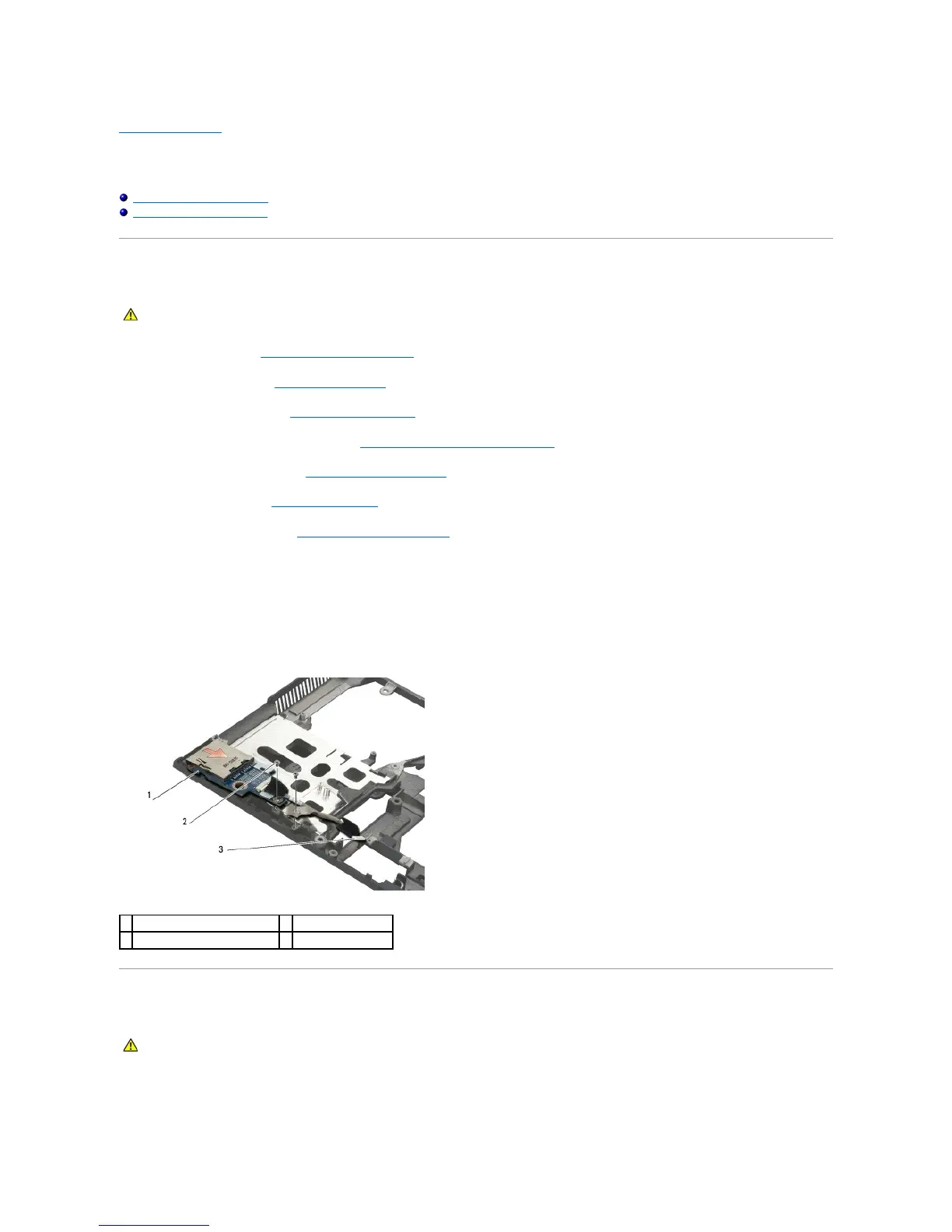
9. Disconnect the SD card reader cable from the system board.
10. Remove the two M2.5 x 3-mm screws that secure the SD card reader.
11. Remove the SD card reader assembly from the base assembly.
Replacing the SD Card Reader
1. Position the SD card reader in the base assembly.
2. Replace the two M2.5 x 3-mm screws to secure the SD card reader.


 To Next Page