Back to Contents Page
Using Networks
DellPrecision™M90User'sGuide
Physically Connecting to a Network or Broadband Modem
Network Setup Wizard
Wireless Local Area Network (WLAN)
Connecting to a WLAN
Mobile Broadband
Internet Connection Firewall
Physically Connecting to a Network or Broadband Modem
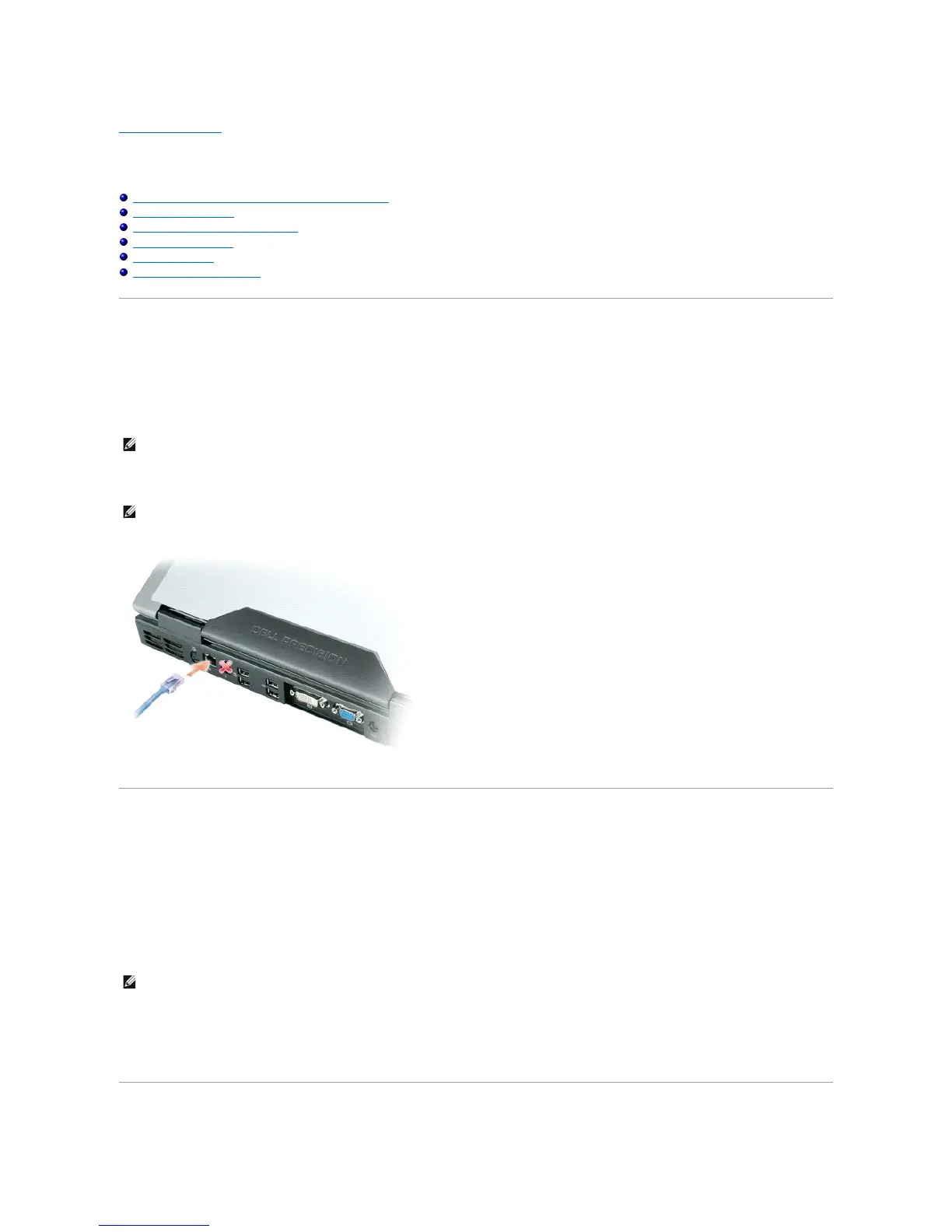
Before you connect your computer to a network, the computer must have a network adapter installed and a network cable connected to it.
To connect a network cable:
1. Connect the network cable to the network adapter connector on the back of your computer.
2. Connect the other end of the network cable to a network connection device or a network wall connector.
Network Setup Wizard
The Microsoft®Windows®XP operating system provides a Network Setup Wizard to guide you through the process of sharing files, printers, or an Internet
connection between computers in a home or small office.
1. Click the Start button, point to All Programs® Accessories® Communications, and then click Network Setup Wizard.
2. On the welcome screen, click Next.
3. Click Checklist for creating a network.
4. Complete the checklist.
5. Return to the Network Setup Wizard and follow the instructions on the screen.



 To Next Page