EasyManua.ls Logo

Dell SC4020 - User Manual

Dell SC4020
27 pages
Print Icon
To Next Page IconTo Next Page
Loading...
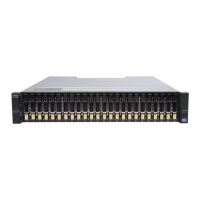
SC4020 Storage System
Owner’s Manual
July 2017
Rev. I

Other manuals for Dell SC4020

Questions and Answers

  • C
    Christopher RodriguezJul 27, 2025
    What to do if the Dell SC4020 Center Startup Wizard cannot be completed and updates cannot be checked?
    • M
      Michele BrayJul 28, 2025
      If you cannot complete the Storage Center Startup Wizard and are unable to check for updates, the management network might be using a proxy server that is blocking communication with the SupportAssist server. To resolve this: Use the Command Line Interface (CLI) to configure a proxy server for SupportAssist operations: 1. Establish a serial connection to the top storage controller. 2. Run the following commands: * `mc values set UsePhHomeProxy true` * `mc values set PhHomeProxyString [proxy server IP address]` * `mc values set PhHomeProxyUserName [proxy server username]` * `mc values set PhPomeProxyPassword [proxy server password]` 3. Complete the Storage Center Startup Wizard. 4. Check for Storage Center updates.
  • S
    stacey27Aug 1, 2025
    Why does the Dell SC4020 Storage license file show as invalid?
    • S
      sericksonAug 1, 2025
      The license file may be invalid if you try to apply it before the storage controllers are joined, and the license file is applied to the storage controller with the higher serial number. Ensure that all Storage Center setup steps are followed in order and try again. Connect to the IP address of the storage controller with the lower serial number, and ensure the serial number in the license file name matches the storage controller.
  • R
    robin01Aug 6, 2025
    What to do if expected disks or expansion enclosure are missing in Dell Storage?
    • A
      April HartAug 6, 2025
      If expected disks or an expansion enclosure are missing, it might be necessary to update the software or firmware to use the attached expansion enclosure or drives. Check the back-end cabling and the expansion enclosure power state. Also, check for Storage Center updates and install them.
  • H
    hillmatthewAug 11, 2025
    How to fix expansion enclosure firmware update failure in Dell Storage?
    • J
      Joshua WrightAug 11, 2025
      If an expansion enclosure firmware update fails, the back-end cabling might not be redundant. Check the back-end cabling and ensure that redundant connections are used.
  • M
    Michelle MeadowsAug 16, 2025
    What to do if Dell Storage Startup Wizard finds no disks?
    • J
      James HillAug 16, 2025
      If the Startup Wizard finds no disks attached to the Storage Center, you may need to update the software or firmware to use the attached expansion enclosure. To resolve this, click 'Quit', check for Storage Center updates, and install any available updates. Then, complete the Storage Center Startup Wizard.
  • M
    Mary KempAug 21, 2025
    How to troubleshoot serial connection to Dell Storage controller?
    • S
      Samantha HarveyAug 21, 2025
      If you are unable to connect to a storage controller with a serial connection, it may be due to communication problems. To resolve this: * Disconnect and reconnect the serial cable. * Verify the connection settings. * Replace the serial cable.

Summary

2 Replacing SC4020 Storage System Components

Safety Precautions

General safety guidelines to avoid personal injury and equipment damage.

Electrical Safety Precautions

Electrical safety measures to prevent injury and damage during component replacement.

Electrostatic Discharge Precautions

ESD precautions to protect equipment from static discharge damage.

General Safety Precautions

General safety rules for working with storage system equipment and components.

Pre-Replacement Procedures

Steps to perform before replacing any SC4020 storage system component.

Send Diagnostic Data Using Dell SupportAssist

Procedure to send diagnostic data to Dell Technical Support before replacement.

Contacting Dell Technical Support

Guidance on contacting Dell support for repair assistance and system checks.

Shut Down the Storage System

Instructions for safely shutting down the SC4020 storage system using the Dell Storage Manager Client.

Replacing Hard Drives

Procedure for replacing hot-swappable hard drives in the SC4020 storage system.

Identify the Failed Hard Drive

Steps to identify a failed hard drive using the Dell Storage Manager Client and hardware alerts.

Replace a Hard Drive

Detailed procedure for replacing a single failed hard drive in the SC4020 storage system.

Post-Replacement Procedures

Steps to perform after replacing a component, including starting up and sending data.

Start Up the Storage Controller

Procedure to power on and start up the storage controller after shutdown.

Power Up the Storage Center Hardware

Steps to power up the SC4020 storage system and its expansion enclosures after an outage.

3 SC4020 Storage System Technical Specifications

Dell SC4020 Specifications

General IconGeneral
Storage drive size2.5 \
Storage drive capacity1900 GB
Storage drive interfaceSerial Attached SCSI (SAS)
Storage drives installedYes
Installed storage drive typeSSD
Supported storage drive typesHDD & SSD
Total installed storage capacity11.4 TB
Maximum supported storage capacity- TB
Number of storage drives installed6
Number of storage drives supported24
Chassis typeRack (2U)
Product colorBlack, Silver
Device classLarge Enterprise Business
Dell E-Value CodeSC4020FC
Supported network protocolsiSCSI
Number of power supply units1
Power supply unit (PSU) capacity580 W

Related product manuals